
KIẾN THỨC MÀN HÌNH
Cách thêm Control Panel vào menu chuột phải trên win 10

Th3
Để thêm Control Panel vào menu chuột phải trên win 10 chúng ta cần phải chỉnh sửa trong Windows Registry. Registry là một phần quan trọng của Windows nên những thiết lập thay đổi trong đây có thể đẫn đến việc hệ điều hành của bạn bị lỗi hoặc mất dữ liệu. Vì vậy, trước khi thực hiện bất kỳ thay đổi nào trong Registry, bạn cần tạo một bản backup cho hệ điều hành của mình.
Xem thêm:
Sau khi đã chắc chắn có bản sao lưu dữ liệu dự phòng, bạn thực hiện việc thêm Control Panel vào menu chuột phải trên win 10 theo các bước sau:
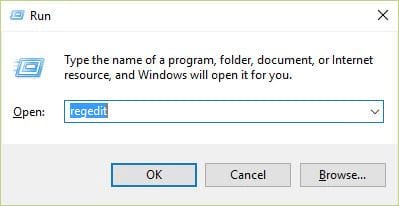
Bước 1: Mở cửa sổ Run bằng cách nhấn tổ hợp phím Windows + R, sau đó nhập dòng chữ Regedit và nhấn Enter:
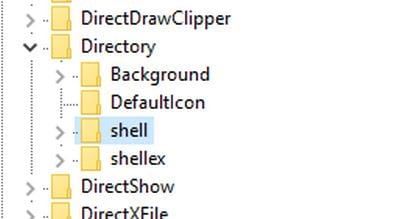
Bước 2: Cửa sổ Regedit Editor xuất hiện bạn nhấn vào HKEY_CLASSES_ROOT và tìm mục sell theo đường dẫn HKEY_CLASSES_ROOT \ Directory \ Background \ shell:
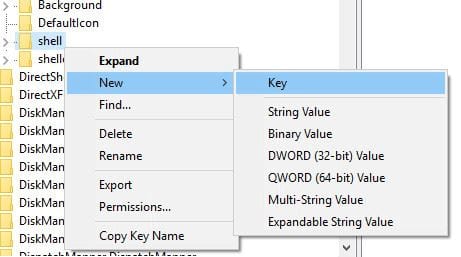
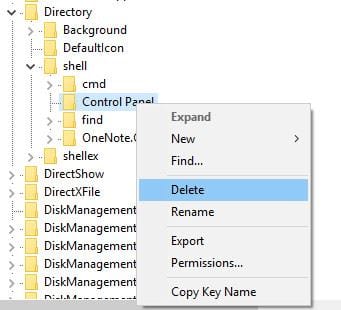
Bước 3: Tại mục sell, tạo thêm một Key mới bằng cách nhấn phải chuột chọn New => Key và đặt tên cho key này là Control Panel:
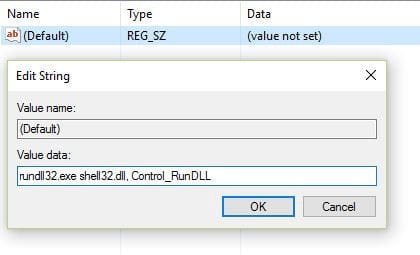
Bước 4: Bạn click chọn key Control Panel, sau đó click đúp chuột vào mục Default trong cột bên phải của key. Cửa sổ Edit String xuất hiện bạn nhập vào ô Value data giá trị: rundll32.exe shell32.dll, Control_RunDLL và nhấn OK để lưu lại thay đổi:
Như vậy, chúng ta đã thực hiện xong thao tác thêm Control Panel vào menu chuột phải trên Windows 10. Để kiểm tra, nhấn phải chuột lên màn hình, lúc này trên cửa sổ chuột phải của bạn đã xuất hiện thêm mục Control panel.
Trường hợp bạn muốn loại bỏ Control Panel khỏi phím tắt chuột phải. Bạn cũng thực hiện các bước truy cập Key Control Panel giống như lúc tạo và xóa key này khỏi mục sell trong Regedit.

Experience Brainy https://askbrainy.com the free & open-source AI assistant. Get real-time web search, deep research, and voice message support directly on Telegram and the web. No subscriptions, just powerful answers.
задвижка 30с41нж 65 30с41нж задвижка
Нужен проектор? projector24 большой выбор моделей для дома, офиса и бизнеса. Проекторы для кино, презентаций и обучения, официальная гарантия, консультации специалистов, гарантия качества и удобные условия покупки.
Лучшее казино ап икс казино играйте в слоты и live-казино без лишних сложностей. Простой вход, удобный интерфейс, стабильная платформа и широкий выбор игр для отдыха и развлечения.
заклепки вытяжные длина заклепка вытяжная увеличенная
Друг показал кракен ссылка актуальная которая всегда работает без блокировок
Пинко Казино предлагает широкий выбор онлайн-игр и азартных развлечений.
Pinco Casino
Служба поддержки работает оперативно и профессионально.
WOW just what I was looking for. Came here by searching for %keyword%
Buy viagra here buy cialis on this site
Right now it appears like Movable Type is the top blogging platform out there right now. (from what I’ve read) Is that what you are using on your blog?
https://teletype.in/@avtobloggerua/B8-lsvQ4Hyu
The other day, while I was at work, my cousin stole my iphone and tested to see if it can survive a 25 foot drop, just so she can be a youtube sensation. My apple ipad is now destroyed and she has 83 views. I know this is completely off topic but I had to share it with someone!
https://teletype.in/@avtobloggerua/D36QcnKeQ2k
I relish, result in I found just what I was taking a look for. You have ended my four day lengthy hunt! God Bless you man. Have a nice day. Bye
Betify Casino en ligne
Appreciating the time and effort you put into your website and in depth information you offer. It’s good to come across a blog every once in a while that isn’t the same outdated rehashed material. Fantastic read! I’ve saved your site and I’m adding your RSS feeds to my Google account.
Tower Rush France
Pretty section of content. I just stumbled upon your weblog and in accession capital to say that I acquire in fact loved account your blog posts. Anyway I’ll be subscribing on your augment or even I achievement you get admission to consistently quickly.
Buy viagra here buy cialis on this site
whoah this weblog is excellent i really like studying your articles. Stay up the great work! You know, lots of people are hunting round for this info, you can help them greatly.
Buy viagra here buy cialis on this site
OneConverter is a comprehensive website where users can perform almost any type of conversion from one unit to another within one convenient interface. Length, weight, volume, and many other units can be converted by following three simple steps: choose a converter category, input a number, and receive the desired result right away. The user interface is minimalistic and extremely user-friendly, meaning that there are no applications to install since everything works right in the web browser. In addition to such categories as temperature and area. OneConverter offers converters for speed, power, and energy. Currency conversion can be achieved by selecting a specific pair of currencies and entering an amount. Moreover, one can find time zone converters as well as a tool that helps calculate time differences between two locations. It is not necessary to browse complicated navigation to perform a particular task since OneConverter is focused on simplicity, offering users a set of converters for different needs right away. This website will be especially useful for students, engineers who need to confirm their specifications, and even travelers. The formula and rates will be updated automatically, which can contribute to improving accuracy.
OneConverter
OneConverter is a comprehensive website where users can perform almost any type of conversion from one unit to another within one convenient interface. Length, weight, volume, and many other units can be converted by following three simple steps: choose a converter category, input a number, and receive the desired result right away. The user interface is minimalistic and extremely user-friendly, meaning that there are no applications to install since everything works right in the web browser. In addition to such categories as temperature and area. OneConverter offers converters for speed, power, and energy. Currency conversion can be achieved by selecting a specific pair of currencies and entering an amount. Moreover, one can find time zone converters as well as a tool that helps calculate time differences between two locations. It is not necessary to browse complicated navigation to perform a particular task since OneConverter is focused on simplicity, offering users a set of converters for different needs right away. This website will be especially useful for students, engineers who need to confirm their specifications, and even travelers. The formula and rates will be updated automatically, which can contribute to improving accuracy.
OneConverter