
XỬ LÝ LỖI MÀN HÌNH
Cách zoom màn hình máy tính đơn giản với Magnigier trên Windows7

Th3
Trong quá trình làm việc, đôi khi bạn cần điều chỉnh phóng to hay thu nhỏ màn hình. Tuy nhiên, không phải ai cũng biết cách zoom màn hình máy tính. Với công cụ zoom màn hình Magnigier có sẵn trên hệ điều hành win 7, bạn không cần cài thêm bất cứ phần mềm nào để điều chỉnh thu nhỏ hay phóng to màn hình nữa.
Có thể bạn quan tâm:
Cách sửa lỗi màn hình máy tính bị xoay ngang
Cách khởi chạy Magnifier để zoom màn hình
Có khá nhiều cách khởi chạy Magnifier nhưng bài viết sau sẽ giới thiệu bạn 3 cách để khởi chạy Magnifier.
Cách 1: Nhấn tổ hợp phím Windows + “dấu +”
Cách 2: Chọn Start -> All programs -> Accessories -> Ease of Access-> Magnifier:
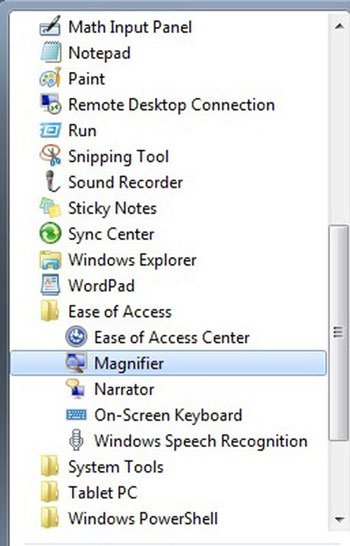
Cách 3: Gõ từ khóa Magnifier trong hộp tìm kiếm của Menu Start:

Cách zoom màn hình máy tính với Magnigier
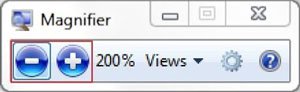
Có hai nút để bạn điều chỉnh mức độ phóng to hay thu nhỏ là nút “+” và “-“. Bạn có thể chỉnh đến khi nào cảm thấy tỷ lệ đó là phù hợp với nhu cầu của bản thân.
Hoặc bạn có thể chọn cách hiển thị Magnifier: Full Screen, Lens và Docked:
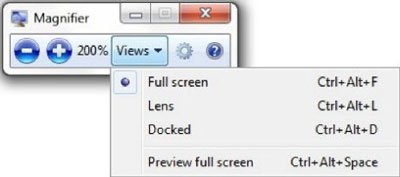
Trong đó:
- Full Screen: Toàn màn hình của bạn sẽ được phóng đại.
- Lens: Khu vực xung quanh con trỏ chuột sẽ được phóng đại. Khi bạn rê chuột đến đâu, nội dung trong vùng đó sẽ được hiển thị theo tỷ lệ bạn đã chọn.
- Docked: Cho phép bạn chỉ phóng đại một phần của màn hình, phần còn lại vẫn bình thường.
Để tạo độ zoom màn hình vừa ý, bạn chọn nút Options, sau đó tùy chỉnh bật tắt các tùy chọn bạn cần như sau:
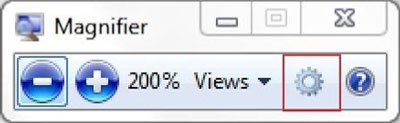
Trong đó:
- Turn on color inversion: Tăng sự tương phản màu sắc giữa các đối tượng trên màn hình của bạn, giúp bạn dễ theo dõi hơn.
- Follow the mouse pointer: Hiển thị con trỏ chuột trong cửa sổ Magnifier.
- Follow the keyboard focus: Hiển thị vùng xung quanh con trỏ chuột khi bạn nhấn phím tab hoặc phím mũi tên.
- Have Magnifier follow the text insertion point: Hiển thị vùng xung quanh chữ mà bạn vừa gõ.
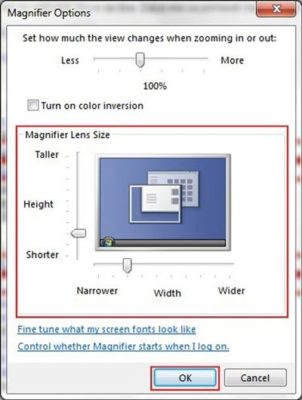
Và cuối cùng, khi bạn dùng chế độ Lens, nút Options sẽ cho phép bạn dịch chuyển thanh cuộn để điều chỉnh diện tích của vùng Lens cần thay đổi tỷ lệ quan sát.
Trên đây là cách zoom màn hình máy tính đơn giản với Magnifier trên Windows 7. Hy vọng với những thông tin này, bạn sẽ có thể làm việc tốt trên máy tính.

**mitolyn reviews**
Mitolyn is a carefully developed, plant-based formula created to help support metabolic efficiency and encourage healthy, lasting weight management.
For those seeking an exceptional online gaming experience, us.com](https://maxispin.us.com/) stands out as a premier destination. At Maxispin Casino, players can enjoy a vast array of pokies, table games, and other thrilling options, all accessible in both demo and real-money modes. The casino offers attractive bonuses, including free spins and a generous welcome offer, along with cashback promotions and engaging tournaments. To ensure a seamless experience, Maxispin provides various payment methods, efficient withdrawal processes, and reliable customer support through live chat. Security is a top priority, with robust safety measures and a strong focus on responsible gambling tools. Players can easily navigate the site, with detailed guides on account creation, verification, and payment methods. Whether you’re interested in high RTP slots, hold and win pokies, or the latest slot releases, Maxispin Casino delivers a user-friendly and secure platform. Explore their terms and conditions, read reviews, and discover why many consider Maxispin a legitimate and trustworthy choice in Australia.
The platform provides state-of-the-art tools to create unique and captivating text content.
**Features of MaxiSpin.us.com**
The interface of MaxiSpin.us.com is both intuitive and simple to navigate.
**Benefits of Using MaxiSpin.us.com**
Individuals and small businesses can equally benefit from MaxiSpin.us.com.
Если ищете площадки для обсуждений, пригодится список форумов xrumer с активными пользователями.
Discover the thrill of real-money live casino action at European vs American roulette odds Maxispin, where you can enjoy live dealers, top software providers, and exclusive promotions.
The site’s navigation is simple and accessible, helping newcomers get started quickly.
В этой статье-обзоре мы соберем актуальную информацию и интересные факты, которые освещают важные темы. Читатели смогут ознакомиться с различными мнениями и подходами, что позволит им расширить кругозор и глубже понять обсуждаемые вопросы.
Узнать больше – https://vivod-iz-zapoya-2.ru/
profitable-pokies-top-australian-profitable-pokies
Also visit my web site :: real [Kris]
711-casino-be-2026-review
Look into my webpage; spins
bet-alise-casino-no-deposit-bonus
My page – machine (Rosita)
les-avantages-de-jouer-dans-les-casinos-belges-en-direct-en-ligne
Also visit my web-site – gold
online-roulette-simulator
Feel free to visit my web-site … bingo (http://www.Helsam.Nu)
numero-de-la-ruleta-casino
my web site – blackj (Justina)
maximum-bet-on-roulette-canada
Feel free to visit my web blog bonus (Christy)
Суть капельницы заключается в том, чтобы быстро ввести в организм необходимые растворы, которые помогают восстановить водно-солевой баланс, очищают организм от токсинов, ускоряют обмен веществ и снижают нагрузку на внутренние органы. Врачи-наркологи используют специальные составы, которые включают в себя жидкости, электролиты, витамины и лекарственные средства для снятия симптомов похмелья.
Узнать больше – kapelnicza-ot-pokhmelya-nizhnij-novgorod-2.ru/
Основной этап включает постановку капельницы с растворами, направленными на выведение токсинов, восстановление водно-солевого баланса и нормализацию работы внутренних органов. В состав могут входить витамины, седативные препараты, гепатопротекторы и кардиопротекторные средства. В случае ломки и снятия симптомов зависимости у больного, все препараты подбираются индивидуально, чтобы минимизировать дискомфорт и ускорить восстановление.
Получить больше информации – вызвать нарколога на дом самара
Для Воронежа выездной формат особенно востребован вечером, ночью и ранним утром, когда у больного резко усиливаются симптомы и поездка в медицинское учреждение становится тяжёлой или просто нереальной. Если человек несколько дней употреблял алкоголь, почти не спал, плохо переносит воду, жалуется на сердцебиение и слабость, то откладывать осмотр не стоит. Срочная наркологическая помощь нужна именно тогда, когда ситуация развивается быстро, а семья уже видит, что своими силами справиться не удаётся. Врач приезжает, проводит осмотр, определяет, нет ли признаков осложнений, и уже на месте решает, какие меры допустимы дома, а какие требуют другого формата оказания помощи.
Узнать больше – нарколог на дом вывод
Вывод из запоя на дому в Санкт-Петербурге с подбором терапии, наблюдением врача и комфортным лечением в наркологической клинике «Частный медик 24»
Получить дополнительные сведения – нарколог на дом вывод из запоя санкт-петербург
В некоторых случаях капельница может быть использована не только для снятия симптомов похмелья, но и для восстановления организма после длительного запоя или при хроническом алкоголизме, когда организм особенно ослаблен. В таких случаях лечение должно проводиться под контролем квалифицированных специалистов, чтобы избежать осложнений и ускорить восстановление.
Выяснить больше – капельница от похмелья в самаре
В Екатеринбурге наркологическая клиника «Частный медик 24» предоставляет анонимную помощь при похмелье и алкогольной интоксикации. Услуга выезда нарколога на дом позволяет пациенту получить лечение в безопасной обстановке, не выходя из дома. Это идеальное решение для тех, кто не хочет, чтобы их зависимость была раскрыта, или кто по каким-либо причинам не может или не хочет посещать клинику.
Получить дополнительную информацию – https://kapelnicza-ot-pokhmelya-ekaterinburg-6.ru
Вывод из запоя на дому — это формат наркологической помощи, при котором детоксикация и стабилизация состояния проводятся в привычной для пациента обстановке. Такой подход позволяет начать лечение без задержек и снизить нагрузку на организм, связанную с транспортировкой. В наркологической клинике «Частный медик 24» помощь организована круглосуточно: врач выезжает сразу после обращения и проводит терапию с учётом текущего состояния пациента.
Выяснить больше – вывод из запоя на дому
Discover the amazing features of hghjfjdossa and elevate your experience today.
Prospects for hghjfjdossa suggest a bright and dynamic future.
Вывод из запоя в стационаре — это формат медицинской помощи, при котором пациент находится под круглосуточным наблюдением и получает лечение в контролируемых условиях. Такой подход применяется в ситуациях, когда состояние нестабильно или есть риски осложнений. В наркологической клинике «Частный медик 24» в Нижнем Новгороде стационарная помощь выстраивается по принципу поэтапной стабилизации: от первичного осмотра и оценки рисков до достижения устойчивых показателей и перехода к восстановлению.
Углубиться в тему – вывод из запоя клиника
Срочный домашний выезд особенно важен для семей, которые уже сталкивались с тяжёлыми последствиями алкоголизма и понимают, что обычные попытки «отпаивания» не решают проблему. Врач оценивает не только факт употребления, но и длительность запоя, возраст, наличие хронических болезней, уже принятые медикаменты, риск абстинентного синдрома, состояние сердца и общую нагрузку на организм. Такой формат позволяет анонимно вызвать специалиста, быстро провести необходимые вмешательства и определить, нужен ли только домашний вывод из острого состояния или дальше потребуется кодирование, повторная консультация, реабилитация либо более широкий маршрут помощи при наркомании.
Детальнее – вызвать нарколога на дом воронеж
Нарколог на дом — это услуга, которая позволяет получить медицинскую помощь в комфортной и привычной обстановке, не выходя из дома. В наркологической клинике «Частный медик 24» в Самаре мы предоставляем профессиональную помощь нарколога прямо на дому. Это идеальное решение для тех, кто испытывает симптомы абстиненции, ломки или алкогольной интоксикации, но не может или не хочет ехать в клинику. Выезд врача на дом позволяет начать лечение сразу, без задержек, минимизируя стрессы и сложности, связанные с поездкой.
Выяснить больше – http://www.domen.ru
Капельница от похмелья используется в тех случаях, когда симптомы интоксикации становятся слишком выраженными, чтобы пациент мог справиться с ними самостоятельно. Важно понимать, что капельница — это не только способ облегчить состояние пациента, но и метод профилактики осложнений, таких как хроническая интоксикация, нарушения работы внутренних органов и нервной системы. Вот основные симптомы, при которых рекомендуется вызвать нарколога на дом для проведения капельницы:
Выяснить больше – капельница от похмелья
Запой сопровождается выраженной интоксикацией, нарушением сна, нестабильностью давления и изменениями в работе нервной системы. При длительном течении состояние может ухудшаться, и самостоятельный выход становится затруднённым. В таких случаях стационар рассматривается как пространство, где можно безопасно стабилизировать показатели и обеспечить постепенное восстановление.
Выяснить больше – вывод из запоя круглосуточно в нижнем новгороде
Есть состояния, при которых откладывать обращение не стоит. Ниже перечислены признаки, при которых вызывать врача на дом разумно именно в ближайшее время, а не после очередной неудачной попытки «перележать» тяжёлый период самостоятельно.
Подробнее – врач нарколог на дом в воронеже
Наркологический стационар с комфортными условиями сочетает в себе высококлассное медицинское обслуживание и удобства, которые способствуют более быстрому восстановлению пациента. В таких клиниках пациенты не только получают лечение от зависимости, но и имеют возможность восстановиться в комфортных условиях, что важно для психоэмоционального состояния. Комфортные условия способствуют улучшению настроения, уменьшению стресса и созданию более эффективной атмосферы для лечения. В случае запоя или алкоголизма врач может предоставить помощь на дому, чтобы стабилизировать состояние пациента до перевода в стационар.
Углубиться в тему – http://narkologicheskij-staczionar-sankt-peterburg-4.ru
Капельница от похмелья — это медицинская процедура, направленная на быстрое восстановление организма после алкогольной интоксикации. Ее состав подбирается индивидуально с учетом состояния пациента, степени обезвоживания, выраженности симптомов и наличия сопутствующих заболеваний. В отличие от самостоятельных попыток «отпиться» или принять таблетки, внутривенное введение растворов позволяет действующим веществам сразу поступать в кровь, минуя желудочно-кишечный тракт, что обеспечивает более быстрый и выраженный эффект.
Исследовать вопрос подробнее – капельница от похмелья в самаре
Капельницы помогают не только справиться с симптомами похмелья, но и с выводом токсинов из организма, что способствует его быстрому восстановлению. Этот метод позволяет минимизировать последствия, такие как головная боль, нарушение давления и общее недомогание.
Получить больше информации – капельница от похмелья анонимно в самаре
Детоксикация на дому начинается с осмотра пациента. Доктора оценивают витальные показатели, уровень сознания и выраженность симптомов, анализируя текущие данные. После этого формируется план лечения, который реализуется сразу. Такой подход позволяет сократить время до начала терапии и повысить её эффективность.
Узнать больше – нарколог на дом вывод из запоя санкт-петербург
После употребления алкоголя организм подвергается сильной нагрузке, и для его нормализации требуется вмешательство профессионалов. Капельница от похмелья помогает организму быстро избавиться от токсинов, восстанавливая его естественные функции. Важно, что капельницы для снятия похмелья не только устраняют симптомы, но и помогают избежать более серьёзных последствий, таких как хроническая интоксикация и проблемы с работой внутренних органов.
Подробнее – kapelnicza-ot-pokhmelya-ekaterinburg-4.ru/
Капельница от похмелья в Воронеже с индивидуальной инфузионной терапией и врачебным контролем в наркологической клинике «Похмельная служба»
Углубиться в тему – http://kapelnicza-ot-pokhmelya-voronezh-8.ru
Перед началом процедуры врач проводит осмотр пациента. Оцениваются основные показатели, включая давление и пульс, а также выраженность симптомов. На основании полученных данных формируется состав капельницы и определяется тактика лечения, что позволяет эффективно провести вывод из запоя.
Получить больше информации – http://kapelnicza-ot-pokhmelya-voronezh-6.ru/
Похмельный синдром — это не просто неприятное ощущение, а целый комплекс симптомов, которые могут варьироваться от легкого дискомфорта до тяжелых состояний. Капельница от похмелья используется в случаях, когда симптомы становятся особенно выраженными и требуют вмешательства профессионала. Врачи отмечают, что капельница помогает значительно ускорить процесс восстановления организма после алкоголя, избавляя от боли, тошноты и слабости.
Ознакомиться с деталями – капельница от похмелья цена
Капельница от запоя показана в случае, если у пациента наблюдаются выраженные симптомы алкогольной интоксикации, такие как тяжелое похмелье, головная боль, слабость, бессонница, рвота и сильное обезвоживание. Эти симптомы часто сопровождают состояние, когда человек не может самостоятельно справиться с похмельем и продолжает испытывать физический и психоэмоциональный дискомфорт. Услугу можно заказать через специализированные клиники, где наркологическая помощь предоставляется опытными специалистами с большим стажем работы.
Углубиться в тему – капельница от запоя цена в нижнем новгороде
Наркологический стационар — это специализированное медицинское учреждение, предназначенное для лечения и реабилитации пациентов с зависимостью от алкоголя, наркотиков и других психоактивных веществ. В Санкт-Петербурге существует множество таких учреждений, которые предоставляют комплексную помощь людям, страдающим от зависимости. Лечение в стационаре часто является первым шагом на пути к выздоровлению, особенно в случаях тяжелых зависимостей, когда амбулаторное лечение может не дать должного эффекта. В случае запоя или хронического алкоголизма стационарное лечение может стать необходимым, особенно если выезд на дом не позволяет должным образом контролировать процесс восстановления.
Разобраться лучше – http://www.domen.ru
После того как вы вызвали нарколога на дом, врач проводит первичную консультацию и осмотр пациента, чтобы оценить его состояние. На основе полученных данных подбирается подходящая терапия, которая может включать в себя капельницу, препараты для снятия симптомов похмелья и других проблем, связанных с интоксикацией. Процесс лечения проводится с использованием препаратов, которые помогают восстановить нормальное функционирование организма и снять токсическое воздействие алкоголя на сердце, печень и другие органы.
Получить дополнительную информацию – капельница от похмелья цена екатеринбург
Капельница от похмелья в Екатеринбурге с инфузионной терапией и быстрым облегчением симптомов в наркологической клинике «Частный медик 24»
Подробнее тут – капельница от похмелья анонимно
Процесс лечения начинается с консультации врача, который оценивает состояние пациента, его анамнез и определяет, какие процедуры и препараты нужно использовать. В большинстве случаев капельница включает в себя регидратацию, витамины группы B, антиеметики, препараты для улучшения работы печени и почек. Важно, что капельница не только помогает организму вывести токсины, но и восстанавливает нормальную работу всех систем организма, обеспечивая быстрое улучшение самочувствия.
Получить больше информации – капельница от похмелья
К стационарному формату чаще всего прибегают в следующих случаях:
Изучить вопрос глубже – анонимный вывод из запоя в нижнем новгороде
Процедура начинается с осмотра пациента. Врач измеряет давление, пульс, оценивает общее состояние и выраженность симптомов. На основании этих данных формируется состав капельницы и план лечения. Такой подход позволяет учитывать индивидуальные особенности пациента и эффективно провести вывод из запоя.
Получить дополнительную информацию – http://kapelnicza-ot-pokhmelya-voronezh-4.ru
Когда человек сталкивается с симптомами похмелья, такие как головная боль, тошнота, слабость, головокружение, важно быстро принять меры, чтобы предотвратить развитие более серьёзных проблем. Капельница от похмелья помогает в этом, выводя токсины из организма, восстанавливая нормальное функционирование внутренних органов и возвращая пациента к нормальной жизни. Важно, что мы обеспечиваем полную анонимность на всех этапах лечения, что особенно важно для тех, кто не хочет, чтобы его зависимость стала известна.
Ознакомиться с деталями – капельница от похмелья вызов на дом в екатеринбурге
Во всех этих случаях врач нужен не только для облегчения симптомов. Его задача — понять, можно ли ограничиться домашней терапией или уже сейчас необходимо менять маршрут лечения. Именно этот этап и делает домашний выезд профессиональной услугой, а не упрощённой заменой клиники.
Узнать больше – врач нарколог на дом
Срочная медицинская помощь на дому позволяет не только стабилизировать состояние пациента, но и начать его восстановление без стресса, связанного с поездкой в клинику. Врач приедет с необходимым оборудованием и медикаментами, чтобы провести все необходимые процедуры и помочь пациенту стабилизировать состояние в домашних условиях.
Разобраться лучше – нарколог на дом
Ключевым преимуществом вызова нарколога на дом является то, что лечение начинается в тот момент, когда оно особенно необходимо. Близкие пациента не должны волноваться о поиске клиники или медицинских центров в экстренной ситуации — помощь будет оказана немедленно, с минимальными затратами времени и без стресса для пациента.
Получить дополнительные сведения – нарколог на дом самара
Эти симптомы характерны для алкогольной интоксикации, и их быстрое устранение с помощью капельницы позволяет пациенту почувствовать себя лучше и избежать более серьёзных последствий. В клинике «Частный медик 24» мы подбираем индивидуальную программу лечения, чтобы ускорить восстановление организма и улучшить общее самочувствие пациента.
Подробнее можно узнать тут – капельница от похмелья на дому екатеринбург
Нарколог на дом в Самаре — помощь при запое и интоксикации в наркологической клинике «Частный медик 24»
Подробнее тут – вызов нарколога на дом самара
Во всех этих случаях важен не только сам факт выезда, но и то, что врач умеет быстро определить границы домашнего лечения. Нарколог на дом нужен не для того, чтобы любой ценой оставить пациента в квартире, а для того, чтобы выбрать безопасный путь: домашняя стабилизация, повторный визит, амбулаторное продолжение или перевод в стационар.
Углубиться в тему – http://narkolog-na-dom-voronezh-2.ru/
Наркологический стационар с комфортными условиями сочетает в себе высококлассное медицинское обслуживание и удобства, которые способствуют более быстрому восстановлению пациента. В таких клиниках пациенты не только получают лечение от зависимости, но и имеют возможность восстановиться в комфортных условиях, что важно для психоэмоционального состояния. Комфортные условия способствуют улучшению настроения, уменьшению стресса и созданию более эффективной атмосферы для лечения. В случае запоя или алкоголизма врач может предоставить помощь на дому, чтобы стабилизировать состояние пациента до перевода в стационар.
Подробнее – наркологический стационар в санкт-петербурге
После оформления вызова нарколог приезжает к пациенту и проводит комплексную оценку состояния. Врач измеряет давление, частоту пульса, оценивает уровень сознания и выраженность симптомов. На основании полученных данных формируется план лечения, который реализуется сразу на месте.
Получить дополнительные сведения – нарколог на дом цена в нижнем новгороде
Вывод из запоя в стационаре — это медицинская помощь, при которой лечение проводится в условиях постоянного врачебного контроля и поэтапной стабилизации состояния. Такой формат применяется, когда состояние пациента требует наблюдения и быстрого реагирования на изменения. В наркологической клинике «Частный медик 24» в Нижнем Новгороде лечение выстраивается на основе клинической оценки и последовательного подхода: каждый этап направлен на достижение конкретного результата без избыточной нагрузки на организм.
Подробнее – вывод из запоя капельница
Капельница от похмелья в Самаре с устранением симптомов интоксикации и контролем состояния в наркологической клинике «Частный медик 24»
Подробнее – капельница от похмелья вызов на дом в самаре
Нарколог на дом — это формат помощи, при котором врач приезжает к пациенту в момент, когда состояние уже не позволяет спокойно ждать или самостоятельно ехать в клинику. При запое и выраженной интоксикации такой выезд особенно важен: человек может испытывать слабость, тошноту, тремор, сухость во рту, сердцебиение, скачки давления, тревогу и бессонницу. В наркологической клинике «Частный медик 24» домашний вызов строится не вокруг одной капельницы, а вокруг полноценного врачебного решения. Сначала проводится консультация, затем оцениваются симптомы, сопутствующие болезни, уже принятые медикаменты, риски для сердца, сосудов и нервной системы, и только после этого врач подбирает подходящую схему помощи. Такой подход особенно важен при алкоголизма, когда ошибка в самостоятельном лечении может быстро усилить нагрузку на организм.
Ознакомиться с деталями – нарколог на дом цена
Главное преимущество такого выезда в том, что лечение начинается сразу. Не нужно ждать утра, искать транспорт, уговаривать человека ехать в тяжёлом состоянии или рисковать, пока он снова тянется к алкоголю, чтобы временно заглушить симптомы. Домашний визит даёт возможность быстро стабилизировать ситуацию и убрать хаотичность, которая часто возникает в семье в острый момент.
Получить дополнительную информацию – нарколог на дом в воронеже
Выезд нарколога на дом позволяет быстро устранить эти симптомы, нормализовать состояние пациента и предотвратить дальнейшее ухудшение здоровья.
Разобраться лучше – капельница от похмелья в екатеринбурге
В Нижнем Новгороде стационарный формат лечения применяется при наличии факторов, повышающих риск осложнений или снижающих эффективность домашней терапии. Врач принимает решение на основании осмотра, консультации и анализа данных, оценивая текущее состояние пациента и его реакцию на предыдущие попытки лечения. При необходимости можно заранее обратиться в центр лечения алкоголизма и наркомании или заказать услугу по телефону.
Подробнее можно узнать тут – вывод из запоя
Когда запой угрожает здоровью, каждая минута имеет решающее значение. В Ярославле квалифицированные специалисты по наркологии оказывают помощь на дому, позволяя оперативно начать лечение алкогольной интоксикации и вывести токсины из организма. Такой формат терапии обеспечивает комфортные условия для пациента, максимальную конфиденциальность и индивидуальный подход, что особенно важно для быстрого и безопасного восстановления здоровья.
Исследовать вопрос подробнее – вывод из запоя на дому ярославская область
casinos-avec-des-bonus-gratuits
Also visit my site: jouer
Выбор между домашней помощью и стационарным лечением определяется не удобством, а медицинской целесообразностью. В условиях клиники исключаются внешние триггеры, обеспечивается изоляция от источников алкоголя и создается контролируемая среда, где терапевтические решения принимаются на основе объективных показателей, а не субъективных ощущений пациента. Такой подход критически важен для предотвращения осложнений, минимизации дискомфорта абстиненции и формирования устойчивой базы для дальнейшей противорецидивной работы.
Детальнее – http://vyvod-iz-zapoya-v-staczionare-sankt-peterburg-18.ru/
Процедура вывода из запоя на дому включает несколько ключевых этапов, которые обеспечивают максимально быстрое и безопасное восстановление пациента. Эти этапы тщательно контролируются врачом, что минимизирует риски и помогает достичь наилучших результатов.
Подробнее можно узнать тут – http://vyvod-iz-zapoya-na-domu-ekaterinburg-20.ru
Решение о помещении пациента в стационар принимается на основе объективных медицинских критериев, а не только по желанию родственников. К показаниям относятся: запой длительностью более 72 часов, выраженная абстиненция с тахикардией, артериальной гипертензией, профузным потоотделением, наличие в анамнезе алкогольных делириев или судорожных эпизодов, сопутствующие хронические заболевания печени, сердца, поджелудочной железы. При отравление продуктами распада этанола, когда интоксикация затрагивает несколько систем одновременно, резкое прекращение употребления без медицинской поддержки может спровоцировать отек мозга, острую сердечную недостаточность или желудочно-кишечное кровотечение. При сочетанных расстройствах, когда в анамнезе присутствует наркомании, протоколы адаптируются под специфику психоактивных соединений и включают усиленный нейрологический контроль. Стационар позволяет провести полноценную диагностику, включая ЭКГ, экспресс-анализы крови и мониторинг сатурации, что формирует точную картину состояния и исключает шаблонные назначения.
Подробнее – стационар вывод из запоя
Непрерывный мониторинг витальных показателей позволяет фиксировать малейшие изменения в состоянии пациента и своевременно вносить коррективы в терапевтический план. В палатах клиники «Элегия Мед» установлены системы отслеживания частоты пульса, сатурации, температуры и артериального давления, данные с которых автоматически передаются в медицинскую карту. Медсестры и дежурные врачи проверяют состояние пациента по графику, проводят симптоматическую терапию, контролируют прием препаратов и обеспечивают комфортные условия для восстановления. Такая организация процесса исключает хаотичное назначение средств, предотвращает полипрагмазию и гарантирует, что каждый этап детоксикации проходит под строгим клиническим контролем. При необходимости применяются дополнительные методы очищения крови, включая плазмаферез, который эффективно помогает вывести стойкие токсины и метаболиты, не удаляемые стандартной инфузионной терапией.
Получить больше информации – вывод из запоя в стационаре анонимно
Вывод из запоя в стационаре в Нижнем Новгороде: эффективная помощь при алкоголизме, капельницы и наблюдение врачей в наркологической клинике «Стармед».
Изучить вопрос глубже – вывод из запоя в стационаре в нижнем новгороде
Терапевтический процесс в стационаре строится по принципу последовательного выполнения клинических задач: диагностика, стабилизация, медикаментозная поддержка и подготовка к амбулаторному этапу. При поступлении врач проводит осмотр, собирает анамнез, оценивает неврологический статус и при необходимости назначает лабораторные исследования. На основе полученных данных формируется индивидуальный протокол, учитывающий возраст, длительность интоксикации, наличие сопутствующих патологий и переносимость лекарственных средств. Мы применяем только сертифицированные препараты, зарегистрированные в РФ, и строго соблюдаем клинические рекомендации, исключая псевдонаучные методики. Стандарты качества медицинской помощи фиксируются во внутренних регламентах и регулярно проверяются независимыми аудиторами.
Исследовать вопрос подробнее – vyvod-iz-zapoya-v-staczionare-nizhnij-novgorod-9.ru/
Вывод из запоя на дому в Екатеринбурге: помощь при запое, снятие интоксикации и медицинская поддержка в наркологической клинике «Детокс»
Подробнее можно узнать тут – вывод из запоя на дому цена екатеринбург
Вывод из запоя на дому с быстрым облегчением в Екатеринбурге является эффективным методом для тех, кто хочет быстро избавиться от неприятных симптомов абстиненции, не выходя из дома. Основное преимущество этого метода — это быстрый результат, минимальные риски для здоровья и отсутствие необходимости в стационарном лечении. Процедура, проводимая опытным медицинским специалистом, помогает не только устранить симптомы похмелья, но и восстановить нормальное состояние организма без стресса и неудобств для пациента.
Получить больше информации – vyvod-iz-zapoya-na-domu-ekaterinburg-19.ru/
Терапевтический процесс в стационаре строится по принципу последовательного выполнения клинических задач: диагностика, стабилизация, медикаментозная поддержка и подготовка к амбулаторному этапу. При поступлении врач проводит детальный осмотр, собирает анамнез, оценивает неврологический статус и при необходимости назначает лабораторные исследования. На основе полученных данных формируется индивидуальный протокол, учитывающий возраст, длительность интоксикации, наличие сопутствующих патологий и переносимость лекарственных компонентов. Мы применяем только сертифицированные препараты, зарегистрированные в РФ, и строго соблюдаем клинические рекомендации Минздрава, исключая псевдонаучные методики. Стандарты оказания медицинской помощи фиксируются во внутренних регламентах и регулярно проверяются независимыми аудиторами.
Детальнее – нарколог вывод из запоя в стационаре санкт-петербург
Детоксикация в стационаре — это не разовая процедура, а последовательный процесс, разделенный на диагностику, активное выведение токсинов, стабилизацию функций и подготовку к противорецидивному этапу. При поступлении врач проводит первичный осмотр, собирает подробный анамнез, оценивает неврологический статус и при необходимости назначает лабораторные исследования. На основе полученных данных формируется индивидуальный протокол, учитывающий возраст, вес, длительность запоя, наличие сопутствующих патологий и переносимость лекарственных средств. Мы применяем только сертифицированные медикаменты, зарегистрированные в РФ, и строго соблюдаем клинические рекомендации Минздрава, исключая псевдонаучные методики. Все вмешательства документируются в электронной медицинской карте, доступ к которой имеют только лечащие специалисты.
Исследовать вопрос подробнее – быстрый вывод из запоя в стационаре
Вывод из запоя на дому в Екатеринбурге: срочная помощь, детоксикация и восстановление под контролем специалистов в наркологической клинике «Детокс»
Ознакомиться с деталями – нарколог на дом вывод из запоя
Вывод из запоя в стационаре в Санкт-Петербурге рассматривают в тех случаях, когда состояние больного требует не только разовой помощи, но и более длительного медицинского наблюдения. Такой формат выбирают при затяжном употреблении алкоголя, выраженной интоксикации, нестабильном давлении, нарушении сна, треморе, слабости, обезвоживании, тошноте, тревоге и общем ухудшении самочувствия. Дальнейшая тактика зависит от состояния больного на момент осмотра, длительности запоя, возраста, сопутствующих заболеваний и реакции организма на прекращение употребления алкоголя.
Получить больше информации – наркология вывод из запоя в стационаре санкт-петербург
Вывод из запоя в стационаре в Нижнем Новгороде: безопасная детоксикация, медикаментозная терапия и поддержка специалистов в наркологической клинике «Стармед».
Углубиться в тему – вывод из запоя в стационаре клиника
Эта услуга позволяет людям, которые не могут или не хотят покидать свой дом, получить профессиональную помощь и избавиться от зависимости без госпитализации. К тому же, вывод из запоя на дому позволяет избежать стресса, связанного с нахождением в медицинских учреждениях, при этом можно заказать вызов специалистов с учетом их опыта и лет работы, а также данных больного.
Получить больше информации – вывод из запоя на дому
Запрос «нарколог на дом» связан не только с запоем как таковым. На практике выезд заказывают при разных состояниях, когда организм уже плохо переносит последствия употребления и без осмотра трудно понять, где проходит граница между тяжёлым самочувствием и опасным осложнением.
Подробнее можно узнать тут – нарколог на дом анонимно воронеж
Капельница действует быстро благодаря тому, что активные вещества вводятся непосредственно в кровь, минуя желудочно-кишечный тракт. Это позволяет быстро уменьшить симптомы, такие как головная боль, тошнота, слабость, а также нормализовать работу печени и почек, которые страдают от длительного употребления алкоголя. В некоторых случаях, если требуется длительное наблюдение, пациент может быть направлен в стационар, и лечение может продолжаться на летний период с более тщательным контролем состояния.
Подробнее – поставить капельницу от запоя в нижнем новгороде
На первом этапе специалист проводит визуальный осмотр пациента, измеряет артериальное давление, пульс, уровень кислорода в крови и оценивает общее психоэмоциональное состояние. Важно выявить степень интоксикации, наличие осложнений и противопоказаний к проведению терапии на дому. В случае наркомании и длительного употребления наркотиков, пациенту может быть предложена консультация и лечение, включая реабилитацию на летний период, если состояние требует интенсивного контроля.
Узнать больше – вызвать нарколога на дом самара
Реабилитация алкоголиков с анонимной поддержкой — это процесс, при котором пациент получает необходимую медицинскую и психологическую помощь, не раскрывая своей личности и обстоятельств зависимости, включая лечение наркомании. Такие программы ориентированы на безопасное и конфиденциальное лечение, что важно для тех, кто стремится избавиться от зависимости, но опасается осуждения или утраты личной репутации, при этом возможен выезд нарколога на дом. Важно, что анонимность не ограничивает качество предоставляемых услуг: все необходимые этапы лечения, включая детоксикацию, психотерапевтические сессии и социальную реабилитацию, которые могут длиться несколько лет, проводятся на высоком уровне с акцентом на своевременный вывод из состояния зависимости.
Детальнее – центр реабилитации алкоголиков в москве
Острые состояния могут проявляться по-разному: от выраженной слабости, тошноты, тремора и бессонницы до мучительной ломки, резкой тревоги, скачков артериального давления, учащенного сердцебиения, раздражительности и спутанности сознания. У пациентов с хроническими заболеваниями, в пожилом возрасте или после длительного употребления риски возрастают еще сильнее. Особенно опасно ориентироваться только на внешнее впечатление, потому что даже в тех случаях, когда человек находится дома и формально «в сознании», его состояние уже может требовать медицинского вмешательства.
Изучить вопрос глубже – наркологическая помощь на дому
Наркологический стационар — это специализированное медицинское учреждение, предназначенное для лечения и реабилитации пациентов с зависимостью от алкоголя, наркотиков и других психоактивных веществ. В Санкт-Петербурге существует множество таких учреждений, которые предоставляют комплексную помощь людям, страдающим от зависимости. Лечение в стационаре часто является первым шагом на пути к выздоровлению, особенно в случаях тяжелых зависимостей, когда амбулаторное лечение может не дать должного эффекта. В случае запоя или хронического алкоголизма стационарное лечение может стать необходимым, особенно если выезд на дом не позволяет должным образом контролировать процесс восстановления.
Детальнее – наркологическая клиника стационар в санкт-петербурге
Комплексное лечение в наркологическом стационаре включает несколько последовательных этапов, каждый из которых направлен на решение конкретных задач. Начальный этап включает в себя медицинское вмешательство, направленное на устранение токсинов из организма, и стабилизацию общего состояния пациента. Далее начинается реабилитация, которая помогает закрепить достигнутые результаты и восстановить психоэмоциональное состояние пациента. Для выбора подходящего стационара стоит ознакомиться с отзывами и дополнительной информацией о клинике, а также уточнить, в каком районе города она расположена.
Получить дополнительные сведения – частный наркологический стационар
Когда человек или его родственники понимают, что нужна наркологическая помощь в Воронеже, время становится решающим фактором. Запой, ломка, тяжёлая интоксикация — в таких ситуациях промедление может привести к необратимым последствиям для здоровья и жизни. Наша клиника создана именно для того, чтобы оказывать эффективную наркологическую помощь в Воронеже в самых сложных случаях. Мы не заставляем ждать в очередях государственных учреждений, не ставим на учёт и не разглашаем информацию. Всё происходит конфиденциально, на дому или в комфортных условиях нашей партнёрской клиники. Пациенты из Воронежа, Воронежской области, а также соседних регионов уже более 12 лет выбирают «Клиника Плюс» благодаря сочетанию скорости, профессионализма и доказанной результативности.
Изучить вопрос глубже – круглосуточная наркологическая помощь в воронеже
После алкоголя в организме накапливаются токсичные продукты распада, нарушается водно-солевой баланс и страдает нервная система, что особенно выражено после запоя или при алкоголизме. Это проявляется головной болью, слабостью, тошнотой и нарушением сна. Капельница помогает ускорить процессы очищения и восстановить внутренние системы, обеспечивая более быстрое облегчение состояния и помогая человеку выйти из состояния запоев.
Изучить вопрос глубже – капельница от похмелья вызов на дом в воронеже
Лечение в наркологическом стационаре требует особого подхода, который включает не только медицинские мероприятия, но и психоэмоциональную поддержку пациента. Основной целью является не только снятие физической зависимости от вещества, но и возвращение человека к нормальной жизни без употребления наркотиков или алкоголя. В Санкт-Петербурге клиники предлагают различные варианты лечения, включая краткосрочные и долгосрочные программы. Процесс лечения включает в себя несколько этапов, каждый из которых играет важную роль в процессе восстановления.
Подробнее можно узнать тут – частный наркологический стационар
Наиболее частыми причинами обращения становятся запой, выраженная слабость, тремор, тревога, бессонница, тошнота, нестабильное давление, учащенный пульс и ощущение физического истощения. Эти проявления могут сочетаться между собой и усиливаться после прекращения употребления алкоголя, особенно если эпизод длился несколько дней подряд.
Подробнее тут – запой нарколог на дом в москве
Наиболее частыми причинами обращения становятся запой, тяжелый похмельный синдром, тремор, выраженная слабость, тревога, бессонница, нестабильное давление, учащенный пульс, тошнота и признаки обезвоживания. Эти проявления могут сочетаться между собой и усиливаться после прекращения употребления алкоголя, особенно если эпизод длился несколько дней.
Получить дополнительную информацию – вызов нарколога на дом москва
Процесс реабилитации алкоголиков с комплексным подходом в Москве состоит из нескольких этапов, начиная от медицинской детоксикации, включающей курс процедур и вывод из состояния зависимости, и заканчивая психологической реабилитацией и социальной адаптацией. Этот процесс занимает обычно от нескольких недель до нескольких месяцев в зависимости от стадии зависимости и состояния пациента. Важной особенностью комплексной реабилитации является внимание не только к физическому состоянию, но и к эмоциональному состоянию пациента, что помогает предотвратить рецидивы и наладить нормальные отношения с окружающим миром.
Подробнее тут – центр реабилитации алкоголиков в москве
В Воронеже капельная терапия применяется в ситуациях, когда симптомы похмелья выражены и не проходят самостоятельно, особенно после запоя или в запое. Врач проводит консультацию, оценивает состояние пациента, степень интоксикации и принимает решение о проведении процедуры. Такой подход позволяет обеспечить безопасное и эффективное лечение при алкоголизме и других формах зависимости. При необходимости можно оставить заявку, уточнить цены или получить помощь бесплатно на первичном этапе.
Узнать больше – капельница от похмелья анонимно воронеж
Нарколог на дом в Москве: выезд врача на дом, лечение запоя и консультации в наркологической клинике «Клиника доктора Калюжной».
Детальнее – врач нарколог на дом
Капельница, как правило, включает в себя не только детоксикацию, но и дополнительные компоненты, такие как витамины, антидепрессанты или препараты для стабилизации сердечного ритма, что делает лечение более комплексным и эффективным.
Ознакомиться с деталями – вызов на дом капельницы от запоя в нижнем новгороде
Реабилитация включает несколько ключевых этапов, каждый из которых направлен на решение определённых проблем пациента. Важно, чтобы все этапы были комплексными и последовательными, чтобы достичь наиболее эффективного результата.
Ознакомиться с деталями – алкоголик реабилитация наркоманов
Основные показания для проведения процедуры:
Получить дополнительную информацию – капельница от похмелья цена
Такие симптомы требуют медицинского вмешательства, поскольку могут усиливаться и приводить к ухудшению состояния. Капельница помогает стабилизировать самочувствие и снизить нагрузку на организм. Услуги могут предоставляться анонимно, а при необходимости пациент направляется на лечение в стационаре.
Выяснить больше – капельница от похмелья цена
Не каждое состояние можно безопасно корректировать дома. При признаках тяжелого отравления, судорогах, выраженных нарушениях сознания, риске делирия, серьезных сердечно-сосудистых осложнениях или сочетанном употреблении нескольких веществ врач может рекомендовать срочную госпитализацию. В таких случаях домашний формат не заменяет стационар, а задача специалиста заключается в том, чтобы вовремя распознать угрозу и направить пациента на более интенсивное лечение, включая возможную госпитализацию в центр реабилитации при наркомании для борьбы с ломкой и лечением зависимости от наркотиков.
Подробнее тут – нарколог на дом цена
Наркологическая помощь в Воронеже сегодня — это не просто медицинская услуга, а реальный шанс быстро и безопасно вернуть контроль над жизнью себе или своему близкому человеку. В крупном городе Центрального Черноземья, где ритм жизни высокий, а стресс и доступность веществ создают серьёзные риски, тысячи жителей ежегодно сталкиваются с проблемой зависимости. Алкоголь, синтетические наркотики, соли, спайсы — всё это требует немедленного профессионального вмешательства. Клиника «Клиника Плюс» предоставляет полную наркологическую помощь в Воронеже 24 часа в сутки, 7 дней в неделю. Мы гарантируем анонимное лечение алкоголизма и наркомании, срочный выезд нарколога на дом в течение 30–60 минут, полную конфиденциальность и современные протоколы лечения 2026 года, которые позволяют купировать острое состояние уже в первые часы.
Исследовать вопрос подробнее – наркологическая помощь анонимно в воронеже
Под этим термином понимается не универсальный набор процедур, а адаптивный протокол, который формируется после осмотра, сбора анамнеза и оценки рисков. На первом этапе задача врача — стабилизировать состояние, провести качественный детокс, купировать острую интоксикацию или абстиненцию, восстановить водно-солевой баланс и нормализовать сон. Однако качественная помощь не останавливается на снятии симптомов. Она обязательно включает планирование дальнейшего маршрута, учитывающего стаж употребления, наличие сопутствующих заболеваний, психологический статус и готовность пациента к изменениям. Мы понимаем, что каждый случай уникален, поэтому в клинике применяем только доказательные протоколы, исключающие шаблонные решения и подменяющие маркетинговые обещания медицинской логикой.
Узнать больше – оказание наркологической помощи в воронеже
Наркологическая помощь в Воронеже: профессиональное лечение зависимостей, выезд врача, анонимная помощь в наркологической клинике «Клиника Плюс».
Выяснить больше – клиника наркологической помощи воронеж
На первом этапе специалист проводит визуальный осмотр пациента, измеряет артериальное давление, пульс, уровень кислорода в крови и оценивает общее психоэмоциональное состояние. Важно выявить степень интоксикации, наличие осложнений и противопоказаний к проведению терапии на дому. В случае наркомании и длительного употребления наркотиков, пациенту может быть предложена консультация и лечение, включая реабилитацию на летний период, если состояние требует интенсивного контроля.
Изучить вопрос глубже – вызов нарколога на дом
Основной задачей капельницы от запоя является быстрое устранение симптомов интоксикации, связанных с длительным употреблением алкоголя. Введение в вену специальных растворов помогает не только вывести алкогольные токсины, но и восстановить нормальное функционирование внутренних органов, пострадавших от воздействия алкоголя. Подбор состава капельницы всегда индивидуален и зависит от состояния пациента, а также может включать дополнительные методы лечения, такие как кодирование от алкоголизма.
Получить дополнительную информацию – капельница от запоя на дому цена нижний новгород
Лечение алкоголизма в Воронеже у нас проводится на всех стадиях: от первой помощи при запое до кодирования и долгосрочной поддержки. Для пациентов с наркотической зависимостью (включая синтетические каннабиноиды и опиоиды) мы применяем щадящие схемы детоксикации, которые минимизируют болезненные симптомы и снижают риск срывов. Кодирование от алкоголизма и наркомании доступно в нескольких вариантах: медикаментозное (инъекции, импланты, «Двойной блок»), гипносуггестивное и комбинированное. Каждый метод подбирается после тщательной диагностики, чтобы результат был максимально долгосрочным.
Узнать больше – вызов наркологической помощи воронеж
Таким образом, стационарный режим предоставляет не только медицинскую помощь, но и обеспечивает необходимую психологическую и эмоциональную поддержку для успешного восстановления пациента.
Узнать больше – narkologicheskij-staczionar-sankt-peterburg-2.ru/
Многие пациенты и их родственники выбирают выезд врача на дом, когда пациент не в состоянии самостоятельно приехать в клинику. Домашняя помощь подходит в ситуациях, когда состояние пациента резко ухудшается, и важно начать лечение как можно быстрее.
Выяснить больше – вызов наркологической помощи воронеж
Капельница от похмелья — это медицинская процедура, направленная на устранение последствий алкогольной интоксикации и восстановление работы организма. В отличие от домашних методов, инфузионная терапия позволяет воздействовать на причину состояния, а не только на его проявления. В наркологической клинике «Похмельная служба» капельная терапия проводится с выездом специалиста на дом, что позволяет начать лечение без задержек и в комфортных условиях.
Углубиться в тему – капельница от похмелья вызов на дом в воронеже
Наркологический стационар с круглосуточным наблюдением в Санкт-Петербурге — это специализированное медицинское учреждение, предоставляющее помощь пациентам с зависимостью от алкоголя, наркотиков или других психоактивных веществ. В таких стационарах пациенты получают не только лечение, но и постоянное медицинское наблюдение, что значительно повышает безопасность и эффективность терапии. Круглосуточная поддержка специалистов позволяет предотвратить осложнения и быстро реагировать на изменения в состоянии пациента. В некоторых случаях, таких как запой или хронический алкоголизм, может быть рекомендован выезд на дом для оказания неотложной помощи, прежде чем пациент будет переведен в стационар.
Исследовать вопрос подробнее – narkologicheskij-staczionar-sankt-peterburg.ru/
Капельница от похмелья в Самаре: восстановление после алкоголя, снятие симптомов и медицинская помощь в наркологической клинике «Детокс»
Получить дополнительные сведения – капельница от похмелья анонимно в самаре
Состав капельницы от похмелья зависит от состояния пациента и специфики его симптомов. Важно, чтобы капельница включала компоненты, направленные на улучшение общего состояния, восстановление водно-солевого баланса и поддержку работы внутренних органов.
Ознакомиться с деталями – капельница от похмелья на дом
Домашние попытки обычно идут по двум сценариям. Первый — «пить понемногу, чтобы не трясло», что продлевает запой и усиливает истощение. Второй — резко прекратить и «терпеть», после чего симптомы отмены усиливаются волной, особенно ночью, и человек снова пьёт из страха. Врач помогает избежать этих крайностей: стабилизировать состояние и дать план, который делает первые сутки предсказуемыми и безопасными.
Подробнее – https://narkologicheskaya-klinika-klin12.ru/chastnaya-narkologicheskaya-klinika-v-klinu/
Эти компоненты вводятся в организме пациента постепенно, что позволяет обеспечить мягкое восстановление без резких скачков состояния. В отличие от интенсивных процедур, такой подход гарантирует, что организм восстанавливается более комфортно, не подвергаясь излишнему стрессу.
Изучить вопрос глубже – капельница от похмелья на дом в самаре
Выбор между домашней помощью и стационарным лечением часто определяется степенью физиологической зависимости и наличием сопутствующих патологий. В условиях клиники исключаются внешние триггеры, обеспечивается изоляция от источников алкоголя и создается контролируемая среда, где медицинские решения принимаются на основе объективных показателей, а не субъективных ощущений пациента. Такой подход критически важен для предотвращения осложнений, минимизации дискомфорта абстиненции и формирования устойчивой базы для дальнейшей противорецидивной работы.
Подробнее можно узнать тут – http://vyvod-iz-zapoya-v-staczionare-nizhnij-novgorod-8.ru/
Процесс проведения капельницы от похмелья в Самаре включает несколько важных этапов, каждый из которых направлен на быстрое восстановление организма и улучшение самочувствия пациента. В отличие от традиционных методов, таких как прием таблеток или напитков, капельница позволяет сразу получить все необходимые компоненты для восстановления, включая гидратацию, витамины и препараты для снятия токсинов. Эта процедура проводится в медицинских центрах Самары, и часто доступна с выездом на дом, что повышает ее удобство и доступность для пациента.
Исследовать вопрос подробнее – капельница от похмелья вызов на дом в самаре
За выездом врача обращаются в тех случаях, когда человеку тяжело добраться до клиники, он ослаблен после нескольких дней употребления спиртного или родственникам важно быстрее получить медицинскую консультацию на месте. После осмотра определяют, допустим ли домашний формат, требуется ли капельница, достаточно ли наблюдения на дому или нужен другой объем помощи. Если эпизоды повторяются, в дальнейшем могут обсуждаться лечение алкоголизма, кодирование, участие психолога, реабилитация и более широкая программа помощи при зависимости. Уже на этапе первичного обращения нередко уточняют, как вызвать специалиста, какие услуги доступны на дому и в каких случаях вывод из запоя рассматривают не дома, а в стационаре.
Подробнее – нарколог на дом анонимно
Принятие решения о госпитализации часто сопровождается внутренними сомнениями и попытками найти альтернативные пути решения проблемы. Однако современные клинические протоколы четко определяют ситуации, когда амбулаторный формат не способен обеспечить должный уровень безопасности и эффективности. Стационарное лечение назначается тогда, когда интоксикация затрагивает несколько систем организма одновременно, а риск развития соматических или психиатрических осложнений превышает допустимые пределы. В условиях медицинского учреждения исключается доступ к психоактивным веществам, обеспечивается изоляция от бытовых триггеров и создается контролируемая среда, способствующая физиологической стабилизации. Такой подход особенно важен для пациентов с длительным стажем употребления, когда самостоятельные попытки прекращения приводят к тяжелым абстинентным состояниям, требующим инфузионной поддержки и постоянного врачебного контроля.
Подробнее тут – стационар вывод из запоя в нижнем новгороде
superlenny-casino-100-free-spins
Check out my web blog :: bet365
Капельница от похмелья с детоксикацией и восстановлением представляет собой медицинскую процедуру, во время которой пациент получает инфузии препаратов, направленных на очищение организма от токсинов и восстановление нормальной работы внутренних органов. Применение таких капельниц помогает быстро устранить симптомы похмелья — головную боль, тошноту, слабость и другие неприятные ощущения — и значительно улучшить самочувствие, что особенно важно при тяжелых состояниях, связанных с наркоманией и алкоголем. При этом может проводиться наркологическая терапия, возможен вызов врача на дом, а также учитываются цены услуг и длительность лечения, которая в отдельных случаях может составлять несколько лет.
Получить больше информации – капельница от похмелья вызов на дом самара
В клинике «Вектор Стабильности» помощь строится от безопасности к устойчивости. Сначала — оценка состояния, исключение опасных признаков, стабилизация. Затем — работа с тягой и триггерами, потому что после прекращения употребления именно бессонница, тревога и психическое истощение чаще всего толкают к срыву. Когда у пациента есть понятный план на уязвимые часы и поддержка по динамике, трезвость становится более управляемой.
Исследовать вопрос подробнее – https://narkologicheskaya-klinika-noginsk12.ru/narkologicheskaya-klinika-otzyvy-v-noginske/
Алкогольная зависимость часто держится на страхе отмены. Человек заранее боится ночи: что не уснёт, начнётся паника, поднимется давление, появится дрожь и сильная слабость. Поэтому лечение начинается с оценки состояния: сколько длится употребление, как проходит отмена, были ли осложнения, какие заболевания есть у человека и какие препараты он уже принимал. Это позволяет выбрать безопасную тактику и понять, нужен ли стационар или можно начать амбулаторно.
Подробнее можно узнать тут – https://narkologicheskaya-klinika-klin12.ru/vrach-narkologicheskaya-klinika-v-klinu
Наша клиника предлагает полный цикл услуг — от экстренного вызова нарколога до долгосрочной реабилитации. Каждый этап разрабатывается индивидуально с учётом возраста, стажа зависимости и сопутствующих заболеваний. Современные протоколы 2026 года позволяют проводить лечение максимально комфортно и эффективно, минимизируя болезненные симптомы и снижая риск срывов. В этом виде деятельности мы используем только проверенные методы медицины.
Получить больше информации – вызов нарколога на дом екатеринбург
“Капельница с мягким восстановлением идеально подходит тем, кто ищет постепенный и безопасный способ вернуть себе нормальное состояние после пьянки. Такой подход не перегружает организм и помогает избежать нежелательных эффектов от слишком резкого восстановления.” — Алексей Смирнов, нарколог, клиника восстановления.
Получить больше информации – http://www.domen.ru
Когда похмелье переходит в тяжелое состояние, оно может сопровождаться сильной интоксикацией, головной болью, тошнотой, рвотой, резким падением давления и другими неприятными симптомами, что часто наблюдается при запое. В таких случаях капельница становится одним из самых эффективных методов лечения алкоголизма, позволяющим облегчить состояние пациента и быстро вывести токсины из организма, в том числе при проведении терапии в стационаре.
Узнать больше – https://kapelnicza-ot-pokhmelya-samara-14.ru/
Диагностика начинается с момента первого контакта. Дистанционная оценка позволяет наркологу определить степень тяжести состояния, выявить противопоказания и согласовать оптимальное время поступления. При госпитализации проводится углубленный скрининг: оценка функции печени и почек, контроль уровня глюкозы и электролитов, проверка неврологических рефлексов и когнитивных функций. Результаты анализов становятся основой для составления плана лечения, где каждый препарат назначается с конкретным клиническим обоснованием. Пациент и его близкие получают подробное разъяснение этапов терапии, ожидаемых сроков стабилизации и условий дальнейшего наблюдения.
Узнать больше – стационар вывод из запоя нижний новгород
Капельница от похмелья в Самаре: быстрое улучшение самочувствия и помощь при интоксикации под контролем специалистов в наркологической клинике «Детокс»
Разобраться лучше – капельница от похмелья на дому в самаре
Домашние попытки обычно идут по двум сценариям. Первый — «пить понемногу, чтобы не трясло», что продлевает запой и усиливает истощение. Второй — резко прекратить и «терпеть», после чего симптомы отмены усиливаются волной, особенно ночью, и человек снова пьёт из страха. Врач помогает избежать этих крайностей: стабилизировать состояние и дать план, который делает первые сутки предсказуемыми и безопасными.
Подробнее можно узнать тут – https://narkologicheskaya-klinika-klin12.ru/chastnaya-narkologicheskaya-klinika-v-klinu
Капельница от похмелья — это медицинская процедура, направленная на быстрое восстановление организма после алкогольной интоксикации. Ее состав подбирается индивидуально с учетом состояния пациента, степени обезвоживания, выраженности симптомов и наличия сопутствующих заболеваний. В отличие от самостоятельных попыток «отпиться» или принять таблетки, внутривенное введение растворов позволяет действующим веществам сразу поступать в кровь, минуя желудочно-кишечный тракт, что обеспечивает более быстрый и выраженный эффект.
Углубиться в тему – капельница от похмелья на дом самара
За выездом врача обращаются в тех случаях, когда человеку тяжело добраться до клиники, он ослаблен после нескольких дней употребления спиртного или родственникам важно быстрее получить медицинскую консультацию на месте. После осмотра определяют, допустим ли домашний формат, требуется ли капельница, достаточно ли наблюдения на дому или нужен другой объем помощи. Если эпизоды повторяются, в дальнейшем могут обсуждаться лечение алкоголизма, кодирование, участие психолога, реабилитация и более широкая программа помощи при зависимости. Уже на этапе первичного обращения нередко уточняют, как вызвать специалиста, какие услуги доступны на дому и в каких случаях вывод из запоя рассматривают не дома, а в стационаре.
Получить дополнительные сведения – нарколог на дом екатеринбург
Домашние попытки обычно идут по двум сценариям. Первый — «пить понемногу, чтобы не трясло», что продлевает запой и усиливает истощение. Второй — резко прекратить и «терпеть», после чего симптомы отмены усиливаются волной, особенно ночью, и человек снова пьёт из страха. Врач помогает избежать этих крайностей: стабилизировать состояние и дать план, который делает первые сутки предсказуемыми и безопасными.
Получить дополнительные сведения – kruglosutochnaya-narkologicheskaya-klinika
Организация терапевтического процесса в условиях стационара требует слаженной работы профильной команды, четких клинических алгоритмов и непрерывного документирования каждого этапа лечения. В клинике выстроена прозрачная система взаимодействия, где пациент и его близкие получают исчерпывающую информацию о планах терапии, ожидаемых результатах, условиях пребывания и правах потребителя медицинских услуг. Мы отказались от шаблонных протоколов в пользу персонализированной медицины, где каждый шаг лечения согласовывается с динамикой состояния пациента и корректируется на основе объективных диагностических данных. Такой подход исключает избыточную фармакологическую нагрузку и минимизирует риски побочных эффектов, сохраняя при этом высокую клиническую эффективность детоксикации.
Детальнее – нарколог вывод из запоя в стационаре
Зависимость редко манифестирует резко. Обычно она развивается постепенно, маскируясь под усталость, стресс или временные трудности. Однако существует ряд клинических маркеров, указывающих на переход от эпизодического употребления к патологическому процессу. К ним относятся: увеличение толерантности к веществу, невозможность остановиться после первой дозы, провалы в памяти после употребления, пренебрежение обязанностями, социальная изоляция, раздражительность при попытках близких обсудить проблему. На ранних стадиях алкогольной зависимости пациенты часто отрицают наличие болезни, но физиологические изменения уже запущены. Появление двух-трех из этих признаков в течение нескольких месяцев — прямое показание для консультации со специалистом. Раннее обращение позволяет скорректировать поведение до формирования тяжелой физиологической зависимости.
Подробнее тут – скорая наркологическая помощь
Наркологическая клиника «НОВЫЙ НАРКОЛОГ» в Санкт-Петербурге предоставляет медицинскую помощь при алкоголизме и наркомании на разных этапах — от первичной стабилизации до восстановительных программ. Специалисты проводят детоксикацию, снимают острые симптомы и помогают выстроить дальнейшую тактику лечения. Работа ведётся конфиденциально, с индивидуальным подбором терапии.
Получить дополнительную информацию – капельница от запоя на дому санкт петербург
Наркологическая клиника «Оптимед» в Кирове предлагает комплексное лечение зависимостей. Пациентам доступен вывод из запоя, терапия при алкоголизме и наркомании, а также поэтапная реабилитация. Центр обеспечивает анонимность и индивидуальный подход.
Подробнее – лечение от алкоголизма киров
Этот информационный материал собраны данные, которые помогут лучше понять текущие тенденции и процессы в различных сферах жизни. Мы предоставляем четкий анализ, графики и примеры, чтобы информация была не только понятной, но и практичной для принятия решений.
Полная информация здесь – нарколога на дом
В статье представлены ключевые моменты по актуальной теме, дополненные советами экспертов и ссылками на дополнительные ресурсы. Цель материала — дать читателю инструменты для самостоятельного развития и принятия осознанных решений.
Познакомиться с результатами исследований – наркологическая клиника
В этой статье вы найдете уникальные исторические пересечения с научными открытиями. Каждый абзац — это шаг к пониманию того, как наука и события прошлого создают основу для технологического будущего.
Кликни, не пожалеешь – вывод из запоя на дому
В этом обзорном материале представлены увлекательные детали, которые находят отражение в различных аспектах жизни. Мы исследуем непонятные и интересные моменты, позволяя читателю увидеть картину целиком. Погрузитесь в мир знаний и удивительных открытий!
Более того — здесь – цены на вывод из запоя на дому
Эта разъяснительная статья содержит простые и доступные разъяснения по актуальным вопросам. Мы стремимся сделать информацию понятной для широкой аудитории, чтобы каждый мог разобраться в предмете и извлечь из него максимум пользы.
Узнайте всю правду – выведение из запоя в воронеже
Этот информационный обзор станет отличным путеводителем по актуальным темам, объединяющим важные факты и мнения экспертов. Мы исследуем ключевые идеи и представляем их в доступной форме для более глубокого понимания. Читайте, чтобы оставаться в курсе событий!
А что дальше? – снятие запоя цена
Эта информационная статья охватывает широкий спектр актуальных тем и вопросов. Мы стремимся осветить ключевые факты и события с ясностью и простотой, чтобы каждый читатель мог извлечь из нее полезные знания и полезные инсайты.
Осуществить глубокий анализ – нарколог вывод из запоя
В статье представлены ключевые моменты по актуальной теме, дополненные советами экспертов и ссылками на дополнительные ресурсы. Цель материала — дать читателю инструменты для самостоятельного развития и принятия осознанных решений.
Читать далее > – выведение из запоя клиника
Эта информационная заметка содержит увлекательные сведения, которые могут вас удивить! Мы собрали интересные факты, которые сделают вашу жизнь ярче и полнее. Узнайте нечто новое о привычных аспектах повседневности и откройте для себя удивительный мир информации.
Всё, что нужно знать – вызвать капельницу от запоя на дому
В статье представлены ключевые моменты по актуальной теме, дополненные советами экспертов и ссылками на дополнительные ресурсы. Цель материала — дать читателю инструменты для самостоятельного развития и принятия осознанных решений.
Есть чему поучиться – наркологическая платная клиника
«НОВЫЙ НАРКОЛОГ» в СПб — это комплексная наркологическая помощь для взрослых пациентов: от срочной стабилизации состояния до системной реабилитации. Специалисты используют современные протоколы, контролируют динамику лечения и уделяют внимание психологическим факторам зависимости. Поддержка на каждом этапе помогает снизить риск срыва и закрепить результат.
Подробнее – алкогольная созависимость в семье
Эта информационная статья охватывает широкий спектр актуальных тем и вопросов. Мы стремимся осветить ключевые факты и события с ясностью и простотой, чтобы каждый читатель мог извлечь из нее полезные знания и полезные инсайты.
Изучить эмпирические данные – вывод из запоя стационарно
Эта публикация погружает вас в мир увлекательных фактов и удивительных открытий. Мы расскажем о ключевых событиях, которые изменили ход истории, и приоткроем завесу над научными достижениями, которые вдохновили миллионы. Узнайте, чему может научить нас прошлое и как применить эти знания в будущем.
Изучить вопрос глубже – наркологическая помощь на дому
Эта публикация дает возможность задействовать различные источники информации и представить их в удобной форме. Читатели смогут быстро найти нужные данные и получить ответы на интересующие их вопросы. Мы стремимся к четкости и доступности материала для всех!
Детали по клику – нарколога домой
Когда зависимости становятся хроническими и угрожают жизни пациента, комплексная реабилитация при наркомании в специализированных клиниках Москвы, включая вывод из состояния в стационаре и последующий анализ данных о состоянии пациента, может стать единственным возможным решением. Процесс восстановления включает в себя работу не только с зависимостью, но и с психоэмоциональным состоянием, что делает лечение более эффективным и долговечным.
Получить дополнительные сведения – алкоголик реабилитация наркоманов
В этом интересном тексте собраны обширные сведения, которые помогут вам понять различные аспекты обсуждаемой темы. Мы разбираем детали и факты, делая акцент на важности каждого элемента. Не упустите возможность расширить свои знания и взглянуть на мир по-новому!
Смотрите также… – вызвать нарколога на дом воронеж
В клинике «НОВЫЙ НАРКОЛОГ» в Санкт-Петербурге оказывают квалифицированную помощь при запоях, абстинентных состояниях и последствиях употребления. Врачи проводят инфузионную терапию, нормализуют сон и общее самочувствие, корректируют тревожность и вегетативные проявления. После стабилизации подбирается план дальнейшего лечения и реабилитации.
Разобраться лучше – вторичная профилактика алкоголизма
Процесс реабилитации алкоголиков включает в себя несколько методов, направленных на восстановление как физического, так и психоэмоционального состояния пациента. В Москве доступны различные программы, от традиционной детоксикации до современных подходов, при этом в отдельных случаях предусматривается вывод данных о состоянии пациента и динамике лечения при алкогольной зависимости, включая когнитивно-поведенческую терапию и арт-терапию.
Получить больше информации – reabilitacziya-alkogolikov-moskva-3.ru/
Платная наркологическая клиника «НОВЫЙ НАРКОЛОГ» в Санкт-Петербурге предлагает помощь в комфортных условиях с акцентом на безопасность пациента. Врачи подбирают схему лечения с учётом состояния, анамнеза и сопутствующих рисков, проводят медицинскую стабилизацию и помогают выстроить план дальнейшего восстановления. Анонимность и профессионализм остаются приоритетом.
Ознакомиться с деталями – https://new-narkolog.ru
Откройте для себя скрытые страницы истории и малоизвестные научные открытия, которые оказали колоссальное влияние на развитие человечества. Статья предлагает свежий взгляд на события, которые заслуживают большего внимания.
Получить больше информации – вывод из запоя на дому недорого
Выезд врача на дом рассматривают в ситуациях, когда человеку тяжело добраться до медицинского учреждения, он ослаблен после нескольких дней употребления спиртного или родственникам важно быстро получить очную оценку состояния. После осмотра определяют, допустим ли домашний формат, нужна ли капельница, достаточно ли наблюдения на дому или следует сразу рассматривать другой объем помощи. Если подобные эпизоды повторяются, дальнейшее обсуждение может касаться не только текущего состояния, но и лечения алкоголизма, кодирования, участия психолога, психиатра и реабилитации. В таких случаях наркологическая помощь рассматривается шире, чем разовый вызов на дом.
Узнать больше – narkolog-na-dom-moskva-20.ru/
Нарколог на дом в Екатеринбурге востребован в ситуациях, когда человеку нужна врачебная помощь после употребления алкоголя, при запое, выраженном похмельном синдроме, нарушении сна, тревоге, скачках давления, слабости и других признаках ухудшения самочувствия. Такой формат обращения часто выбирают семьи, которые хотят вызвать врача без поездки в клинику и быстро получить консультацию по состоянию больного. Домашний выезд особенно важен тогда, когда требуется детоксикация, наблюдение после нескольких дней употребления спиртного и оценка рисков, связанных с последствиями алкоголизма.
Получить дополнительные сведения – вызов нарколога на дом в екатеринбурге
Мы предлагаем вам окунуться в океан любопытных фактов и вдохновляющих историй. Эта публикация поможет расширить горизонты, разбудить интерес к науке и истории и увидеть мир с новой стороны.
Исследовать вопрос подробнее – сколько стоит поставить капельницу в екатеринбурге
Выбор между домашней помощью и стационарным лечением определяется не удобством, а медицинской целесообразностью. В условиях клиники исключаются внешние триггеры, обеспечивается изоляция от источников алкоголя и создается контролируемая среда, где терапевтические решения принимаются на основе объективных показателей. Такой подход критически важен для предотвращения осложнений, минимизации дискомфорта абстиненции и формирования устойчивой базы для дальнейшей противорецидивной работы.
Разобраться лучше – вывод из запоя в стационаре
Анонимность позволяет пациентам сосоточиться на процессе лечения алкогольной зависимости, не переживая о последствиях для своей репутации или безопасности. Важно, чтобы каждый этап был подробно обсужден с пациентом, что помогает снизить уровень стресса и тревожности, связанные с лечением зависимых, включая терапию в стационаре.
Углубиться в тему – реабилитация алкоголиков
Вывод из запоя на дому в Екатеринбурге — это услуга, которая позволяет пациентам пройти лечение в удобных для них условиях, без необходимости посещать стационар. Процедура включает несколько этапов, каждый из которых направлен на снижение уровня алкогольной интоксикации и стабилизацию состояния пациента. Главным преимуществом вывода из запоя на дому является то, что это не только удобно, но и позволяет избежать лишнего стресса, который может быть вызван госпитализацией.
Узнать больше – https://vyvod-iz-zapoya-na-domu-ekaterinburg-17.ru/
Эта медицинская заметка содержит сжатую информацию о новых находках и методах в области здравоохранения. Мы предлагаем читателям свежие данные о заболеваниях, профилактике и лечении. Наша цель — быстро и доступно донести важную информацию, которая поможет в повседневной жизни и понимании здоровья.
Разобраться лучше – прокапать от запоя нижний новгород
Выезд врача на дом рассматривают в ситуациях, когда человеку тяжело добраться до медицинского учреждения, он ослаблен после нескольких дней употребления спиртного или родственникам важно быстро получить очную оценку состояния. После осмотра определяют, допустим ли домашний формат, нужна ли капельница, достаточно ли наблюдения на дому или следует сразу рассматривать другой объем помощи. Если подобные эпизоды повторяются, дальнейшее обсуждение может касаться не только текущего состояния, но и лечения алкоголизма, кодирования, участия психолога, психиатра и реабилитации. В таких случаях наркологическая помощь рассматривается шире, чем разовый вызов на дом.
Углубиться в тему – запой нарколог на дом москва
В этой статье представлен занимательный и актуальный контент, который заставит вас задуматься. Мы обсуждаем насущные вопросы и проблемы, а также освещаем истории, которые вдохновляют на действия и изменения. Узнайте, что стоит за событиями нашего времени!
Смотрите также – вызов врача нарколога на дом
Первый этап вывода из запоя на дому – это первичная оценка состояния пациента. Врач, прибывший на вызов, осматривает пациента, проверяет уровень алкоголя в крови, измеряет артериальное давление, пульс и температуру. Это необходимо для того, чтобы определить степень алкогольной интоксикации и выбрать правильную тактику лечения.
Подробнее тут – https://vyvod-iz-zapoya-na-domu-ekaterinburg-17.ru
Домашний вызов нарколога удобен в случаях, когда человеку тяжело ехать в клинику, он отказывается от поездки или родственники хотят как можно быстрее заказать медицинскую помощь на месте. Формат выезда позволяет врачу оценить самочувствие, определить тяжесть состояния и подобрать дальнейшую тактику. Если ситуация требует расширенного подхода, может обсуждаться последующая консультация в центре, лечение алкоголизма, кодирование, а в более сложных случаях — длительная реабилитация.
Подробнее – http://narkolog-na-dom-ekaterinburg-2.ru
Этот информативный текст отличается привлекательным содержанием и актуальными данными. Мы предлагаем читателям взглянуть на привычные вещи под новым углом, предоставляя интересный и доступный материал. Получите удовольствие от чтения и расширьте кругозор!
Узнать больше – вызов врача нарколога на дом
Эта информационная заметка предлагает лаконичное и четкое освещение актуальных вопросов. Здесь вы найдете ключевые факты и основную информацию по теме, которые помогут вам сформировать собственное мнение и повысить уровень осведомленности.
Открой скрытое – вызов нарколога на дом воронеж
Вывод из запоя на дому с медицинским контролем в Екатеринбурге предлагает множество преимуществ, которые делают этот метод более удобным и безопасным для многих людей. Отсутствие необходимости в госпитализации и наличие профессионального контроля являются основными положительными аспектами этой услуги.
Разобраться лучше – анонимный вывод из запоя на дому в екатеринбурге
Реабилитация включает несколько ключевых этапов, каждый из которых направлен на решение определённых проблем пациента. Важно, чтобы все этапы были комплексными и последовательными, чтобы достичь наиболее эффективного результата.
Получить дополнительную информацию – клиника реабилитации алкоголиков город
Реабилитация алкоголиков с поддержкой специалистов в Москве представляет собой важный и сложный процесс, в котором ключевую роль играет профессиональное вмешательство. Программы реабилитации включают в себя не только медицинскую помощь, но и психологическую, социальную и эмоциональную поддержку, что способствует успешному и долгосрочному восстановлению пациента. Такая комплексная помощь является основой эффективного лечения и предотвращения рецидивов.
Подробнее тут – алкоголик реабилитация наркоманов город
Вывод из запоя на дому требуется в тех случаях, когда человек сталкивается с длительным непрерывным употреблением алкоголя, которое приводит к тяжелым последствиям для организма. Это состояние опасно не только для здоровья, но и для жизни, поэтому быстрое вмешательство специалистов необходимо, при этом можно заказать наркологическая помощь. Врач на дому помогает пациенту выйти из запоя безопасно, минимизируя риски для его здоровья, что является особенно важно для больного, включая случаи наркомании, а также с учетом его данных, возраста (в том числе после 40–50 лет) и актуальной цена лечения для тех, кто не хочет или не может пройти лечение в стационаре.
Получить дополнительные сведения – вывод из запоя на дому в екатеринбурге
Дополнительным поводом для обращения становится состояние, при котором больному тяжело вставать, пить воду, есть, спокойно лежать или переносить обычную бытовую нагрузку. В таких ситуациях домашний осмотр помогает быстрее определить, какого объема помощи достаточно на текущем этапе. Если обращение связано не только с алкоголем, но и с подозрением на употребление наркотиков, оценка проводится особенно осторожно, поскольку при наркомании клиническая картина может быть иной.
Получить дополнительные сведения – вызвать нарколога на дом в москве
За выездом врача чаще обращаются тогда, когда человеку тяжело добраться до клиники, он ослаблен после нескольких дней употребления алкоголя или родственникам важно быстрее понять, какая тактика будет безопасной. После осмотра можно определить, нужна ли капельница, достаточно ли детоксикации на дому, требуется ли повторное наблюдение, а в дальнейшем — консультация по лечению алкоголизма, кодирование или реабилитация. В части случаев уже первый звонок позволяет понять, идет ли речь только о временном ухудшении самочувствия или о состоянии, при котором может потребоваться вывод из запоя в стационаре.
Получить дополнительную информацию – врач нарколог на дом
Нарколог на дом в Екатеринбурге — это формат помощи, который рассматривают при состояниях после употребления алкоголя, когда больному требуется врачебный осмотр без поездки в клинику. Обычно речь идет о запое, выраженном похмельном синдроме, нарушении сна, обезвоживании, слабости, треморе, тревоге, скачках давления, сердцебиении и общем ухудшении самочувствия. Дальнейшая тактика зависит от состояния больного на момент осмотра, длительности употребления алкоголя и наличия сопутствующих заболеваний.
Выяснить больше – вызов нарколога на дом в екатеринбурге
Этот увлекательный информационный материал подарит вам массу новых знаний и ярких эмоций. Мы собрали для вас интересные факты и сведения, которые обогатят ваш опыт. Откройте для себя увлекательный мир информации и насладитесь процессом изучения!
Откройте для себя больше – вывод из запоя в стационаре в воронеже
Эта обзорная заметка содержит ключевые моменты и факты по актуальным вопросам. Она поможет читателям быстро ориентироваться в теме и узнать о самых важных аспектах сегодня. Получите краткий курс по современной информации и оставайтесь в курсе событий!
Смотрите также… – сколько стоит прокапать от алкоголизма
Запой – это состояние, при котором человек продолжает употреблять алкоголь в течение длительного времени, не в состоянии прекратить употребление самостоятельно, что является проявлением алкоголизма. Это может привести к серьезным проблемам со здоровьем, и в таком случае необходим вывод из запоя с помощью наркологической помощи, при этом в дальнейшем может рассматриваться кодирование.
Детальнее – вывод из запоя на дому цена екатеринбург
Выезд врача на дом рассматривают в ситуациях, когда человеку тяжело добраться до медицинского учреждения, он ослаблен после нескольких дней употребления спиртного или родственникам важно быстро получить очную оценку состояния. После осмотра определяют, допустим ли домашний формат, нужна ли капельница, достаточно ли наблюдения на дому или следует сразу рассматривать другой объем помощи. Если подобные эпизоды повторяются, дальнейшее обсуждение может касаться не только текущего состояния, но и лечения алкоголизма, кодирования, участия психолога, психиатра и реабилитации. В таких случаях наркологическая помощь рассматривается шире, чем разовый вызов на дом.
Выяснить больше – нарколог на дом
Эта статья подробно расскажет о процессе выздоровления, который включает в себя эмоциональную, физическую и психологическую реабилитацию. Мы обсуждаем значимость поддержки и наличие профессиональных программ. Читатели узнают, как строить новую жизнь и не возвращаться к старым привычкам.
Узнать больше – прокапаться после запоя нижний новгород
Эта обзорная заметка содержит ключевые моменты и факты по актуальным вопросам. Она поможет читателям быстро ориентироваться в теме и узнать о самых важных аспектах сегодня. Получите краткий курс по современной информации и оставайтесь в курсе событий!
Хочешь знать всё? – вывод из запоя с выездом на дом
Реабилитация алкоголиков — это важный этап на пути к избавлению от зависимости. В Москве существует множество центров, предлагающих реабилитацию с индивидуальной программой, что помогает обеспечить более персонализированный и эффективный подход к каждому пациенту. Индивидуальная программа учитывает физическое и психологическое состояние человека, а также его социальное окружение и личные особенности. Это позволяет добиться лучших результатов в лечении и восстановлении.
Исследовать вопрос подробнее – реабилитация алкоголиков
Вывод из запоя на дому в Екатеринбурге – это услуга, которая становится необходимой, когда состояние пациента ухудшается после длительного употребления алкоголя, и медицинская помощь требуется немедленно. На дому пациенту предоставляется квалифицированная помощь, направленная на быстрое снятие интоксикации, восстановление водно-солевого баланса и стабилизацию общего состояния.
Подробнее тут – анонимный вывод из запоя на дому екатеринбург
Эта статья погружает вас в увлекательный мир знаний, где каждый факт становится открытием. Мы расскажем о ключевых исторических поворотных моментах и научных прорывах, которые изменили ход цивилизации. Поймите, как прошлое формирует настоящее и как его уроки могут помочь нам строить будущее.
Детальнее – нарколог на дом цены
Вывод из запоя на дому с детоксикацией в Екатеринбурге представляет собой сложную медицинскую процедуру, направленную на очищение организма от токсинов и восстановление нормального состояния пациента. Важной частью этого процесса является контроль врача, который следит за состоянием пациента, регулирует дозировку препаратов и корректирует лечение по мере необходимости. Процедура обычно включает в себя использование инфузионных растворов, витаминов и медикаментов, направленных на стабилизацию физического состояния пациента и облегчение симптомов абстиненции.
Выяснить больше – вывод из запоя на дому екатеринбург
Стационарный формат отличается возможностью наблюдать состояние в динамике, своевременно корректировать лечение и контролировать течение абстинентного синдрома. Это особенно важно в ситуациях, когда домашнего наблюдения недостаточно, а риск осложнений требует более внимательного подхода. При выборе тактики учитывают не только текущее самочувствие, но и предшествующие эпизоды запоя, наличие хронических заболеваний, выраженность нарушений сна, поведения и вегетативных симптомов. В клинике такой подход позволяет организовать комплексное наблюдение, при котором состояние оценивают последовательно, а помощь выстраивают с учетом нагрузки на основные системы здоровья.
Выяснить больше – наркология вывод из запоя в стационаре в санкт-петербурге
Вывод из запоя на дому с медицинским контролем — это процесс, при котором нарколог или медсестра приезжает к пациенту на дом для проведения необходимых процедур. Основной задачей является снятие абстинентного синдрома, восстановление водно-электролитного баланса и нормализация общего состояния пациента, при этом оказывается наркологическая помощь. Этот процесс проходит под наблюдением квалифицированных специалистов, что помогает избежать осложнений, часто возникающих при самостоятельном выходе из запоя, а в дальнейшем может потребоваться кодирование и реабилитация.
Узнать больше – https://vyvod-iz-zapoya-na-domu-ekaterinburg-18.ru/
Публикация приглашает вас исследовать неизведанное — от древних тайн до современных достижений науки. Вы узнаете, как случайные находки превращались в революции, а смелые мысли — в новые эры человеческого прогресса.
Более того — здесь – вывод запоев скорая
В клинике применяются только доказательные методы, эффективность которых подтверждена практикой. Медицинское и психологическое воздействие дополняют друг друга, формируя комплексный эффект.
Получить дополнительную информацию – https://narkologicheskaya-klinika-v-tveri0.ru/narkolog-tver-anonimno/
Мы собрали для вас самые захватывающие факты из мира науки и истории. От малознакомых деталей до грандиозных событий — эта статья расширит ваш кругозор и подарит новое понимание того, как устроен наш мир.
Расширить кругозор по теме – срочный вывод из запоя
Своевременная медицинская помощь уменьшает вероятность тяжелых осложнений и сокращает период восстановления. При следующих признаках требуется неотложная оценка состояния и начало терапии под наблюдением специалистов:
Изучить вопрос глубже – вывод из запоя капельница
Этот обзор предлагает структурированное изложение информации по актуальным вопросам. Материал подан так, чтобы даже новичок мог быстро освоиться в теме и начать использовать полученные знания в практике.
Детали по клику – помощь нарколога на дому в москве
Отдельно стоит выделить ситуации, когда семья сталкивается не только с алкоголем, но и с употреблением наркотиков. В таких случаях врачебная консультация особенно важна, поскольку последствия интоксикации могут отличаться, а признаки наркомании и алкоголизма иногда накладываются друг на друга. Если речь идет о смешанном употреблении, подход к помощи на дому требует особой осторожности.
Подробнее – narkolog-na-dom-ekaterinburg-2.ru/
Помощь на дому рассматривают при состояниях, связанных с острым ухудшением самочувствия после алкоголя. Чаще всего это несколько дней запоя, тяжелое похмелье, бессонница, тревога, дрожь в руках, слабость, отсутствие аппетита, тошнота, сухость во рту и ощущение истощения. В подобных случаях врачебный осмотр нужен для оценки общего состояния и выбора безопасной тактики.
Изучить вопрос глубже – нарколог на дом анонимно
Такие состояния требуют профессионального вмешательства, так как без лечения могут усиливаться и приводить к ухудшению самочувствия. При этом помощь может предоставляться анонимно, в соответствии с политикой конфиденциальности данных пациента.
Получить дополнительную информацию – вывод из запоя на дому круглосуточно в санкт-петербурге
За выездом врача чаще обращаются тогда, когда человеку тяжело добраться до клиники, он ослаблен после нескольких дней употребления алкоголя или родственникам важно быстрее понять, какая тактика будет безопасной. После осмотра можно определить, нужна ли капельница, достаточно ли детоксикации на дому, требуется ли повторное наблюдение, а в дальнейшем — консультация по лечению алкоголизма, кодирование или реабилитация. В части случаев уже первый звонок позволяет понять, идет ли речь только о временном ухудшении самочувствия или о состоянии, при котором может потребоваться вывод из запоя в стационаре.
Получить дополнительные сведения – нарколог на дом вывод в екатеринбурге
В Воронеже круглосуточная помощь при похмелье востребована в ситуациях, когда симптомы появляются внезапно или усиливаются в ночное время, особенно в запое или после запоя. Врач проводит консультацию, оценивает состояние пациента и принимает решение о проведении инфузионной терапии. Такой подход позволяет своевременно устранить симптомы и предотвратить их дальнейшее развитие. При необходимости можно оставить заявку, уточнить цены или получить помощь бесплатно на первичном этапе.
Углубиться в тему – капельница от похмелья
Острые состояния могут проявляться по-разному: от выраженной слабости, тошноты, тремора и бессонницы до мучительной ломки, резкой тревоги, скачков артериального давления, учащенного сердцебиения, раздражительности и спутанности сознания. У пациентов с хроническими заболеваниями, в пожилом возрасте или после длительного употребления риски возрастают еще сильнее. Особенно опасно ориентироваться только на внешнее впечатление, потому что даже в тех случаях, когда человек находится дома и формально «в сознании», его состояние уже может требовать медицинского вмешательства.
Разобраться лучше – скорая наркологическая помощь в воронеже
Вывод из запоя в стационаре в Нижнем Новгороде: профессиональное лечение, капельницы и контроль состояния пациента в наркологической клинике «Стармед».
Получить дополнительную информацию – вывод из запоя в стационаре нижний новгород
Вывод из запоя на дому в Санкт-Петербурге с подбором терапии, наблюдением врача и комфортным лечением в наркологической клинике «Частный медик 24»
Узнать больше – нарколог на дом вывод из запоя
Эти преимущества делают вывод из запоя на дому с медицинским контролем оптимальным решением для тех, кто хочет быстро и безопасно вернуться к нормальной жизни без необходимости посещать клинику.
Получить дополнительную информацию – https://vyvod-iz-zapoya-na-domu-ekaterinburg-18.ru
Наиболее частыми основаниями для выбора такого формата становятся длительный запой, тяжелое течение похмельного синдрома, выраженный тремор, отсутствие сна, тревога, слабость, обезвоживание и жалобы на сердцебиение. Дополнительное значение имеют хронические заболевания сердца, сосудов, печени и нервной системы, на фоне которых выход из запоя может переноситься тяжелее.
Получить дополнительные сведения – vyvod-iz-zapoya-v-staczionare-sankt-peterburg-19.ru/
Читатели получат представление о том, как современные технологии влияют на развитие медицины. Обсуждаются новые методы лечения, персонализированный подход и роль цифровых решений в повышении качества медицинских услуг.
Следуйте по ссылке – вывод из запоя недорого
В этой статье-обзоре мы соберем актуальную информацию и интересные факты, которые освещают важные темы. Читатели смогут ознакомиться с различными мнениями и подходами, что позволит им расширить кругозор и глубже понять обсуждаемые вопросы.
Есть чему поучиться – вызов нарколога на дом круглосуточно москва
Эта публикация обращает внимание на важность профилактики зависимостей. Мы обсудим, как осведомленность и образование могут помочь в предотвращении возникновения зависимости. Читатели смогут ознакомиться с полезными советами и ресурсами, которые способствуют здоровому образу жизни.
Изучить аспект более тщательно – вывод из запоя самара недорого
Публикация предлагает читателю не просто информацию, а инструменты для анализа и саморазвития. Мы стимулируем критическое мышление, предлагая различные точки зрения и призывая к самостоятельному поиску решений.
Лучшее решение — прямо здесь – лечение запоя в стационаре
Мы собрали для вас самые захватывающие факты из мира науки и истории. От малознакомых деталей до грандиозных событий — эта статья расширит ваш кругозор и подарит новое понимание того, как устроен наш мир.
Узнать из первых рук – выведение из запоя санкт петербург стационар
В статье представлены ключевые моменты по актуальной теме, дополненные советами экспертов и ссылками на дополнительные ресурсы. Цель материала — дать читателю инструменты для самостоятельного развития и принятия осознанных решений.
Узнать больше – капельница от алкоголя самара
Непрерывный мониторинг витальных показателей — ключевое отличие стационарного формата, обеспечивающее безопасную детоксикацию. В палатах клиники «Элегия Мед» установлены системы отслеживания частоты пульса, сатурации, температуры и артериального давления, данные с которых автоматически передаются в электронную медицинскую карту. Медицинский персонал дежурит круглосуточно, что обеспечивает мгновенную реакцию на ухудшение состояния: коррекцию инфузионной терапии, введение симптоматических препаратов, привлечение смежных специалистов при необходимости. Такая организация процесса исключает хаотичное назначение средств, предотвращает полипрагмазию и гарантирует, что каждый этап детоксикации проходит под строгим клиническим контролем. При необходимости применяются дополнительные методы очищения крови, включая плазмаферез, который эффективно помогает вывести стойкие токсины и метаболиты, не удаляемые стандартной инфузионной терапией.
Подробнее тут – нарколог вывод из запоя в стационаре в санкт-петербурге
Этот интересный отчет представляет собой сборник полезных фактов, касающихся актуальных тем. Мы проанализируем данные, чтобы вы могли сделать обоснованные выводы. Читайте, чтобы узнать больше о последних трендах и значимых событиях!
Осуществить глубокий анализ – вывод из запоя цена на дому
Вывод из запоя на дому в Екатеринбурге – это услуга, которая становится необходимой, когда состояние пациента ухудшается после длительного употребления алкоголя, и медицинская помощь требуется немедленно. На дому пациенту предоставляется квалифицированная помощь, направленная на быстрое снятие интоксикации, восстановление водно-солевого баланса и стабилизацию общего состояния.
Подробнее можно узнать тут – нарколог на дом вывод из запоя
Эта медицинская заметка содержит сжатую информацию о новых находках и методах в области здравоохранения. Мы предлагаем читателям свежие данные о заболеваниях, профилактике и лечении. Наша цель — быстро и доступно донести важную информацию, которая поможет в повседневной жизни и понимании здоровья.
Ознакомиться с деталями – круглосуточный вывод из запоя
Этот процесс не занимает много времени — обычно процедура длится от 30 до 60 минут. Важно, что врач контролирует все этапы, обеспечивая безопасность пациента и корректируя терапию по мере необходимости. Такой подход позволяет быстро и эффективно облегчить симптомы похмелья и вернуться к нормальной жизнедеятельности.
Подробнее тут – капельница от похмелья на дом в самаре
Состояние пациента при интоксикации может развиваться по-разному: от умеренной слабости и головной боли до выраженной дезориентации, тахикардии и нарушений сна. В таких ситуациях важно не откладывать обращение за помощью. Наркологическая помощь на дому рассматривается, когда требуется быстрое вмешательство и контроль состояния без транспортировки пациента.
Подробнее тут – наркологическая помощь на дому
Эта обзорная заметка содержит ключевые моменты и факты по актуальным вопросам. Она поможет читателям быстро ориентироваться в теме и узнать о самых важных аспектах сегодня. Получите краткий курс по современной информации и оставайтесь в курсе событий!
Погрузиться в детали – поставить капельницу от запоя на дому цена
Эта обзорная заметка содержит ключевые моменты и факты по актуальным вопросам. Она поможет читателям быстро ориентироваться в теме и узнать о самых важных аспектах сегодня. Получите краткий курс по современной информации и оставайтесь в курсе событий!
Слушай внимательно — тут важно – нарколог на дом круглосуточно
Мы предлагаем вам окунуться в океан любопытных фактов и вдохновляющих историй. Эта публикация поможет расширить горизонты, разбудить интерес к науке и истории и увидеть мир с новой стороны.
Продолжить изучение – вывод из запоя в стационаре наркологии
В этой статье собраны факты, которые освещают целый ряд важных вопросов. Мы стремимся предложить читателям четкую, достоверную информацию, которая поможет сформировать собственное мнение и лучше понять сложные аспекты рассматриваемой темы.
Давай разберёмся досконально – вывод из запоя вызов на дом
В этой заметке мы представляем шаги, которые помогут в процессе преодоления зависимостей. Рассматриваются стратегии поддержки и чек-листы для тех, кто хочет сделать первый шаг к выздоровлению. Наша цель — вдохновить читателей на положительные изменения и поддержать их в трудных моментах.
Обратиться к источнику – запой самара
В этой статье мы рассматриваем разные способы борьбы с алкогольной зависимостью. Обсуждаются методы лечения, программы реабилитации и советы для поддержки близких. Читатели получат информацию о том, как преодолеть зависимость и добиться успешного выздоровления.
Слушай внимательно — тут важно – нарколог на дом вывод из запоя
В обзорной статье вы найдете собрание важных фактов и аналитики по самым разнообразным темам. Мы рассматриваем как современные исследования, так и исторические контексты, чтобы вы могли получить полное представление о предмете. Погрузитесь в мир знаний и сделайте шаг к пониманию!
Более того — здесь – нарколог срочно
Этот текст призван помочь читателю расширить кругозор и получить практические знания. Мы используем простой язык, наглядные примеры и структурированное изложение, чтобы сделать обучение максимально эффективным и увлекательным.
Более того — здесь – капельница от алкоголя цена
В этой статье представлен занимательный и актуальный контент, который заставит вас задуматься. Мы обсуждаем насущные вопросы и проблемы, а также освещаем истории, которые вдохновляют на действия и изменения. Узнайте, что стоит за событиями нашего времени!
Откройте для себя больше – капельница при похмелье
В этой статье представлен занимательный и актуальный контент, который заставит вас задуматься. Мы обсуждаем насущные вопросы и проблемы, а также освещаем истории, которые вдохновляют на действия и изменения. Узнайте, что стоит за событиями нашего времени!
Погрузиться в научную дискуссию – вывод из запоя капельница на дому
Этот информационный материал собраны данные, которые помогут лучше понять текущие тенденции и процессы в различных сферах жизни. Мы предоставляем четкий анализ, графики и примеры, чтобы информация была не только понятной, но и практичной для принятия решений.
Получить дополнительную информацию – вызов на дом капельницы от запоя
В этой статье рассматриваются различные аспекты избавления от зависимости, включая физические и психологические методы. Мы обсудим поддержку, мотивацию и стратегии, которые помогут в процессе выздоровления. Читатели узнают, как преодолеть трудности и двигаться к новой жизни без зависимости.
Познакомиться с результатами исследований – вызов нарколога на дом круглосуточно
Этот медицинский обзор сосредоточен на последних достижениях, которые оказывают влияние на пациентов и медицинскую практику. Мы разбираем инновационные методы лечения и исследований, акцентируя внимание на их значимости для общественного здоровья. Читатели узнают о свежих данных и их возможном применении.
Кликни, не пожалеешь – вызов нарколога на дом екатеринбург
В статье представлены ключевые моменты по актуальной теме, дополненные советами экспертов и ссылками на дополнительные ресурсы. Цель материала — дать читателю инструменты для самостоятельного развития и принятия осознанных решений.
Полная информация здесь – капельница от запоя на дому
В Санкт-Петербурге вывод из запоя на дому рассматривается, когда состояние пациента позволяет проводить лечение вне стационара, но требует контроля специалиста. Врач оценивает общее состояние, длительность запоя и выраженность симптомов, после чего принимает решение о формате помощи при алкоголизме. Важно, что лечение начинается сразу после осмотра, без необходимости ожидания госпитализации. При необходимости можно заказать услуги на сайте клиники или получить консультацию специалистов.
Получить больше информации – вывод из запоя на дому анонимно в санкт-петербурге
Эта статья погружает вас в увлекательный мир знаний, где каждый факт становится открытием. Мы расскажем о ключевых исторических поворотных моментах и научных прорывах, которые изменили ход цивилизации. Поймите, как прошлое формирует настоящее и как его уроки могут помочь нам строить будущее.
Есть чему поучиться – врач нарколог выезд на дом москва
Фармакологическая поддержка в стационаре направлена на решение конкретных клинических задач: восполнение дефицита жидкости и электролитов, защиту гепатоцитов, нормализацию сна, снижение тревожности и купирование болевого синдрома. Стандартная капельница для вывода из запоя включает кристаллоиды для восстановления объема циркулирующей крови, витамины группы B и C для поддержки метаболизма, гепатопротекторы для снижения токсической нагрузки, седативные и противорвотные препараты для стабилизации нервной системы. При выраженном похмелья или тяжелой абстиненции могут назначаться препараты для коррекции нейромедиаторного обмена, однако их применение строго дозируется и контролируется. Дозировки корректируются ежедневно на основе динамики показателей, что обеспечивает безопасность и эффективность терапии без перегрузки организма. Стандарты качества в клинике «Стармед» исключают «универсальные» схемы и требуют строгого врачебного контроля на каждом этапе инфузии.
Подробнее – вывод из запоя в стационаре клиника нижний новгород
После алкоголя в организме накапливаются токсичные продукты распада, нарушается водно-солевой баланс и страдает нервная система, что особенно выражено после запоя или при алкоголизме. Это проявляется головной болью, слабостью, тошнотой и нарушением сна. Капельница помогает ускорить процессы очищения и восстановить внутренние системы, обеспечивая более быстрое облегчение состояния и помогая человеку выйти из состояния запоев.
Детальнее – капельница от похмелья на дом воронеж
При выводе из запоя на дому с быстрым облегчением используются различные медикаменты, направленные на быстрое восстановление водно-солевого баланса, улучшение функции печени и почек, а также снижение симптомов алкогольного абстинентного синдрома. Важно, что состав препаратов подбирается в зависимости от состояния пациента, и все препараты вводятся под контролем квалифицированного медицинского специалиста.
Ознакомиться с деталями – вывод из запоя на дому круглосуточно
Капельница от похмелья в Воронеже с устранением слабости, тошноты и головной боли в наркологической клинике «Похмельная служба»
Ознакомиться с деталями – капельница от похмелья цена в воронеже
Выезд врача начинается с оценки состояния пациента. Доктора измеряют давление, пульс, оценивают уровень сознания и выраженность симптомов. После этого формируется план лечения, который реализуется сразу. Такой подход позволяет быстро перейти к стабилизации состояния человека.
Подробнее можно узнать тут – нарколог на дом вывод из запоя санкт-петербург
В этой статье-обзоре мы соберем актуальную информацию и интересные факты, которые освещают важные темы. Читатели смогут ознакомиться с различными мнениями и подходами, что позволит им расширить кругозор и глубже понять обсуждаемые вопросы.
Получить дополнительные сведения – вызов врача нарколога на дом срочный выезд
В данной обзорной статье представлены интригующие факты, которые не оставят вас равнодушными. Мы критикуем и анализируем события, которые изменили наше восприятие мира. Узнайте, что стоит за новыми открытиями и как они могут изменить ваше восприятие реальности.
Детальнее – вывод из запоя наркология
В этой статье рассматриваются различные аспекты избавления от зависимости, включая физические и психологические методы. Мы обсудим поддержку, мотивацию и стратегии, которые помогут в процессе выздоровления. Читатели узнают, как преодолеть трудности и двигаться к новой жизни без зависимости.
Изучить вопрос глубже – вызов нарколога
В данном обзоре представлены основные направления и тренды в области медицины. Мы обсудим актуальные проблемы здравоохранения, свежие открытия и новые подходы, которые меняют представление о лечении и профилактике заболеваний. Эта информация будет полезна как специалистам, так и широкой публике.
Хочу знать больше – платный нарколог на дом анонимно
Обзор посвящён процессу восстановления после зависимостей. Мы расскажем о различных этапах реабилитации, поддерживающих ресурсах и важности мотивации в достижении устойчивого выздоровления.
Подробная информация доступна по запросу – прокапаться от алкоголя в воронеже
Мы собрали для вас самые захватывающие факты из мира науки и истории. От малознакомых деталей до грандиозных событий — эта статья расширит ваш кругозор и подарит новое понимание того, как устроен наш мир.
А что дальше? – прокапаться на дому воронеж
В обзорной статье вы найдете собрание важных фактов и аналитики по самым разнообразным темам. Мы рассматриваем как современные исследования, так и исторические контексты, чтобы вы могли получить полное представление о предмете. Погрузитесь в мир знаний и сделайте шаг к пониманию!
Это стоит прочитать полностью – прокапать от алкоголя воронеж
В Санкт-Петербурге вывод из запоя на дому рассматривается, когда состояние пациента позволяет проводить лечение вне стационара, но требует контроля специалиста. Врач оценивает общее состояние, длительность запоя и выраженность симптомов, после чего принимает решение о формате помощи при алкоголизме. Важно, что лечение начинается сразу после осмотра, без необходимости ожидания госпитализации. При необходимости можно заказать услуги на сайте клиники или получить консультацию специалистов.
Углубиться в тему – http://vyvod-iz-zapoya-na-domu-sankt-peterburg-8.ru
Помощь на дому рассматривают при состояниях, связанных с острым ухудшением самочувствия после алкоголя. Чаще всего это несколько дней запоя, тяжелое похмелье, бессонница, тревога, дрожь в руках, слабость, отсутствие аппетита, тошнота, сухость во рту и ощущение истощения. В подобных случаях врачебный осмотр нужен для оценки общего состояния и выбора безопасной тактики.
Подробнее тут – http://narkolog-na-dom-ekaterinburg.ru/
Домашняя детоксикация подходит для ранних стадий интоксикации, когда состояние пациента стабильно, а сопутствующие заболевания отсутствуют. Однако при длительном употреблении алкоголя физиологические изменения требуют более глубокого вмешательства. Стационар обеспечивает изоляцию от триггеров, исключает риск самостоятельного повторного употребления и позволяет врачам динамически корректировать терапию на основе лабораторных показателей и реакции организма. В 2026 году стандарты наркологической помощи делают акцент на превентивной безопасности: раннее выявление признаков делирия, судорожной готовности или кардиологических осложнений позволяет предотвратить критические состояния до их развития. Клиника «Стармед» выстроила работу так, чтобы каждый этап госпитализации логически вытекал из предыдущего, формируя непрерывную цепочку от острой стабилизации до планирования долгосрочной ремиссии.
Получить дополнительную информацию – стационар вывод из запоя нижний новгород
Отдельного внимания требуют случаи, когда больной почти не ест, плохо пьет воду, не может спокойно лежать, жалуется на сильное сердцебиение, нехватку сна или выраженное внутреннее напряжение. В такой ситуации осмотр помогает определить, безопасно ли оставаться дома и какого объема помощи достаточно на текущем этапе. Если речь идет о выраженных проявлениях абстинентного синдрома, затягивать с обращением нецелесообразно.
Подробнее можно узнать тут – нарколог на дом анонимно в екатеринбурге
Вывод из запоя на дому с медицинским контролем — это процесс, при котором нарколог или медсестра приезжает к пациенту на дом для проведения необходимых процедур. Основной задачей является снятие абстинентного синдрома, восстановление водно-электролитного баланса и нормализация общего состояния пациента, при этом оказывается наркологическая помощь. Этот процесс проходит под наблюдением квалифицированных специалистов, что помогает избежать осложнений, часто возникающих при самостоятельном выходе из запоя, а в дальнейшем может потребоваться кодирование и реабилитация.
Разобраться лучше – vyvod-iz-zapoya-na-domu-ekaterinburg-18.ru/
В Воронеже круглосуточная помощь при похмелье востребована в ситуациях, когда симптомы появляются внезапно или усиливаются в ночное время, особенно в запое или после запоя. Врач проводит консультацию, оценивает состояние пациента и принимает решение о проведении инфузионной терапии. Такой подход позволяет своевременно устранить симптомы и предотвратить их дальнейшее развитие. При необходимости можно оставить заявку, уточнить цены или получить помощь бесплатно на первичном этапе.
Детальнее – капельница от похмелья на дому
В этой статье собраны факты, которые освещают целый ряд важных вопросов. Мы стремимся предложить читателям четкую, достоверную информацию, которая поможет сформировать собственное мнение и лучше понять сложные аспекты рассматриваемой темы.
Ознакомиться с теоретической базой – вызвать врача на дом нарколога
Вывод из запоя на дому — это формат медицинской помощи, при котором лечение проводится в привычной для пациента обстановке с использованием инфузионной терапии и врачебного контроля. Такой подход позволяет начать детоксикацию без задержек и снизить нагрузку на организм, связанную с транспортировкой. В наркологической клинике «Частный медик 24» выезд специалиста организуется круглосуточно, а терапия подбирается с учётом текущего состояния пациента.
Выяснить больше – https://vyvod-iz-zapoya-na-domu-sankt-peterburg-11.ru
Наркологическая клиника — это пространство профессиональной помощи, где пациент получает комплексное лечение зависимости, медицинский контроль и психологическую поддержку. В клинике «ВолгаМед Баланс» в Тольятти лечение основано на принципах доказательной медицины и конфиденциальности. Каждая терапевтическая программа выстраивается индивидуально, с учётом физического состояния пациента, стадии заболевания и его мотивации к выздоровлению. Врачи клиники обеспечивают непрерывный контроль за состоянием, применяя современные методы дезинтоксикации, психотерапии и медикаментозной стабилизации.
Ознакомиться с деталями – вывод наркологическая клиника тольятти
Этапный подход позволяет достичь полного восстановления организма и избежать осложнений, связанных с резким прекращением употребления алкоголя. Каждый шаг фиксируется врачами, а коррекция терапии проводится по показаниям.
Разобраться лучше – скорая вывод из запоя в тольятти
В этом исследовании рассмотрены методы лечения зависимостей и их эффективность. Мы проанализируем различные подходы, используемые в реабилитационных центрах, и представим данные о результативности программ. Читатели получат надежные и научно обоснованные сведения о данной проблеме.
Провести детальное исследование – капельница от алкоголя на дому цена
Этот процесс не занимает много времени — обычно процедура длится от 30 до 60 минут. Важно, что врач контролирует все этапы, обеспечивая безопасность пациента и корректируя терапию по мере необходимости. Такой подход позволяет быстро и эффективно облегчить симптомы похмелья и вернуться к нормальной жизнедеятельности.
Подробнее можно узнать тут – капельница от похмелья на дом
Наркологическая помощь — это комплекс медицинских мероприятий, направленных на стабилизацию состояния пациента при алкогольной или наркотической интоксикации, а также при абстинентном синдроме. В наркологической клинике «Частный медик 24» в Нижнем Новгороде помощь оказывается с учётом текущего состояния пациента, без избыточных вмешательств и с чёткой ориентацией на клинические показатели. Выезд нарколога позволяет начать лечение в первые часы ухудшения самочувствия, что снижает риски осложнений и облегчает восстановление.
Подробнее – оказание наркологической помощи в нижнем новгороде
В клинике «АмурМед Контур» используются методы, доказавшие свою безопасность и эффективность. Они помогают не только очистить организм, но и восстановить нормальное функционирование нервной системы и внутренних органов. В таблице ниже приведены основные направления терапии и их особенности.
Детальнее – http://vyvod-iz-zapoya-v-khabarovske0.ru/vyvod-iz-zapoya-na-domu-khabarovsk/
Вывод из запоя на дому в Екатеринбурге — это услуга, которая позволяет пациентам пройти лечение в удобных для них условиях, без необходимости посещать стационар. Процедура включает несколько этапов, каждый из которых направлен на снижение уровня алкогольной интоксикации и стабилизацию состояния пациента. Главным преимуществом вывода из запоя на дому является то, что это не только удобно, но и позволяет избежать лишнего стресса, который может быть вызван госпитализацией.
Ознакомиться с деталями – вывод из запоя на дому круглосуточно екатеринбург
Терапевтический процесс в стационаре строится по принципу последовательного выполнения клинических задач: диагностика, стабилизация, медикаментозная терапия и подготовка к амбулаторному этапу. При поступлении врач проводит детальный осмотр, собирает анамнез, оценивает неврологический статус и при необходимости назначает лабораторные исследования. На основе полученных данных формируется индивидуальный протокол, учитывающий возраст, длительность интоксикации, наличие сопутствующих патологий и переносимость лекарственных компонентов. Мы применяем только сертифицированные препараты, зарегистрированные в РФ, и строго соблюдаем клинические рекомендации Минздрава, исключая псевдонаучные методики. Стандарты оказания медицинской помощи фиксируются во внутренних регламентах и регулярно проверяются независимыми аудиторами.
Разобраться лучше – https://vyvod-iz-zapoya-v-staczionare-sankt-peterburg-18.ru/
Несмотря на выездной формат, лечение выстраивается поэтапно и соответствует медицинским стандартам. Это обеспечивает управляемость процесса и безопасность пациента.
Получить дополнительные сведения – http://narkolog-na-dom-v-rnd19.ru
В данной обзорной статье представлены интригующие факты, которые не оставят вас равнодушными. Мы критикуем и анализируем события, которые изменили наше восприятие мира. Узнайте, что стоит за новыми открытиями и как они могут изменить ваше восприятие реальности.
См. подробности – вывести из запоя на дому
Запой сопровождается выраженной интоксикацией, нарушением сна, слабостью, тревожностью и колебаниями давления, что характерно для алкоголизма и других форм зависимости. При этом самостоятельный выход из состояния часто оказывается затруднённым из-за ухудшения самочувствия и невозможности контролировать симптомы. В таких случаях выезд нарколога позволяет начать лечение без задержек и помочь пациенту снизить нагрузку на организм за счёт отсутствия транспортировки.
Подробнее можно узнать тут – http://vyvod-iz-zapoya-na-domu-sankt-peterburg-8.ru
Нарколог на дом в Екатеринбурге: выезд врача на дом, лечение запоя и консультации в наркологической клинике «НЕО+».
Получить дополнительные сведения – нарколог на дом цена в екатеринбурге
Домашняя детоксикация подходит для ранних стадий интоксикации, когда состояние пациента стабильно, а сопутствующие заболевания отсутствуют. Однако при длительном употреблении алкоголя физиологические изменения требуют более глубокого вмешательства. Стационар обеспечивает изоляцию от триггеров, исключает риск самостоятельного повторного употребления и позволяет врачам динамически корректировать терапию на основе лабораторных показателей и реакции организма. В 2026 году стандарты наркологической помощи делают акцент на превентивной безопасности: раннее выявление признаков делирия, судорожной готовности или кардиологических осложнений позволяет предотвратить критические состояния до их развития. Клиника «Стармед» выстроила работу так, чтобы каждый этап госпитализации логически вытекал из предыдущего, формируя непрерывную цепочку от острой стабилизации до планирования долгосрочной ремиссии.
Детальнее – https://vyvod-iz-zapoya-v-staczionare-nizhnij-novgorod-6.ru/
Этот обзор медицинских исследований собрал самое важное из последних публикаций в области медицины. Мы проанализировали ключевые находки и представили их в доступной форме, чтобы читатели могли легко ориентироваться в актуальных темах. Этот материал станет отличным подспорьем для изучения медицины.
Продолжить чтение – купить капельницу от похмелья
Этот процесс не занимает много времени — обычно процедура длится от 30 до 60 минут. Важно, что врач контролирует все этапы, обеспечивая безопасность пациента и корректируя терапию по мере необходимости. Такой подход позволяет быстро и эффективно облегчить симптомы похмелья и вернуться к нормальной жизнедеятельности.
Детальнее – капельница от похмелья цена
При выводе из запоя на дому с быстрым облегчением используются различные медикаменты, направленные на быстрое восстановление водно-солевого баланса, улучшение функции печени и почек, а также снижение симптомов алкогольного абстинентного синдрома. Важно, что состав препаратов подбирается в зависимости от состояния пациента, и все препараты вводятся под контролем квалифицированного медицинского специалиста.
Детальнее – нарколог на дом вывод из запоя в екатеринбурге
Капельница от похмелья в Воронеже с устранением слабости, тошноты и головной боли в наркологической клинике «Похмельная служба»
Подробнее тут – капельница от похмелья анонимно воронеж
Откройте для себя скрытые страницы истории и малоизвестные научные открытия, которые оказали колоссальное влияние на развитие человечества. Статья предлагает свежий взгляд на события, которые заслуживают большего внимания.
См. подробности – вызвать нарколога на дом
Вызов капельницы от похмелья с контролем врача в Самаре рекомендуется, когда симптомы похмелья становятся особенно тяжелыми и мешают нормальной жизнедеятельности. Несмотря на то, что многие пытаются справиться с похмельем с помощью домашних методов, такие как прием жидкости или таблеток, они не всегда оказываются достаточно эффективными. В случае сильных симптомов похмелья, капельница с врачебным контролем — это более безопасное и быстрое решение, при этом возможен вывод в стационаре, анонимное лечение и консультации по вопросам наркомании с учетом актуальной цены услуг.
Ознакомиться с деталями – капельница от похмелья анонимно самара
Этот текст посвящён сложным аспектам зависимости и её влиянию на жизнь человека. Мы обсудим психологические, физические и социальные последствия зависимого поведения, а также важность своевременного обращения за помощью.
Изучить эмпирические данные – срочная наркологическая помощь на дому
В этой медицинской статье мы погрузимся в актуальные вопросы здравоохранения и лечения заболеваний. Читатели узнают о современных подходах, методах диагностики и новых открытий в научных исследованиях. Наша цель — донести важную информацию и повысить уровень осведомленности о здоровье.
Подробнее можно узнать тут – капельница после алкоголя на дому
Выезд нарколога начинается с осмотра пациента. Доктора измеряют давление, пульс, оценивают уровень сознания и выраженность симптомов. На основании этих данных формируется план лечения, который реализуется сразу на месте. Такой подход позволяет быстро перейти к стабилизации состояния без лишних этапов.
Выяснить больше – нарколог на дом вывод из запоя в санкт-петербурге
Несмотря на выездной формат, лечение выстраивается поэтапно и соответствует медицинским стандартам. Это обеспечивает управляемость процесса и безопасность пациента.
Исследовать вопрос подробнее – нарколог на дом круглосуточно ростов-на-дону
В клинике «АмурМед Контур» используются методы, доказавшие свою безопасность и эффективность. Они помогают не только очистить организм, но и восстановить нормальное функционирование нервной системы и внутренних органов. В таблице ниже приведены основные направления терапии и их особенности.
Детальнее – https://vyvod-iz-zapoya-v-khabarovske0.ru/vyvod-iz-zapoya-na-domu-khabarovsk
Наркологическая помощь — это комплекс медицинских мероприятий, направленных на стабилизацию состояния пациента при алкогольной или наркотической интоксикации, а также при абстинентном синдроме. В наркологической клинике «Частный медик 24» в Нижнем Новгороде помощь оказывается с учётом текущего состояния пациента, без избыточных вмешательств и с чёткой ориентацией на клинические показатели. Выезд нарколога позволяет начать лечение в первые часы ухудшения самочувствия, что снижает риски осложнений и облегчает восстановление.
Подробнее можно узнать тут – наркологическая помощь анонимно нижний новгород
Несмотря на выездной формат, лечение выстраивается поэтапно и соответствует медицинским стандартам. Это обеспечивает управляемость процесса и безопасность пациента.
Подробнее – http://narkolog-na-dom-v-rnd19.ru/narkolog-rostov-baumana/
Эта услуга позволяет людям, которые не могут или не хотят покидать свой дом, получить профессиональную помощь и избавиться от зависимости без госпитализации. К тому же, вывод из запоя на дому позволяет избежать стресса, связанного с нахождением в медицинских учреждениях, при этом можно заказать вызов специалистов с учетом их опыта и лет работы, а также данных больного.
Детальнее – анонимный вывод из запоя на дому
Каждая методика применяется строго по показаниям и под контролем медицинского персонала. Комбинация этих подходов позволяет пациенту не только восстановиться физически, но и психологически, что повышает эффективность лечения в целом.
Углубиться в тему – нарколог вывод из запоя хабаровск
В Нижнем Новгороде выезд нарколога на дом используется при состояниях, требующих оперативной медицинской оценки и начала терапии. Врач приезжает с необходимыми препаратами, проводит осмотр и формирует план лечения на месте. Такой формат позволяет сократить время до начала помощи и снизить нагрузку на пациента.
Изучить вопрос глубже – вызов наркологической помощи нижний новгород
Лечение запойного состояния строится на сочетании детоксикационных и поддерживающих мероприятий. Основная задача терапии заключается в снижении концентрации токсинов и восстановлении нарушенных регуляторных механизмов. При этом особое внимание уделяется сохранению стабильности внутренних систем организма.
Ознакомиться с деталями – https://vyvod-iz-zapoya-khabarovsk0.ru/vyvod-iz-zapoya-kruglosutochno-khabarovsk
Предлагаем вашему вниманию интересную справочную статью, в которой собраны ключевые моменты и нюансы по актуальным вопросам. Эта информация будет полезна как для профессионалов, так и для тех, кто только начинает изучать тему. Узнайте ответы на важные вопросы и расширьте свои знания!
Всё, что нужно знать – вызов наркологической помощи
Комплексная терапия проводится в течение 1–3 суток в зависимости от состояния пациента. В особо тяжёлых случаях врачи расширяют курс лечения, включив контрольные анализы и консультации смежных специалистов.
Углубиться в тему – анонимный вывод из запоя
В Санкт-Петербурге вывод из запоя на дому используется в ситуациях, когда состояние пациента требует медицинской помощи, но позволяет обойтись без лечения в стационаре. Врач проводит консультацию, оценивает длительность запоя, выраженность симптомов и общее состояние, анализируя данные пациента, после чего принимает решение о тактике лечения при алкоголизме. При необходимости можно оформить вызов специалиста или заказать услугу заранее.
Подробнее – http://vyvod-iz-zapoya-na-domu-sankt-peterburg-11.ru/
Терапевтический процесс в стационаре строится по принципу последовательного выполнения клинических задач: диагностика, стабилизация, медикаментозная терапия и подготовка к амбулаторному этапу. При поступлении врач проводит детальный осмотр, собирает анамнез, оценивает неврологический статус и при необходимости назначает лабораторные исследования. На основе полученных данных формируется индивидуальный протокол, учитывающий возраст, длительность интоксикации, наличие сопутствующих патологий и переносимость лекарственных компонентов. Мы применяем только сертифицированные препараты, зарегистрированные в РФ, и строго соблюдаем клинические рекомендации Минздрава, исключая псевдонаучные методики. Стандарты оказания медицинской помощи фиксируются во внутренних регламентах и регулярно проверяются независимыми аудиторами.
Подробнее можно узнать тут – вывод из запоя в стационаре клиника санкт-петербург
Вывод из запоя на дому в Екатеринбурге — это услуга, которая позволяет пациентам пройти лечение в удобных для них условиях, без необходимости посещать стационар. Процедура включает несколько этапов, каждый из которых направлен на снижение уровня алкогольной интоксикации и стабилизацию состояния пациента. Главным преимуществом вывода из запоя на дому является то, что это не только удобно, но и позволяет избежать лишнего стресса, который может быть вызван госпитализацией.
Получить больше информации – вывод из запоя на дому цена
В данной обзорной статье представлены интригующие факты, которые не оставят вас равнодушными. Мы критикуем и анализируем события, которые изменили наше восприятие мира. Узнайте, что стоит за новыми открытиями и как они могут изменить ваше восприятие реальности.
См. подробности – нарколог на дом анонимно
К основным показаниям относятся:
Изучить вопрос глубже – вывод из запоя в стационаре
В Хабаровске клиника «ДальМедБаланс» стала центром комплексной наркологической помощи, где пациенты могут обратиться за лечением в любое время суток. Все процедуры проводятся анонимно, без вмешательства государственных органов. Лечение осуществляется как в стационаре, так и на дому, что особенно важно при острых состояниях — запое, интоксикации, синдроме отмены. Каждое вмешательство основано на клинических показаниях и подтверждено современными стандартами наркологии.
Подробнее можно узнать тут – https://narkologicheskaya-klinika-v-khabarovske0.ru/chastnaya-narkologicheskaya-klinika-khabarovsk/
Вывод из запоя в стационаре в Санкт-Петербурге: профессиональное лечение, капельницы и контроль состояния пациента в наркологической клинике «Элегия Мед».
Подробнее можно узнать тут – вывод из запоя в стационаре анонимно санкт-петербург
В данной публикации мы поговорим о процессе восстановления от зависимости, о том, как вернуть себе нормальную жизнь. Мы обсудим преодоление трудностей, значимость поддержки и наличие программ реабилитации. Читатели смогут узнать о ключевых шагах к успешному восстановлению.
Прочесть заключение эксперта – капельница от похмелья купить
Нарколог на дом в Ростове-на-Дону рассматривается как специализированная форма оказания медицинской помощи пациентам с зависимостями вне стационара. В клинике «Чистый Баланс» выезд врача организуется круглосуточно, что позволяет обеспечить своевременное вмешательство при ухудшении состояния в любое время суток. Нарколог на дом в Ростове-на-Дону востребован в ситуациях, когда пациент не готов или не может обратиться в медицинское учреждение, а промедление с лечением повышает риск осложнений. Такой формат помощи требует строгого соблюдения клинических протоколов и высокой квалификации специалистов.
Углубиться в тему – http://narkolog-na-dom-v-rnd19.ru/narkolog-rostov-baumana/
Вывод из запоя — это не только медицинская процедура, направленная на снятие интоксикации, но и важный этап стабилизации организма. В клинике «АмурМед Контур» в Хабаровске детоксикация проводится под контролем опытных наркологов, терапевтов и анестезиологов. Пациенты получают помощь в круглосуточном режиме, а лечение осуществляется строго по медицинским показаниям. Такой подход позволяет безопасно устранить последствия длительного употребления алкоголя и предотвратить осложнения со стороны сердца, печени и нервной системы.
Углубиться в тему – наркологический вывод из запоя хабаровск
Состояние пациента при интоксикации может развиваться по-разному: от умеренной слабости и головной боли до выраженной дезориентации, тахикардии и нарушений сна. В таких ситуациях важно не откладывать обращение за помощью. Наркологическая помощь на дому рассматривается, когда требуется быстрое вмешательство и контроль состояния без транспортировки пациента.
Детальнее – https://narkologicheskaya-pomoshh-nizhnij-novgorod-8.ru/
Непрерывный мониторинг витальных показателей — ключевое отличие стационарного формата, обеспечивающее безопасную детоксикацию. В палатах клиники «Элегия Мед» установлены системы отслеживания частоты пульса, сатурации, температуры и артериального давления, данные с которых автоматически передаются в электронную медицинскую карту. Медицинский персонал дежурит круглосуточно, что обеспечивает мгновенную реакцию на ухудшение состояния: коррекцию инфузионной терапии, введение симптоматических препаратов, привлечение смежных специалистов при необходимости. Такая организация процесса исключает хаотичное назначение средств, предотвращает полипрагмазию и гарантирует, что каждый этап детоксикации проходит под строгим клиническим контролем. При необходимости применяются дополнительные методы очищения крови, включая плазмаферез, который эффективно помогает вывести стойкие токсины и метаболиты, не удаляемые стандартной инфузионной терапией.
Детальнее – http://www.domen.ru
Вывод из запоя на дому в Екатеринбурге – это услуга, которая становится необходимой, когда состояние пациента ухудшается после длительного употребления алкоголя, и медицинская помощь требуется немедленно. На дому пациенту предоставляется квалифицированная помощь, направленная на быстрое снятие интоксикации, восстановление водно-солевого баланса и стабилизацию общего состояния.
Получить дополнительную информацию – vyvod-iz-zapoya-na-domu-ekaterinburg-17.ru/
Комбинированное воздействие обеспечивает быстрое улучшение состояния пациента и позволяет стабилизировать организм даже при тяжёлой интоксикации. Врач контролирует все реакции и корректирует дозировки при необходимости.
Подробнее – нарколог на дом цены
Эта медицинская заметка содержит сжатую информацию о новых находках и методах в области здравоохранения. Мы предлагаем читателям свежие данные о заболеваниях, профилактике и лечении. Наша цель — быстро и доступно донести важную информацию, которая поможет в повседневной жизни и понимании здоровья.
Связаться за уточнением – похмельные капельницы
В этой публикации мы рассматриваем важную тему борьбы с зависимостями, включая алкогольную и наркотическую зависимости. Мы обсудим методы лечения, реабилитации и поддержку, которые могут помочь людям, столкнувшимся с этой проблемой. Читатели узнают о перспективах выздоровления и важности комплексного подхода.
Узнать напрямую – наркология в нижнем новгороде
Нарколог на дом в Екатеринбурге: анонимная помощь при алкоголизме, вывод из запоя и поддержка специалистов в наркологической клинике «НЕО+».
Узнать больше – вызов нарколога на дом
Нарколог на дом в Екатеринбурге: анонимная помощь при алкоголизме, вывод из запоя и поддержка специалистов в наркологической клинике «НЕО+».
Получить дополнительные сведения – нарколог на дом анонимно в екатеринбурге
Публикация охватывает основные направления развития современной медицины. Мы обсудим значимость научных исследований, инноваций в лечении и роли общественного участия в формировании системы здравоохранения.
Что скрывают от вас? – наркологическая клиника телефон
Вывод из запоя на дому с быстрым облегчением в Екатеринбурге — это процедура, направленная на быстрое снятие острых симптомов алкогольного абстинентного синдрома и возвращение пациента к нормальному состоянию, включая случаи алкоголизма и наркомании. Такая услуга удобна тем, что позволяет не только эффективно справиться с зависимостью, но и избавиться от неприятных проявлений запоя, таких как головная боль, тошнота, слабость и психоэмоциональное напряжение, в комфортной домашней обстановке, при этом оказывается наркологическая помощь. Быстрое облегчение без необходимости госпитализации делает этот метод популярным среди пациентов, которым важен быстрый и безопасный результат, а при необходимости можно заказать дальнейшее кодирование или лечение в стационаре.
Получить больше информации – вывод из запоя на дому круглосуточно
В Воронеже капельница от похмелья применяется в ситуациях, когда симптомы выражены и не проходят самостоятельно, особенно после запоя или в запое. Врач проводит консультацию, оценивает состояние пациента, выраженность интоксикации и принимает решение о проведении процедуры. Важно, что лечение направлено не только на снятие симптомов, но и на восстановление организма после алкоголизма. При необходимости можно оставить заявку и уточнить цены или получить помощь бесплатно в рамках первичной консультации.
Подробнее – http://www.domen.ru
При выводе из запоя на дому с быстрым облегчением используются различные медикаменты, направленные на быстрое восстановление водно-солевого баланса, улучшение функции печени и почек, а также снижение симптомов алкогольного абстинентного синдрома. Важно, что состав препаратов подбирается в зависимости от состояния пациента, и все препараты вводятся под контролем квалифицированного медицинского специалиста.
Подробнее можно узнать тут – вывод из запоя на дому екатеринбург
Процедура начинается с осмотра пациента. Врач измеряет давление, пульс, оценивает общее состояние и выраженность симптомов. На основании этих данных формируется состав капельницы и план лечения. Такой подход позволяет учитывать индивидуальные особенности пациента и эффективно провести вывод из запоя.
Исследовать вопрос подробнее – капельница от похмелья вызов на дом в воронеже
Чаще всего помощь требуется при следующих состояниях:
Подробнее тут – анонимный вывод из запоя на дому
Такие состояния требуют профессионального вмешательства, так как без лечения могут усиливаться и приводить к ухудшению самочувствия. При этом помощь может предоставляться анонимно, в соответствии с политикой конфиденциальности данных пациента.
Узнать больше – вывод из запоя на дому цена
Комбинированное воздействие обеспечивает быстрое улучшение состояния пациента и позволяет стабилизировать организм даже при тяжёлой интоксикации. Врач контролирует все реакции и корректирует дозировки при необходимости.
Подробнее тут – частный нарколог на дом в тольятти
Медицинский подход к выводу из запоя предполагает не только устранение внешних симптомов, но и стабилизацию внутренних процессов организма, что особенно важно при повторяющихся или затяжных эпизодах.
Подробнее – http://vyvod-iz-zapoya-v-tolyatti0.ru/
Все препараты, применяемые при выезде, сертифицированы и подобраны с учётом общего состояния пациента, наличия хронических заболеваний и степени алкогольной интоксикации. Такой подход обеспечивает безопасность процедуры и предсказуемый результат уже в первые часы терапии.
Подробнее можно узнать тут – http://narkolog-na-dom-tolyatti0.ru
Диагностическая оценка позволяет определить степень интоксикации и выявить возможные риски осложнённого течения состояния.
Подробнее тут – вывод из запоя клиника тольятти
Для региона характерна потребность в системном подходе к лечению зависимостей, так как клиническая картина нередко сопровождается соматическими и неврологическими нарушениями. Организация лечения направлена на снижение рисков осложнений и восстановление физиологических функций организма.
Получить больше информации – наркологическая клиника клиника помощь в тольятти
Диагностика позволяет установить степень интоксикации, выраженность абстинентного синдрома и наличие сопутствующих заболеваний, которые могут влиять на переносимость терапии.
Углубиться в тему – наркологическая клиника лечение алкоголизма тольятти
Помощь 24/7 означает, что нарколог на дом в Хабаровске может быть направлен в любое время суток, включая ночные часы и выходные дни. В клинике «Ясный Вектор» выездная служба функционирует с учётом логистики города, что позволяет минимизировать время ожидания врача.
Подробнее – http://narkolog-na-dom-khabarovsk0.ru
Главный принцип работы наркологической клиники — это последовательность, безопасность и уважение к каждому пациенту. Независимо от степени зависимости, лечение строится на тщательной диагностике, определении индивидуальных особенностей и поэтапном подходе. Медицинская помощь оказывается как в условиях стационара, так и на дому, где врачи могут провести детоксикацию, стабилизировать состояние и составить дальнейший план терапии.
Получить дополнительную информацию – https://narcologicheskaya-klinika-v-rostove19.ru/chastnaya-narkologicheskaya-klinika-rostov-na-donu
Вызов нарколога на дом в Хабаровске осуществляется при наличии клинических показаний, при которых выездная помощь является обоснованной и безопасной. В клинике «Ясный Вектор» решение о формате вмешательства принимается с учётом жалоб, анамнеза и предполагаемой тяжести состояния.
Детальнее – выезд нарколога на дом в хабаровске
Программы лечения в клинике «ДонМед Трезвость» направлены на полное восстановление человека — физическое, психологическое и социальное. Каждое направление терапии адаптируется под конкретного пациента, чтобы достичь максимально устойчивого результата. Врачи используют современные методы и препараты, снижающие риски побочных эффектов и ускоряющие процесс реабилитации.
Узнать больше – наркологическая клиника клиника помощь ростов-на-дону
Вывод из запоя в Хабаровске осуществляется с учетом принципов доказательной медицины и предполагает непрерывный врачебный контроль. Такой формат позволяет обеспечить безопасное снижение токсической нагрузки и стабилизировать состояние пациента без резких колебаний показателей жизнедеятельности.
Ознакомиться с деталями – нарколог на дом вывод из запоя хабаровск
Медицинская помощь начинается с детального осмотра и сбора анамнестических данных. Врач оценивает длительность запоя, объем употребляемого алкоголя, наличие хронических заболеваний и ранее перенесенных осложнений. Эти сведения необходимы для выбора корректной тактики лечения и исключения потенциальных рисков.
Детальнее – вывод из запоя на дому недорого в хабаровске
Процесс вывода из запоя начинается с первичной консультации врача, который проводит осмотр пациента, оценивает его состояние и собирает анамнез. На основе полученной информации специалист подбирает индивидуальный план детоксикации, который может включать капельницы с инфузионными растворами, витамины, препараты для нормализации давления, а также средства для снижения симптомов абстиненции, таких как тошнота, головная боль и слабость. Важно, что весь процесс выводится под контролем врача, что гарантирует безопасность и эффективность.
Подробнее – вывод из запоя на дому анонимно
Нарколог на дом в Екатеринбурге востребован в ситуациях, когда человеку нужна врачебная помощь после употребления алкоголя, при запое, выраженном похмельном синдроме, нарушении сна, тревоге, скачках давления, слабости и других признаках ухудшения самочувствия. Такой формат обращения часто выбирают семьи, которые хотят вызвать врача без поездки в клинику и быстро получить консультацию по состоянию больного. Домашний выезд особенно важен тогда, когда требуется детоксикация, наблюдение после нескольких дней употребления спиртного и оценка рисков, связанных с последствиями алкоголизма.
Выяснить больше – нарколог на дом в екатеринбурге
Вывод из запоя на дому с детоксикацией необходим в тех случаях, когда человек страдает от длительного употребления алкоголя, и его состояние требует профессионального вмешательства, включая случаи наркомании. Такое состояние, как правило, сопровождается выраженными симптомами абстиненции, такими как головная боль, тошнота, рвота, тремор, а также психоэмоциональными расстройствами — тревожностью, депрессией или галлюцинациями. В этих случаях вывод из запоя на дому с детоксикацией становится оптимальным решением, позволяющим быстро снять симптомы и вернуть пациента к нормальной жизни, при этом учитываются данные больного и актуальная цена лечения.
Изучить вопрос глубже – вывод из запоя на дому цена
Эта статья освещает различные аспекты освобождения от зависимости и пути к выздоровлению. Мы обсуждаем важность осознания своей проблемы и обращения за помощью. Читатели получат практические советы о том, как преодолевать трудности и строить новую жизнь без зависимости.
Всё, что нужно знать – наркологический центр нижний новгород
Нарколог на дом в Екатеринбурге: анонимная помощь при алкоголизме, вывод из запоя и поддержка специалистов в наркологической клинике «НЕО+».
Углубиться в тему – вызвать нарколога на дом в екатеринбурге
Капельница от похмелья может быть необходима в самых разных ситуациях, когда симптомы становятся слишком выраженными и мешают нормальному функционированию пациента. Если вы или ваши близкие сталкиваетесь с такими признаками, как сильная головная боль, рвота, слабость и головокружение, то немедленный вызов нарколога на дом станет необходимостью. Важно не откладывать помощь, так как интоксикация может усугубить состояние пациента и привести к осложнениям, таким как обезвоживание или нарушения работы сердца.
Выяснить больше – капельница от похмелья в екатеринбурге
Выезд нарколога на дом позволяет быстро устранить эти симптомы, нормализовать состояние пациента и предотвратить дальнейшее ухудшение здоровья.
Ознакомиться с деталями – капельница от похмелья вызов на дом екатеринбург
Состояние после длительного употребления алкоголя или наркотических веществ сопровождается комплексом симптомов: обезвоживание, нарушение работы сердечно-сосудистой системы, тревожность, бессонница, слабость. В таких случаях важно не откладывать помощь, поскольку самостоятельное восстановление организма может быть затруднено. Наркологическая помощь на дому позволяет быстро стабилизировать показатели и начать контролируемое лечение.
Исследовать вопрос подробнее – http://narkolog-na-dom-nizhnij-novgorod.ru
Нарколог на дом — это формат медицинской помощи, при котором пациент получает лечение без посещения стационара. В наркологической клинике «Частный медик 24» в Нижнем Новгороде такая услуга используется при острых состояниях: запой, выраженная алкогольная интоксикация, абстинентный синдром, а также при необходимости срочного вмешательства без транспортировки больного. Выезд врача позволяет начать терапию в первые часы ухудшения состояния, что снижает риск осложнений и облегчает переносимость лечения.
Получить дополнительные сведения – вызов нарколога на дом нижний новгород
Вывод из запоя на дому с быстрым облегчением в Екатеринбурге — это процедура, направленная на быстрое снятие острых симптомов алкогольного абстинентного синдрома и возвращение пациента к нормальному состоянию, включая случаи алкоголизма и наркомании. Такая услуга удобна тем, что позволяет не только эффективно справиться с зависимостью, но и избавиться от неприятных проявлений запоя, таких как головная боль, тошнота, слабость и психоэмоциональное напряжение, в комфортной домашней обстановке, при этом оказывается наркологическая помощь. Быстрое облегчение без необходимости госпитализации делает этот метод популярным среди пациентов, которым важен быстрый и безопасный результат, а при необходимости можно заказать дальнейшее кодирование или лечение в стационаре.
Получить больше информации – вывод из запоя на дому круглосуточно екатеринбург
Основные показания для проведения процедуры:
Углубиться в тему – капельница от похмелья на дом
При выводе из запоя на дому с быстрым облегчением используются различные медикаменты, направленные на быстрое восстановление водно-солевого баланса, улучшение функции печени и почек, а также снижение симптомов алкогольного абстинентного синдрома. Важно, что состав препаратов подбирается в зависимости от состояния пациента, и все препараты вводятся под контролем квалифицированного медицинского специалиста.
Получить дополнительные сведения – вывод из запоя на дому цена
Вывод из запоя на дому в Санкт-Петербурге с анонимным выездом врача, снятием интоксикации и поддержкой в наркологической клинике «Частный медик 24»
Подробнее тут – нарколог на дом вывод из запоя
В Воронеже капельница от похмелья применяется в ситуациях, когда симптомы выражены и не проходят самостоятельно, особенно после запоя или в запое. Врач проводит консультацию, оценивает состояние пациента, выраженность интоксикации и принимает решение о проведении процедуры. Важно, что лечение направлено не только на снятие симптомов, но и на восстановление организма после алкоголизма. При необходимости можно оставить заявку и уточнить цены или получить помощь бесплатно в рамках первичной консультации.
Разобраться лучше – http://kapelnicza-ot-pokhmelya-voronezh-4.ru
Процесс выезда врача организован последовательно и включает несколько этапов, направленных на быстрое восстановление пациента. Ниже представлена таблица с основными шагами процедуры.
Выяснить больше – http://narkolog-na-dom-tolyatti0.ru/narkolog-tolyatti-otzyvy/
Запой сопровождается выраженной интоксикацией, нарушением сна, слабостью и нестабильностью работы сердечно-сосудистой системы, что характерно для алкоголизма и других форм зависимости, включая наркомании. Самостоятельный выход из этого состояния может быть затруднён и сопровождаться усилением симптомов. Медицинская помощь на дому позволяет снизить риски и начать восстановление под контролем специалиста, помогая человеку быстрее стабилизировать состояние.
Ознакомиться с деталями – вывод из запоя на дому круглосуточно санкт-петербург
Этот обзор посвящен успешным стратегиям избавления от зависимости, включая реальные примеры и советы. Мы разоблачим мифы и предоставим читателям достоверную информацию о различных подходах. Получите опыт многообразия методов и найдите подходящий способ для себя!
Осуществить глубокий анализ – наркология в нижнем новгороде
В этой публикации мы предложим ряд рекомендаций по избавлению от зависимостей и успешному восстановлению. Мы обсудим методы привлечения поддержки и важность самосознания. Эти советы помогут людям вернуться к нормальной жизни и стать на путь выздоровления.
Расширить кругозор по теме – лечение наркозависимости нижний новгород
В статье по вопросам здоровья мы рассматриваем актуальные проблемы, с которыми сталкивается общество. Обсуждаются заболевания, факторы риска и важные аспекты профилактики. Читатели получат полезные советы о том, как сохранить здоровье и улучшить качество жизни.
Почему это важно? – вызов на дом частного нарколога
В этой статье мы рассматриваем разрушительное влияние зависимости на жизнь человека. Обсуждаются аспекты, такие как здоровье, отношения и профессиональные достижения. Читатели узнают о необходимости обращения за помощью и о путях к восстановлению.
Ознакомиться с отчётом – вызвать врача нарколога на дом круглосуточно
Эта публикация раскрывает психологические механизмы зависимости и их роль в развитии расстройств. Читатель узнает о том, как психология влияет на формирование зависимостей и как профессиональная помощь может изменить ситуацию.
Нажмите, чтобы узнать больше – нарколог капельница на дом
Анонимность при оказании помощи является важным условием эффективности лечения. В клинике «Чистый Баланс» нарколог на дом в Ростове-на-Дону работает в условиях строгой конфиденциальности, что снижает психологическое напряжение и сопротивление терапии. Анонимное лечение позволяет пациенту сосредоточиться на медицинском процессе без опасений социального характера, что положительно влияет на динамику состояния.
Узнать больше – вызвать нарколога на дом срочно ростов-на-дону
В практике круглосуточного лечения применяются следующие этапы:
Узнать больше – https://narkologicheskaya-klinika-v-rostove19.ru/narkolog-rostov-na-donu
Выезд нарколога на дом позволяет быстро устранить эти симптомы, нормализовать состояние пациента и предотвратить дальнейшее ухудшение здоровья.
Получить дополнительную информацию – капельница от похмелья анонимно в екатеринбурге
Состояние пациента при интоксикации может развиваться по-разному: от умеренной слабости и головной боли до выраженной дезориентации, тахикардии и нарушений сна. В таких ситуациях важно не откладывать обращение за помощью. Наркологическая помощь на дому рассматривается, когда требуется быстрое вмешательство и контроль состояния без транспортировки пациента.
Узнать больше – наркологическая помощь нижний новгород
Этот информативный текст отличается привлекательным содержанием и актуальными данными. Мы предлагаем читателям взглянуть на привычные вещи под новым углом, предоставляя интересный и доступный материал. Получите удовольствие от чтения и расширьте кругозор!
Узнать больше – принудительное кодирование от алкоголизма
Этот информационный материал собраны данные, которые помогут лучше понять текущие тенденции и процессы в различных сферах жизни. Мы предоставляем четкий анализ, графики и примеры, чтобы информация была не только понятной, но и практичной для принятия решений.
Лови подробности – выведение из запоя стационар санкт петербург
Непрерывный мониторинг витальных показателей — ключевое отличие стационарного формата, обеспечивающее безопасную детоксикацию. В палатах клиники «Элегия Мед» установлены системы отслеживания частоты пульса, сатурации, температуры и артериального давления, данные с которых автоматически передаются в электронную медицинскую карту. Медицинский персонал дежурит круглосуточно, что обеспечивает мгновенную реакцию на ухудшение состояния: коррекцию инфузионной терапии, введение симптоматических препаратов, привлечение смежных специалистов при необходимости. Такая организация процесса исключает хаотичное назначение средств, предотвращает полипрагмазию и гарантирует, что каждый этап детоксикации проходит под строгим клиническим контролем. При необходимости применяются дополнительные методы очищения крови, включая плазмаферез, который эффективно помогает вывести стойкие токсины и метаболиты, не удаляемые стандартной инфузионной терапией.
Подробнее тут – нарколог вывод из запоя в стационаре в санкт-петербурге
Процесс лечения капельницей помогает улучшить состояние пациента уже через короткий период. Важно, что процедура не только снимает симптомы похмелья, но и восстанавливает нормальную работу печени, почек и других органов, пострадавших от токсического воздействия алкоголя. Это помогает предотвратить долгосрочные последствия интоксикации, такие как хроническая усталость, проблемы с органами и психоэмоциональные расстройства.
Ознакомиться с деталями – капельница от похмелья
Реабилитация алкоголиков в Москве: лечение зависимости, восстановление и поддержка под контролем специалистов в наркологической клинике «Похмельная служба»
Получить дополнительную информацию – реабилитация алкоголиков в москве
Лечение алкоголизма в Сергиевом Посаде важно рассматривать не как разовую «чистку» или временный перерыв, а как последовательный маршрут. Самый уязвимый период — первые 24–72 часа после прекращения употребления: днём может стать легче, но к вечеру и ночью волной возвращаются тревога и бессонница, усиливается внутреннее напряжение, появляются телесные симптомы. В этот момент человек чаще всего срывается, потому что ему кажется, что «иначе не выдержу». Поэтому качественная помощь строится так, чтобы пациент прошёл вечер и ночь безопасно, с понятными ориентирами и медицинской поддержкой, а затем перешёл к восстановлению и профилактике рецидива.
Выяснить больше – http://lechenie-alkogolizma-sergiev-posad12.ru/
Помощь на дому рассматривают при состояниях, которые сопровождаются выраженным ухудшением самочувствия после алкоголя. Обычно речь идет о нескольких днях запоя, тяжелом похмелье, бессоннице, тревоге, дрожи в руках, слабости, тошноте, сухости во рту, отсутствии аппетита и признаках обезвоживания. В таких случаях врачебный осмотр нужен для оценки тяжести состояния и выбора безопасной тактики.
Подробнее можно узнать тут – http://narkolog-na-dom-moskva-20.ru
Когда симптомы становятся настолько выраженными, что они мешают нормальному функционированию, капельница становится необходимостью. Она помогает избавиться от дискомфорта и значительно ускоряет процесс восстановления, давая организму все необходимые вещества для нормализации его работы, при этом может проводиться наркологическая детоксикация. Контроль врача на протяжении всей процедуры гарантирует, что капельница будет введена правильно и безопасно, с учетом всех показателей пациента, а при необходимости можно заказать дальнейшую реабилитацию и кодирование.
Исследовать вопрос подробнее – kapelnicza-ot-pokhmelya-samara-13.ru/
Этот обзор посвящен успешным стратегиям избавления от зависимости, включая реальные примеры и советы. Мы разоблачим мифы и предоставим читателям достоверную информацию о различных подходах. Получите опыт многообразия методов и найдите подходящий способ для себя!
Ознакомиться с полной информацией – вывод из запоя на дому круглосуточно москва
В Нижнем Новгороде услуга выезда нарколога чаще всего используется при состояниях, когда пациент физически не может посетить клинику или требуется срочное медицинское вмешательство. Врач приезжает с необходимыми препаратами и оборудованием, проводит осмотр и сразу приступает к лечению. Такой формат особенно важен при выраженной интоксикации и нестабильном состоянии.
Изучить вопрос глубже – http://www.domen.ru
В этой статье обсуждаются актуальные медицинские вопросы, которые волнуют общество. Мы обращаем внимание на проблемы, касающиеся здравоохранения и лечения, а также на новшества в области медицины. Читатели будут осведомлены о последних событиях и смогут следить за тенденциями в медицине.
Изучить аспект более тщательно – лечение алкоголизма на дому
В статье по вопросам здоровья мы рассматриваем актуальные проблемы, с которыми сталкивается общество. Обсуждаются заболевания, факторы риска и важные аспекты профилактики. Читатели получат полезные советы о том, как сохранить здоровье и улучшить качество жизни.
Детальнее – срочный вывод из запоя на дому круглосуточно
Капельница от похмелья с контролем врача в Самаре является одной из самых популярных и эффективных услуг для тех, кто сталкивается с выраженными симптомами похмельного синдрома. Похмелье может проявляться не только головной болью и усталостью, но и более серьезными проблемами, такими как тошнота, рвота, учащенное сердцебиение и повышение давления. Когда симптомы становятся особенно острыми, капельница помогает организму справиться с токсинами, восстановить водно-электролитный баланс и нормализовать состояние пациента, в том числе при запое. Важно, что контроль врача на протяжении всей процедуры обеспечивает безопасность и эффективность, при этом помощь может оказываться как на дому, так и в клинике при лечении алкоголизма.
Подробнее можно узнать тут – капельница от похмелья
Первичный осмотр включает оценку витальных показателей, уровня сознания, выраженности симптомов и факторов риска. После этого врач определяет объём вмешательства и приступает к терапии. В большинстве случаев применяется инфузионное лечение, направленное на восстановление водного баланса и выведение токсинов.
Подробнее – круглосуточная наркологическая помощь нижний новгород
Такие условия позволяют начать лечение без задержек и обеспечить более мягкое восстановление. При этом помощь может предоставляться анонимно.
Получить больше информации – вывод из запоя на дому санкт-петербург
Запой сопровождается выраженной интоксикацией, нарушением сна, слабостью, тревожностью и колебаниями давления, что характерно для алкоголизма и других форм зависимости. При этом самостоятельный выход из состояния часто оказывается затруднённым из-за ухудшения самочувствия и невозможности контролировать симптомы. В таких случаях выезд нарколога позволяет начать лечение без задержек и помочь пациенту снизить нагрузку на организм за счёт отсутствия транспортировки.
Получить дополнительную информацию – вывод из запоя на дому в санкт-петербурге
В этом обзорном материале представлены увлекательные детали, которые находят отражение в различных аспектах жизни. Мы исследуем непонятные и интересные моменты, позволяя читателю увидеть картину целиком. Погрузитесь в мир знаний и удивительных открытий!
Как достичь результата? – нарколог на дом клиника
В этой заметке мы представляем шаги, которые помогут в процессе преодоления зависимостей. Рассматриваются стратегии поддержки и чек-листы для тех, кто хочет сделать первый шаг к выздоровлению. Наша цель — вдохновить читателей на положительные изменения и поддержать их в трудных моментах.
Информация доступна здесь – наркологическая помощь нижний новгород
В этой статье рассматриваются актуальные вопросы, связанные с развитием медицинской науки и её внедрением в повседневную практику. Особое внимание уделено вопросам профилактики, ранней диагностики и использованию технологий для улучшения здоровья человека.
Изучить материалы по теме – лечение наркозависимости нижний новгород
Мы собрали для вас самые захватывающие факты из мира науки и истории. От малознакомых деталей до грандиозных событий — эта статья расширит ваш кругозор и подарит новое понимание того, как устроен наш мир.
Получить дополнительную информацию – вывод из запоя стационар спб
Вывод из запоя на дому в Санкт-Петербурге с выездом нарколога, детоксикацией и восстановлением состояния в наркологической клинике «Частный медик 24»
Ознакомиться с деталями – вывод из запоя на дому цена
Этот документ охватывает важные аспекты медицинской науки, сосредотачиваясь на ключевых вопросах, касающихся здоровья населения. Мы рассматриваем свежие исследования, клинические рекомендации и лучшие практики, которые помогут улучшить качество лечения и профилактики заболеваний. Читатели получат возможность углубиться в различные медицинские дисциплины.
Следуйте по ссылке – нарколог на дом вывод из запоя на дому
В данном обзоре представлены основные направления и тренды в области медицины. Мы обсудим актуальные проблемы здравоохранения, свежие открытия и новые подходы, которые меняют представление о лечении и профилактике заболеваний. Эта информация будет полезна как специалистам, так и широкой публике.
Более того — здесь – врач нарколог вызов на дом
В данной статье рассматриваются физиологические и эмоциональные аспекты зависимости. Мы обсудим, как организм реагирует на зависимое поведение, и какие методы помогают восстановить здоровье и внутреннее равновесие.
Получить исчерпывающие сведения – наркологическая клиника в нижнем новгороде
Состояние пациента при интоксикации может развиваться по-разному: от умеренной слабости и головной боли до выраженной дезориентации, тахикардии и нарушений сна. В таких ситуациях важно не откладывать обращение за помощью. Наркологическая помощь на дому рассматривается, когда требуется быстрое вмешательство и контроль состояния без транспортировки пациента.
Детальнее – http://narkologicheskaya-pomoshh-nizhnij-novgorod-8.ru/
Выбор между домашней помощью и стационарным лечением определяется не удобством, а медицинской целесообразностью. В условиях клиники исключаются внешние триггеры, обеспечивается изоляция от источников алкоголя и создается контролируемая среда, где терапевтические решения принимаются на основе объективных показателей, а не субъективных ощущений пациента. Такой подход критически важен для предотвращения осложнений, минимизации дискомфорта абстиненции и формирования устойчивой базы для дальнейшей противорецидивной работы.
Выяснить больше – быстрый вывод из запоя в стационаре санкт-петербург
Алкогольная интоксикация оказывает серьёзное влияние на организм, вызывая головную боль, тошноту, слабость и головокружение. Капельница помогает организму быстро избавиться от продуктов распада алкоголя, восстановить нормальное функционирование органов и минимизировать последствия для здоровья. Важно, что мы обеспечиваем полное наблюдение врача на протяжении всей процедуры, что помогает гарантировать безопасность пациента и максимальную эффективность лечения.
Узнать больше – капельница от похмелья анонимно екатеринбург
Этот процесс не занимает много времени — обычно процедура длится от 30 до 60 минут. Важно, что врач контролирует все этапы, обеспечивая безопасность пациента и корректируя терапию по мере необходимости. Такой подход позволяет быстро и эффективно облегчить симптомы похмелья и вернуться к нормальной жизнедеятельности.
Изучить вопрос глубже – https://kapelnicza-ot-pokhmelya-samara-13.ru
После поступления звонка специалисты нашей клиники оперативно выезжают по адресу пациента в Новосибирске. Врач начинает работу с детальной диагностики: измеряет пульс, артериальное давление, сатурацию (уровень кислорода в крови), оценивает состояние нервной и сердечно-сосудистой систем, уточняет наличие хронических заболеваний, аллергических реакций, длительность и тяжесть запоя.
Получить больше информации – вывод из запоя клиника в новосибирске
Лечение в круглосуточном режиме выстраивается по принципу медицинской последовательности и непрерывного наблюдения. Даже при экстренном обращении терапия не ограничивается разовым вмешательством, а рассматривается как часть целостного лечебного процесса.
Исследовать вопрос подробнее – наркологическая клиника лечение алкоголизма ростов-на-дону
После оформления вызова нарколог приезжает к пациенту и проводит комплексную оценку состояния. Врач измеряет давление, частоту пульса, оценивает уровень сознания и выраженность симптомов. На основании полученных данных формируется план лечения, который реализуется сразу на месте.
Ознакомиться с деталями – запой нарколог на дом
Этот текст представляет собой обзор свежих данных и исследований в области медицины. Он призван помочь читателям понять, как научные достижения влияют на лечение, диагностику и общее состояние системы здравоохранения.
Не упусти важное! – наркологический центр в ростове на дону
После первичной диагностики начинается активная фаза детоксикации. Современные препараты вводятся капельничным методом, что позволяет быстро вывести токсины и восстановить нормальные обменные процессы. Этот этап критически важен для стабилизации работы печени, почек и сердечно-сосудистой системы.
Подробнее можно узнать тут – https://kapelnica-ot-zapoya-tyumen0.ru/kapelnicza-ot-zapoya-na-domu-czena-tyumen/
После первичного осмотра начинается активная фаза детоксикации. Современные препараты вводятся капельничным методом для быстрого снижения уровня токсинов в крови и восстановления обменных процессов. Этот этап критически важен для нормализации работы печени, почек и сердечно-сосудистой системы.
Детальнее – нарколог на дом вывод из запоя владимир
В данной статье мы акцентируем внимание на важности поддержки в процессе выздоровления. Мы обсудим, как друзья, семья и профессионалы могут помочь тем, кто сталкивается с зависимостями. Читатели получат практические советы, как поддерживать близких на пути к новой жизни.
Получить дополнительную информацию – http://narcology.clinic/
На данном этапе врач уточняет, как долго продолжается запой, какой тип алкоголя употребляется и имеются ли сопутствующие заболевания. Детальный анализ клинических данных помогает подобрать оптимальные методы детоксикации и минимизировать риск осложнений.
Детальнее – вывод из запоя круглосуточно мурманск
Эта информационная статья охватывает широкий спектр актуальных тем и вопросов. Мы стремимся осветить ключевые факты и события с ясностью и простотой, чтобы каждый читатель мог извлечь из нее полезные знания и полезные инсайты.
Что скрывают от вас? – принудительное лечение от алкоголизма наркология
На данном этапе врач уточняет длительность запоя, тип употребляемого алкоголя и наличие сопутствующих заболеваний. Тщательный анализ этих данных позволяет подобрать оптимальные методы детоксикации и снизить риск осложнений.
Узнать больше – вывод из запоя недорого мурманск
Алкогольная зависимость часто держится на страхе отмены. Человек заранее боится вечера: что не уснёт, начнётся паника, поднимется давление, появится дрожь и ощущение «внутреннего разгона». Из-за этого запой поддерживается не удовольствием, а попыткой избежать ухудшения. В клинике лечение начинается с оценки риска осложнений и тяжести отмены. Это позволяет определить, нужен ли стационар, или можно начинать лечение без госпитализации с медицинским контролем и ясным планом на ночь.
Подробнее можно узнать тут – narkologicheskaya-klinika-otzyvy
После оформления вызова нарколог приезжает к пациенту и проводит комплексную оценку состояния. Врач измеряет давление, частоту пульса, оценивает уровень сознания и выраженность симптомов. На основании полученных данных формируется план лечения, который реализуется сразу на месте.
Подробнее – нарколог на дом анонимно
В статье рассматриваются различные стратегии борьбы с зависимостями, включая проверенные методы и реальные истории успеха. Читатель узнает, какие подходы наиболее эффективны и как начать путь к выздоровлению.
Получить дополнительную информацию – частный медик 24 рнд
В этой статье мы рассматриваем разрушительное влияние зависимости на жизнь человека. Обсуждаются аспекты, такие как здоровье, отношения и профессиональные достижения. Читатели узнают о необходимости обращения за помощью и о путях к восстановлению.
Не упусти важное! – частный медик 24 рнд
Этот увлекательный информационный материал подарит вам массу новых знаний и ярких эмоций. Мы собрали для вас интересные факты и сведения, которые обогатят ваш опыт. Откройте для себя увлекательный мир информации и насладитесь процессом изучения!
Читать полностью – наркология вывод из запоя в стационаре
Запой – это серьезная проблема, когда организм перестает работать без постоянного поступления алкоголя. Из-за запоя токсины отравляют организм, нарушая работу органов и снижая иммунитет. Попытки самостоятельно бросить пить во время запоя могут привести к ухудшению самочувствия. «Семья и Здоровье» лечит запой на дому – это удобно и снижает стресс. Мы приедем в любое время суток и проведем все процедуры для восстановления здоровья. Длительное пьянство может привести к опасным для жизни осложнениям. Нельзя затягивать с лечением запоя, это может привести к серьезным последствиям.
Разобраться лучше – вывод из запоя в красноярске
Эта публикация раскрывает психологические механизмы зависимости и их роль в развитии расстройств. Читатель узнает о том, как психология влияет на формирование зависимостей и как профессиональная помощь может изменить ситуацию.
Все материалы собраны здесь – нарколог на дом 24
Для жителей Екатеринбурга наркологическая клиника «Частный медик 24» предлагает услуги выезда нарколога на дом для проведения капельницы от похмелья. Это удобный и эффективный способ лечения, особенно если пациент испытывает тяжёлые симптомы похмелья и не может поехать в клинику. Выезд нарколога на дом позволяет начать лечение сразу, не тратя время на поездку и ожидания в клинике. Врач приезжает с необходимыми препаратами и оборудованием, проводит осмотр и назначает необходимую терапию.
Выяснить больше – https://kapelnicza-ot-pokhmelya-ekaterinburg-8.ru
Необходимость обращения за наркологической помощью определяется по совокупности симптомов и их выраженности. При ухудшении состояния важно ориентироваться на объективные признаки, а не ждать самостоятельного улучшения.
Подробнее можно узнать тут – клиника наркологической помощи нижний новгород
В Нижнем Новгороде выезд нарколога на дом используется при состояниях, требующих оперативной медицинской оценки и начала терапии. Врач приезжает с необходимыми препаратами, проводит осмотр и формирует план лечения на месте. Такой формат позволяет сократить время до начала помощи и снизить нагрузку на пациента.
Исследовать вопрос подробнее – наркологическая помощь анонимно в нижнем новгороде
Терапевтический процесс в стационаре строится по принципу последовательного выполнения клинических задач: диагностика, стабилизация, медикаментозная терапия и подготовка к амбулаторному этапу. При поступлении врач проводит детальный осмотр, собирает анамнез, оценивает неврологический статус и при необходимости назначает лабораторные исследования. На основе полученных данных формируется индивидуальный протокол, учитывающий возраст, длительность интоксикации, наличие сопутствующих патологий и переносимость лекарственных компонентов. Мы применяем только сертифицированные препараты, зарегистрированные в РФ, и строго соблюдаем клинические рекомендации Минздрава, исключая псевдонаучные методики. Стандарты оказания медицинской помощи фиксируются во внутренних регламентах и регулярно проверяются независимыми аудиторами.
Детальнее – наркология вывод из запоя в стационаре
Когда симптомы становятся настолько выраженными, что они мешают нормальному функционированию, капельница становится необходимостью. Она помогает избавиться от дискомфорта и значительно ускоряет процесс восстановления, давая организму все необходимые вещества для нормализации его работы, при этом может проводиться наркологическая детоксикация. Контроль врача на протяжении всей процедуры гарантирует, что капельница будет введена правильно и безопасно, с учетом всех показателей пациента, а при необходимости можно заказать дальнейшую реабилитацию и кодирование.
Получить дополнительную информацию – капельница от похмелья цена в самаре
Алкогольная интоксикация оказывает серьёзное влияние на организм, вызывая головную боль, тошноту, слабость и головокружение. Капельница помогает организму быстро избавиться от продуктов распада алкоголя, восстановить нормальное функционирование органов и минимизировать последствия для здоровья. Важно, что мы обеспечиваем полное наблюдение врача на протяжении всей процедуры, что помогает гарантировать безопасность пациента и максимальную эффективность лечения.
Исследовать вопрос подробнее – капельница от похмелья цена в екатеринбурге
Выбор между домашней помощью и стационарным лечением определяется не удобством, а медицинской целесообразностью. В условиях клиники исключаются внешние триггеры, обеспечивается изоляция от источников алкоголя и создается контролируемая среда, где терапевтические решения принимаются на основе объективных показателей, а не субъективных ощущений пациента. Такой подход критически важен для предотвращения осложнений, минимизации дискомфорта абстиненции и формирования устойчивой базы для дальнейшей противорецидивной работы.
Узнать больше – нарколог вывод из запоя в стационаре в санкт-петербурге
Этот процесс не занимает много времени — обычно процедура длится от 30 до 60 минут. Важно, что врач контролирует все этапы, обеспечивая безопасность пациента и корректируя терапию по мере необходимости. Такой подход позволяет быстро и эффективно облегчить симптомы похмелья и вернуться к нормальной жизнедеятельности.
Выяснить больше – капельница от похмелья на дому самара
Процесс лечения капельницей помогает улучшить состояние пациента уже через короткий период. Важно, что процедура не только снимает симптомы похмелья, но и восстанавливает нормальную работу печени, почек и других органов, пострадавших от токсического воздействия алкоголя. Это помогает предотвратить долгосрочные последствия интоксикации, такие как хроническая усталость, проблемы с органами и психоэмоциональные расстройства.
Углубиться в тему – капельница от похмелья анонимно
В этой статье мы обсудим процесс восстановления после зависимостей, акцентируя внимание на различных методах и подходах к реабилитации. Читатели узнают, как создать план выздоровления и использовать полезные ресурсы для достижения устойчивых изменений.
Узнать напрямую – принудительное лечение алкоголизма
Выезд нарколога начинается с осмотра пациента. Доктора измеряют давление, пульс, оценивают уровень сознания и выраженность симптомов. На основании этих данных формируется план лечения, который реализуется сразу на месте. Такой подход позволяет быстро перейти к стабилизации состояния без лишних этапов.
Ознакомиться с деталями – нарколог на дом вывод из запоя санкт-петербург
Состояние пациента при интоксикации может развиваться по-разному: от умеренной слабости и головной боли до выраженной дезориентации, тахикардии и нарушений сна. В таких ситуациях важно не откладывать обращение за помощью. Наркологическая помощь на дому рассматривается, когда требуется быстрое вмешательство и контроль состояния без транспортировки пациента.
Изучить вопрос глубже – http://narkologicheskaya-pomoshh-nizhnij-novgorod-8.ru/
Вызов капельницы от похмелья с контролем врача в Самаре рекомендуется, когда симптомы похмелья становятся особенно тяжелыми и мешают нормальной жизнедеятельности. Несмотря на то, что многие пытаются справиться с похмельем с помощью домашних методов, такие как прием жидкости или таблеток, они не всегда оказываются достаточно эффективными. В случае сильных симптомов похмелья, капельница с врачебным контролем — это более безопасное и быстрое решение, при этом возможен вывод в стационаре, анонимное лечение и консультации по вопросам наркомании с учетом актуальной цены услуг.
Узнать больше – капельница от похмелья цена самара
Выбор между домашней помощью и стационарным лечением определяется не удобством, а медицинской целесообразностью. В условиях клиники исключаются внешние триггеры, обеспечивается изоляция от источников алкоголя и создается контролируемая среда, где терапевтические решения принимаются на основе объективных показателей, а не субъективных ощущений пациента. Такой подход критически важен для предотвращения осложнений, минимизации дискомфорта абстиненции и формирования устойчивой базы для дальнейшей противорецидивной работы.
Подробнее тут – вывод из запоя в стационаре
Выезд нарколога на дом позволяет быстро устранить эти симптомы, нормализовать состояние пациента и предотвратить дальнейшее ухудшение здоровья.
Получить больше информации – https://kapelnicza-ot-pokhmelya-ekaterinburg-8.ru/
Вывод из запоя в стационаре — это медицинская помощь, при которой лечение проводится в условиях постоянного врачебного контроля и поэтапной стабилизации состояния. Такой формат применяется, когда состояние пациента требует наблюдения и быстрого реагирования на изменения. В наркологической клинике «Частный медик 24» в Нижнем Новгороде лечение выстраивается на основе клинической оценки и последовательного подхода: каждый этап направлен на достижение конкретного результата без избыточной нагрузки на организм.
Подробнее тут – вывод из запоя в стационаре в нижнем новгороде
В этой информационной статье вы найдете интересное содержание, которое поможет вам расширить свои знания. Мы предлагаем увлекательный подход и уникальные взгляды на обсуждаемые темы, побуждая пользователей к активному мышлению и критическому анализу.
Не упусти шанс – круглосуточный стационар вывод из запоя
Публикация приглашает вас исследовать неизведанное — от древних тайн до современных достижений науки. Вы узнаете, как случайные находки превращались в революции, а смелые мысли — в новые эры человеческого прогресса.
Информация доступна здесь – стационарное выведение из запоя
Осмотр на дому особенно важен в тех случаях, когда больному трудно вставать, пить воду, принимать пищу, спокойно лежать или ориентироваться в собственном состоянии. Чем тяжелее переносится выход из употребления, тем выше значение очной оценки, потому что по телефону невозможно полноценно определить границы безопасной помощи. При выраженных симптомах может потребоваться срочный выезд, чтобы вовремя оценить риски и определить, допустим ли вывод из запоя дома или необходимо наблюдение в стационаре.
Подробнее можно узнать тут – нарколог на дом вывод
В этой публикации мы обсуждаем современные методы лечения различных заболеваний. Читатели узнают о новых медикаментах, терапиях и исследованиях, которые активно применяются для лечения. Мы нацелены на то, чтобы предоставить практические знания, которые могут помочь в борьбе с недугами.
Узнать напрямую – стоп алко
В этой заметке мы представляем шаги, которые помогут в процессе преодоления зависимостей. Рассматриваются стратегии поддержки и чек-листы для тех, кто хочет сделать первый шаг к выздоровлению. Наша цель — вдохновить читателей на положительные изменения и поддержать их в трудных моментах.
Погрузиться в научную дискуссию – стоп алко балашиха
Публикация знакомит читателей с различными подходами к реабилитации. От традиционных методов до современных программ — вы узнаете, как выбрать оптимальный путь к выздоровлению и преодолеть препятствия на этом пути.
Ознакомиться с деталями – вызвать нарколога на дом москва
Этот процесс не занимает много времени — обычно процедура длится от 30 до 60 минут. Важно, что врач контролирует все этапы, обеспечивая безопасность пациента и корректируя терапию по мере необходимости. Такой подход позволяет быстро и эффективно облегчить симптомы похмелья и вернуться к нормальной жизнедеятельности.
Подробнее можно узнать тут – http://www.domen.ru
В данной статье мы акцентируем внимание на важности поддержки в процессе выздоровления. Мы обсудим, как друзья, семья и профессионалы могут помочь тем, кто сталкивается с зависимостями. Читатели получат практические советы, как поддерживать близких на пути к новой жизни.
Запросить дополнительные данные – частный медик 24 ростов на дону
Нарколог на дом — это формат медицинской помощи, при котором пациент получает лечение без посещения стационара. В наркологической клинике «Частный медик 24» в Нижнем Новгороде такая услуга используется при острых состояниях: запой, выраженная алкогольная интоксикация, абстинентный синдром, а также при необходимости срочного вмешательства без транспортировки больного. Выезд врача позволяет начать терапию в первые часы ухудшения состояния, что снижает риск осложнений и облегчает переносимость лечения.
Ознакомиться с деталями – нарколог на дом цена
Эта публикация обращает внимание на важность профилактики зависимостей. Мы обсудим, как осведомленность и образование могут помочь в предотвращении возникновения зависимости. Читатели смогут ознакомиться с полезными советами и ресурсами, которые способствуют здоровому образу жизни.
Уникальные данные только сегодня – narcology clinic
Эта публикация обращает внимание на важность профилактики зависимостей. Мы обсудим, как осведомленность и образование могут помочь в предотвращении возникновения зависимости. Читатели смогут ознакомиться с полезными советами и ресурсами, которые способствуют здоровому образу жизни.
Смотри, что ещё есть – сколько стоит лечение наркозависимости
В таких ситуациях врач оценивает риски, определяет тактику лечения и при необходимости рекомендует дальнейшую госпитализацию. Однако во многих случаях помощь на дому оказывается достаточной для стабилизации состояния.
Выяснить больше – нарколог на дом вывод в нижнем новгороде
Эта статья подробно расскажет о процессе выздоровления, который включает в себя эмоциональную, физическую и психологическую реабилитацию. Мы обсуждаем значимость поддержки и наличие профессиональных программ. Читатели узнают, как строить новую жизнь и не возвращаться к старым привычкам.
Проследить причинно-следственные связи – стоп алко анапа
Текст посвящён распространённым мифам о зависимости и их развенчанию. Мы предоставим научно обоснованную информацию и дадим рекомендации по выбору эффективного способа борьбы с зависимым поведением.
Ознакомиться с деталями – частный медик 24
В этой медицинской статье мы погрузимся в актуальные вопросы здравоохранения и лечения заболеваний. Читатели узнают о современных подходах, методах диагностики и новых открытий в научных исследованиях. Наша цель — донести важную информацию и повысить уровень осведомленности о здоровье.
Уточнить детали – стоп алко
Этот медицинский обзор сосредоточен на последних достижениях, которые оказывают влияние на пациентов и медицинскую практику. Мы разбираем инновационные методы лечения и исследований, акцентируя внимание на их значимости для общественного здоровья. Читатели узнают о свежих данных и их возможном применении.
Ознакомиться с отчётом – частный медик 24 ростов на дону
В таких ситуациях врач оценивает риски, определяет тактику лечения и при необходимости рекомендует дальнейшую госпитализацию. Однако во многих случаях помощь на дому оказывается достаточной для стабилизации состояния.
Детальнее – вызвать нарколога на дом в нижнем новгороде
Когда симптомы становятся настолько выраженными, что они мешают нормальному функционированию, капельница становится необходимостью. Она помогает избавиться от дискомфорта и значительно ускоряет процесс восстановления, давая организму все необходимые вещества для нормализации его работы, при этом может проводиться наркологическая детоксикация. Контроль врача на протяжении всей процедуры гарантирует, что капельница будет введена правильно и безопасно, с учетом всех показателей пациента, а при необходимости можно заказать дальнейшую реабилитацию и кодирование.
Подробнее – капельница от похмелья на дому в самаре
В этой публикации мы исследуем ключевые аспекты здоровья, включая влияние образа жизни на благополучие. Читатели узнают о важности правильного питания, физической активности и психического здоровья. Мы предоставим практические советы и рекомендации для поддержания здоровья и развития профилактических подходов.
Где можно узнать подробнее? – Похмельная служба Анапа
Процедура капельницы от похмелья с контролем врача в Самаре начинается с первичной консультации, на которой врач осматривает пациента, измеряет его основные показатели (давление, пульс, температуру) и оценивает общее состояние. На основе этих данных выбирается оптимальный состав капельницы, которая может включать в себя различные компоненты, такие как солевые растворы, витамины, антиоксиданты и медикаменты для снятия симптомов похмелья.
Ознакомиться с деталями – http://www.domen.ru
В зависимости от состояния пациента врач индивидуально подбирает состав раствора для капельницы. Обычно используются следующие группы препаратов:
Исследовать вопрос подробнее – капельница от запоя цена
В этом исследовании рассмотрены методы лечения зависимостей и их эффективность. Мы проанализируем различные подходы, используемые в реабилитационных центрах, и представим данные о результативности программ. Читатели получат надежные и научно обоснованные сведения о данной проблеме.
Почему это важно? – Похмельная служба Балашиха
Запой может быть не только физически тяжёлым, но и психологически разрушительным. Поэтому важно вовремя обратиться за помощью. Вывод из запоя в Нижнем Новгороде — это необходимая медицинская процедура, которая помогает победить алкогольную зависимость и восстановить здоровье. Мы в клинике «АнтиЗависимость» предлагаем круглосуточную помощь в комфортных условиях — на дому или в стационаре.
Ознакомиться с деталями – https://narcolog-na-dom-novokuznetsk0.ru
Эта доказательная статья представляет собой глубокое погружение в успехи и вызовы лечения зависимостей. Мы обращаемся к научным исследованиям и опыту специалистов, чтобы предоставить читателям надежные данные об эффективности различных методик. Изучите, что работает лучше всего, и получите информацию от экспертов.
Продолжить изучение – вывод из запоя частный врач
Вызов капельницы от похмелья с контролем врача в Самаре рекомендуется, когда симптомы похмелья становятся особенно тяжелыми и мешают нормальной жизнедеятельности. Несмотря на то, что многие пытаются справиться с похмельем с помощью домашних методов, такие как прием жидкости или таблеток, они не всегда оказываются достаточно эффективными. В случае сильных симптомов похмелья, капельница с врачебным контролем — это более безопасное и быстрое решение, при этом возможен вывод в стационаре, анонимное лечение и консультации по вопросам наркомании с учетом актуальной цены услуг.
Исследовать вопрос подробнее – капельница от похмелья вызов на дом в самаре
В данном материале представлены ключевые тенденции в сфере медицинской науки и практики. Вы узнаете о последних открытиях, инновационных подходах к терапии и важности профилактики заболеваний. Особое внимание уделено практическому применению новых методов в клинической практике.
Только факты! – выведение из запоя стоимость
Запой – тяжелое состояние, когда организм не может функционировать без алкоголя. Токсины накапливаются, органы перестают работать, иммунитет слабеет. Это очень опасно. Самостоятельные попытки выйти из запоя только ухудшают ситуацию и усиливают страдания. Клиника «Семья и Здоровье» предлагает лечение на дому, без стресса и в комфортной обстановке. Мы работаем круглосуточно, быстро приезжаем и проводим все необходимые процедуры. Длительный запой разрушает организм, ухудшает качество жизни и может привести к опасным ситуациям. Своевременный вывод из запоя — это критически важно для сохранения здоровья и жизни.
Разобраться лучше – https://vyvod-iz-zapoya-krasnoyarsk0.ru/vyvod-iz-zapoya-na-domu-krasnoyarsk
В Краснодаре клиника «КубаньТрезвость» работает по принципу непрерывного наблюдения — помощь оказывается 24 часа в сутки. Независимо от степени тяжести запоя, нарколог оценивает состояние пациента, подбирает схему лечения и контролирует динамику восстановления. При лёгкой форме запоя допускается проведение детоксикации на дому, однако при выраженной интоксикации рекомендуется госпитализация. Врачи применяют безопасные препараты, позволяющие быстро стабилизировать давление, снять тревогу и улучшить сон.
Выяснить больше – вывод из запоя вызов
Лечение в круглосуточном режиме рассматривается как непрерывный медицинский процесс, а не как разовое вмешательство. Даже при экстренном обращении терапия выстраивается последовательно, с обязательным врачебным наблюдением и оценкой динамики состояния пациента.
Разобраться лучше – https://narcologicheskaya-klinika-v-krd19.ru/narkolog-i-psikhiatr-v-krasnodare/
Реализация данных задач позволяет наркологу на дом в Ростове-на-Дону оказывать помощь в контролируемом и безопасном формате.
Подробнее можно узнать тут – https://narkolog-na-dom-v-rnd19.ru/narkolog-rostov-baumana/
Такие состояния требуют не только лечения, но и наблюдения, поскольку динамика может меняться в течение короткого времени. Стационар позволяет минимизировать риски и обеспечить безопасность пациента. При этом услуга может предоставляться анонимно, а цена лечения зависит от состояния пациента.
Разобраться лучше – вывод из запоя на дому цена нижний новгород
Читатели получат представление о том, как современные технологии влияют на развитие медицины. Обсуждаются новые методы лечения, персонализированный подход и роль цифровых решений в повышении качества медицинских услуг.
Посмотреть всё – частный медик 24 рнд
Эта медицинская заметка содержит сжатую информацию о новых находках и методах в области здравоохранения. Мы предлагаем читателям свежие данные о заболеваниях, профилактике и лечении. Наша цель — быстро и доступно донести важную информацию, которая поможет в повседневной жизни и понимании здоровья.
Изучить вопрос глубже – Реабилитация наркозависимых
Публикация знакомит читателей с различными подходами к реабилитации. От традиционных методов до современных программ — вы узнаете, как выбрать оптимальный путь к выздоровлению и преодолеть препятствия на этом пути.
Нажми и узнай всё – кодировка от алкоголя в ростове-на-дону
Статья посвящена анализу текущих трендов в медицине и их влиянию на жизнь людей. Мы рассмотрим новые технологии, методы лечения и значение профилактики в обеспечении долголетия и здоровья.
Подробнее тут – вывод из запоя ростов на дону на дому
Запой может быть не только физически тяжёлым, но и психологически разрушительным. Поэтому важно вовремя обратиться за помощью. Вывод из запоя в Нижнем Новгороде — это необходимая медицинская процедура, которая помогает победить алкогольную зависимость и восстановить здоровье. Мы в клинике «АнтиЗависимость» предлагаем круглосуточную помощь в комфортных условиях — на дому или в стационаре.
Получить дополнительные сведения – вызов нарколога на дом
Если человек страдает от алкоголизма, запойное состояние требует незамедлительного вмешательства, особенно если признаки токсического отравления начинают угрожать жизни. Признаки запоя — это не только физическая зависимость, но и эмоциональные и психические расстройства, такие как тревога, агрессия и галлюцинации.
Детальнее – нарколог на дом кемеровская область
Эта информационная публикация освещает широкий спектр тем из мира медицины. Мы предлагаем читателям ясные и понятные объяснения современных заболеваний, методов профилактики и лечения. Информация будет полезна как пациентам, так и медицинским работникам, желающим поддержать уровень своих знаний.
Полная информация здесь – «Похмельная служба» в Домодедово
После поступления звонка специалисты нашей клиники оперативно выезжают по адресу пациента в Новосибирске. Врач начинает работу с детальной диагностики: измеряет пульс, артериальное давление, сатурацию (уровень кислорода в крови), оценивает состояние нервной и сердечно-сосудистой систем, уточняет наличие хронических заболеваний, аллергических реакций, длительность и тяжесть запоя.
Исследовать вопрос подробнее – вывод из запоя цена в новосибирске
Процедура вывода из запоя начинается с тщательной диагностики состояния пациента, чтобы определить, какие методы лечения будут наиболее эффективными. Мы применяем индивидуальный подход и комбинируем медикаментозное лечение с психотерапевтической поддержкой, что даёт лучший результат.
Выяснить больше – нарколог на дом недорого новокузнецк
Запой – это неконтролируемое употребление алкоголя, которое приводит к серьезным последствиям. Алкогольное отравление организма приводит к серьезным проблемам со здоровьем. Выходить из запоя самостоятельно – рискованно и неэффективно. Мы предлагаем помощь при запое на дому, в привычных для вас условиях. Круглосуточная помощь при запое с выездом на дом за 30-60 минут. Длительный запой разрушает организм и может быть смертельным. Чем раньше вы обратитесь за помощью, тем больше шансов на выздоровление.
Углубиться в тему – вывод из запоя цены на дому красноярск
После первичной диагностики начинается активная фаза детоксикации. Современные препараты вводятся капельничным методом, что позволяет быстро вывести токсины и восстановить нормальные обменные процессы. Этот этап критически важен для стабилизации работы печени, почек и сердечно-сосудистой системы.
Исследовать вопрос подробнее – стоимость капельницы от запоя в тюмени
В этом обзоре представлены различные методы избавления от зависимости, включая терапевтические и психологические подходы. Мы сравниваем их эффективность и предоставляем рекомендации для тех, кто хочет вернуться к трезвой жизни. Читатели смогут найти информацию о реабилитационных центрах и поддерживающих группах.
Более подробно об этом – вывод из запоя ростов
Капельница от запоя в Краснодаре рекомендуется при первых признаках алкогольной интоксикации или тяжелого похмелья. Без своевременного медицинского вмешательства состояние человека может резко ухудшиться, привести к развитию осложнений и даже стать угрозой для жизни. Срочная помощь необходима в таких случаях:
Получить дополнительную информацию – капельница от запоя анонимно
Алкогольная зависимость сопровождается не только физическими, но и глубокими психоэмоциональными проблемами. Психотерапевтическая помощь играет важную роль в лечении, помогая пациенту осознать причины зависимости и разработать стратегии для предотвращения рецидивов.
Изучить вопрос глубже – вызов нарколога цена уфа
Вызов капельницы от похмелья с контролем врача в Самаре рекомендуется, когда симптомы похмелья становятся особенно тяжелыми и мешают нормальной жизнедеятельности. Несмотря на то, что многие пытаются справиться с похмельем с помощью домашних методов, такие как прием жидкости или таблеток, они не всегда оказываются достаточно эффективными. В случае сильных симптомов похмелья, капельница с врачебным контролем — это более безопасное и быстрое решение, при этом возможен вывод в стационаре, анонимное лечение и консультации по вопросам наркомании с учетом актуальной цены услуг.
Получить дополнительную информацию – http://kapelnicza-ot-pokhmelya-samara-13.ru/
По окончании курса детоксикации нарколог дает пациенту и его близким подробные рекомендации, помогающие быстрее восстановить здоровье и предотвратить повторные случаи запоев.
Подробнее тут – вывод из запоя анонимно в новосибирске
В этом обзоре мы обсудим современные методы борьбы с зависимостями, включая медикаментозную терапию и психотерапию. Мы представим последние исследования и их результаты, чтобы читатели могли быть в курсе наиболее эффективных подходов к лечению и поддержке.
Узнай первым! – вывод из запоя ростов
В этой статье мы обсудим процесс восстановления после зависимостей, акцентируя внимание на различных методах и подходах к реабилитации. Читатели узнают, как создать план выздоровления и использовать полезные ресурсы для достижения устойчивых изменений.
Открой скрытое – капельница от запоя ростов-на-дону
Эти этапы позволяют не только физически восстановиться, но и осознать важность трезвого образа жизни. Комбинация медицинских и психотерапевтических методов делает лечение устойчивым, предотвращая рецидивы даже при длительных формах зависимости.
Детальнее – наркологическая клиника нарколог в ростове-на-дону
Этот документ охватывает важные аспекты медицинской науки, сосредотачиваясь на ключевых вопросах, касающихся здоровья населения. Мы рассматриваем свежие исследования, клинические рекомендации и лучшие практики, которые помогут улучшить качество лечения и профилактики заболеваний. Читатели получат возможность углубиться в различные медицинские дисциплины.
Проследить причинно-следственные связи – narcology clinic
Круглосуточный режим работы в клинике «Северный Вектор» обусловлен спецификой течения зависимостей, при которых ухудшение состояния может происходить внезапно. Наркологическая клиника в Ростове-на-Дону обеспечивает постоянную готовность медицинского персонала к приёму пациентов, что позволяет сократить время между возникновением симптомов и началом лечения. Такой подход снижает риск осложнений и повышает клиническую безопасность.
Выяснить больше – http://narkologicheskaya-klinika-v-rostove19.ru
Такой подход позволяет наркологической клинике в Ростове-на-Дону выстраивать лечение в безопасных и психологически комфортных условиях.
Подробнее – наркологические клиники алкоголизм в ростове-на-дону
Запой – это не просто пьянство, а состояние, когда организм становится зависимым от алкоголя. Накопление токсинов приводит к сбоям в работе органов и ослаблению защиты организма. Самостоятельный выход из запоя может быть опасен и только усугубить состояние. Мы предлагаем лечение запоя на дому, чтобы избежать больницы и создать комфорт. Наши специалисты быстро приедут к вам и окажут всю необходимую помощь круглосуточно. Запой приводит к серьезным проблемам со здоровьем, ухудшает качество жизни и угрожает жизни. Очень важно вовремя обратиться за помощью, чтобы избежать необратимых последствий.
Ознакомиться с деталями – срочный вывод из запоя красноярск
Эта публикация обращает внимание на важность профилактики зависимостей. Мы обсудим, как осведомленность и образование могут помочь в предотвращении возникновения зависимости. Читатели смогут ознакомиться с полезными советами и ресурсами, которые способствуют здоровому образу жизни.
А что дальше? – частный медик 24 ростов на дону
В этой медицинской статье мы погрузимся в актуальные вопросы здравоохранения и лечения заболеваний. Читатели узнают о современных подходах, методах диагностики и новых открытий в научных исследованиях. Наша цель — донести важную информацию и повысить уровень осведомленности о здоровье.
Это стоит прочитать полностью – капельница от запоя ростов
Публикация знакомит читателей с различными подходами к реабилитации. От традиционных методов до современных программ — вы узнаете, как выбрать оптимальный путь к выздоровлению и преодолеть препятствия на этом пути.
Откройте для себя больше – вывод из запоя в ростове-на-дону
Этот обзор содержит информацию о передовых достижениях в области медицины. Мы разберем инновационные технологии, которые меняют подход к лечению и диагностике, а также их влияние на эффективность оказания медицинской помощи.
Узнать больше > – Частный Медик 24 проводит реабилитацию зависимых
В рамках анонимного лечения особое внимание уделяется следующим медицинским аспектам:
Узнать больше – http://narkologicheskaya-klinika-v-rostove19.ru/
В этом исследовании рассмотрены методы лечения зависимостей и их эффективность. Мы проанализируем различные подходы, используемые в реабилитационных центрах, и представим данные о результативности программ. Читатели получат надежные и научно обоснованные сведения о данной проблеме.
Получить дополнительную информацию – narcology clinic
Этот текст посвящён сложным аспектам зависимости и её влиянию на жизнь человека. Мы обсудим психологические, физические и социальные последствия зависимого поведения, а также важность своевременного обращения за помощью.
Получить больше информации – вывод из запоя в ростове
В практике круглосуточного лечения применяются следующие этапы:
Подробнее можно узнать тут – http://
Этот обзор содержит информацию о передовых достижениях в области медицины. Мы разберем инновационные технологии, которые меняют подход к лечению и диагностике, а также их влияние на эффективность оказания медицинской помощи.
Где почитать поподробнее? – капельница от запоя ростов на дону
Мы рассмотрим современные вызовы здравоохранения и пути их решения с помощью технологий и научных исследований. В статье собраны данные о новых лекарствах, методах диагностики и системном подходе к улучшению здоровья населения.
Ознакомиться с деталями – Наркологическая клиника «Похмельная служба» в Екатеринбурге
В данной статье рассматриваются проблемы общественного здоровья и социальные факторы, влияющие на него. Мы акцентируем внимание на значении профилактики и осведомленности в защите здоровья на уровне общества. Читатели смогут узнать о новых инициативах и программах, направленных на улучшение здоровья населения.
Кликни и узнай всё! – narcology clinic
Этот обзор медицинских исследований собрал самое важное из последних публикаций в области медицины. Мы проанализировали ключевые находки и представили их в доступной форме, чтобы читатели могли легко ориентироваться в актуальных темах. Этот материал станет отличным подспорьем для изучения медицины.
Откройте для себя больше – narcology clinic
Анонимность в клинике «Северный Вектор» является неотъемлемой частью лечебного процесса. Наркологическая клиника в Ростове-на-Дону обеспечивает конфиденциальность на всех этапах взаимодействия с пациентом, начиная с первичного обращения и заканчивая медицинским наблюдением. Клиническая практика показывает, что сохранение анонимности снижает уровень тревожности и повышает готовность пациента к полноценному лечению, что напрямую влияет на стабильность результатов.
Изучить вопрос глубже – https://narkologicheskaya-klinika-v-rostove19.ru/narkologiya-rostov-kruglosutochno/
Анонимность в клинике «Северный Вектор» является неотъемлемой частью лечебного процесса. Наркологическая клиника в Ростове-на-Дону обеспечивает конфиденциальность на всех этапах взаимодействия с пациентом, начиная с первичного обращения и заканчивая медицинским наблюдением. Клиническая практика показывает, что сохранение анонимности снижает уровень тревожности и повышает готовность пациента к полноценному лечению, что напрямую влияет на стабильность результатов.
Узнать больше – http://narkologicheskaya-klinika-v-rostove19.ru
В данной статье рассматриваются проблемы общественного здоровья и социальные факторы, влияющие на него. Мы акцентируем внимание на значении профилактики и осведомленности в защите здоровья на уровне общества. Читатели смогут узнать о новых инициативах и программах, направленных на улучшение здоровья населения.
Проследить причинно-следственные связи – частный медик 24 рнд
В практике круглосуточного лечения применяются следующие этапы:
Детальнее – платная наркологическая клиника
В этой статье мы обсудим процесс восстановления после зависимостей, акцентируя внимание на различных методах и подходах к реабилитации. Читатели узнают, как создать план выздоровления и использовать полезные ресурсы для достижения устойчивых изменений.
Ознакомиться с теоретической базой – частный медик 24 рнд
Такой подход позволяет наркологической клинике в Ростове-на-Дону выстраивать лечение в безопасных и психологически комфортных условиях.
Подробнее тут – наркологическая клиника ростов-на-дону
Медицинская публикация представляет собой свод актуальных исследований, экспертных мнений и новейших достижений в сфере здравоохранения. Здесь вы найдете информацию о новых методах лечения, прорывных технологиях и их практическом применении. Мы стремимся сделать актуальные медицинские исследования доступными и понятными для широкой аудитории.
Детали по клику – капельница от запоя ростов-на-дону
В данной статье рассматриваются физиологические и эмоциональные аспекты зависимости. Мы обсудим, как организм реагирует на зависимое поведение, и какие методы помогают восстановить здоровье и внутреннее равновесие.
Получить полную информацию – нарколог на дом в ростове
Процесс вывода из запоя капельничным методом организован по строгой схеме, позволяющей обеспечить максимальную эффективность терапии. Каждая стадия направлена на комплексное восстановление организма и минимизацию риска осложнений.
Подробнее можно узнать тут – стоимость капельницы от запоя в тюмени
При поступлении вызова нарколог незамедлительно приезжает на дом для проведения тщательного первичного осмотра. Специалист измеряет жизненно важные показатели, такие как пульс, артериальное давление и температура, а также собирает анамнез для оценки степени алкогольной интоксикации. Эта информация является основой для разработки персонального плана лечения.
Узнать больше – вывод из запоя на дому цена мурманск
Процесс вывода из запоя капельничным методом организован по строгой схеме, позволяющей обеспечить максимальную эффективность терапии. Каждая стадия направлена на комплексное восстановление организма и минимизацию риска осложнений.
Детальнее – https://kapelnica-ot-zapoya-tyumen0.ru/
После диагностики начинается активная фаза медикаментозного вмешательства. Препараты вводятся капельничным методом, что способствует быстрому снижению уровня токсинов в крови, нормализации обменных процессов и стабилизации работы таких органов, как печень, почки и сердце.
Ознакомиться с деталями – вывод из запоя клиника
В этой статье мы говорим о важности поддержки в процессе выздоровления. Рассматриваются семьи, группы поддержки, специалисты и онлайн-ресурсы, которые могут сыграть решающую роль в избавлении от зависимости.
Перейти к статье – вывод из запоя ростов на дону
В этой статье мы говорим о важности поддержки в процессе выздоровления. Рассматриваются семьи, группы поддержки, специалисты и онлайн-ресурсы, которые могут сыграть решающую роль в избавлении от зависимости.
Это ещё не всё… – narcology clinic ростов на дону
Игнорирование этих симптомов может привести к тяжелым последствиям для здоровья, включая алкогольный психоз и повреждение внутренних органов.
Подробнее можно узнать тут – https://kapelnica-ot-zapoya-krasnodar7.ru/kapelnicza-ot-zapoya-czena-v-krasnodare
Для наглядности представлена таблица с основными этапами лечения и их характеристиками:
Детальнее – http://narkologicheskaya-clinika-v-rostove19.ru/
Эта публикация исследует взаимосвязь зависимости и психологии. Мы обсудим, как психологические аспекты влияют на появление зависимостей и процесс выздоровления. Читатели смогут понять важность профессиональной поддержки и применения научных подходов в терапии.
Ознакомиться с деталями – вывод из запоя в ростове
Первый этап лечения — это детоксикация организма. При помощи капельничного введения специализированных препаратов достигается быстрый вывод токсинов, что позволяет стабилизировать обменные процессы и восстановить нормальное функционирование печени, почек и сердечно-сосудистой системы.
Получить больше информации – врач нарколог на дом платный уфа
Алкогольный запой является тяжёлым состоянием, требующим срочного медицинского вмешательства. Наркологическая клиника «Пульс» в Краснодаре предлагает эффективную помощь в борьбе с алкогольной зависимостью, используя проверенный метод — капельницу от запоя на дому. Наши специалисты оперативно выезжают по указанному адресу и обеспечивают качественную медицинскую помощь с гарантией конфиденциальности и безопасности.
Получить дополнительные сведения – капельницы от запоя на дому цена в краснодаре
Современные методы лечения при выводе из запоя включают как медикаментозную детоксикацию, так и психологическую реабилитацию. В Уфе наркологи используют капельничное введение лекарственных средств, которые помогают быстро вывести токсины, нормализовать обмен веществ и стабилизировать работу внутренних органов. Одновременно с этим проводится психологическая поддержка для снижения эмоционального стресса, связанного с запоем.
Подробнее можно узнать тут – http://narcolog-na-dom-ufa0.ru/
В данной статье мы поговорим о будущем медицины, акцентируя внимание на прорывных разработках и их потенциале. Читатель узнает о новых подходах к лечению, роли искусственного интеллекта и возможностях персонализированной медицины.
Лучшее решение — прямо здесь – нарколог на дом ростов на дону
Нарколог устанавливает внутривенную капельницу, через которую вводятся растворы, обеспечивающие быстрое выведение токсинов, восстановление водно-электролитного баланса и стабилизацию состояния.
Разобраться лучше – https://narcolog-na-dom-voronezh00.ru/vyzov-narkologa-na-dom-voronezh
Анонимность в клинике «Северный Вектор» является неотъемлемой частью лечебного процесса. Наркологическая клиника в Ростове-на-Дону обеспечивает конфиденциальность на всех этапах взаимодействия с пациентом, начиная с первичного обращения и заканчивая медицинским наблюдением. Клиническая практика показывает, что сохранение анонимности снижает уровень тревожности и повышает готовность пациента к полноценному лечению, что напрямую влияет на стабильность результатов.
Узнать больше – вывод наркологическая клиника в ростове-на-дону
В этой статье рассматриваются различные аспекты избавления от зависимости, включая физические и психологические методы. Мы обсудим поддержку, мотивацию и стратегии, которые помогут в процессе выздоровления. Читатели узнают, как преодолеть трудности и двигаться к новой жизни без зависимости.
Погрузиться в научную дискуссию – частный медик 24
Публикация охватывает основные направления развития современной медицины. Мы обсудим значимость научных исследований, инноваций в лечении и роли общественного участия в формировании системы здравоохранения.
Что ещё? Расскажи всё! – narcology clinic ростов на дону
В данном материале представлены ключевые тенденции в сфере медицинской науки и практики. Вы узнаете о последних открытиях, инновационных подходах к терапии и важности профилактики заболеваний. Особое внимание уделено практическому применению новых методов в клинической практике.
Наши рекомендации — тут – вывод из запоя на дому ростов
На данном этапе врач уточняет длительность запоя, тип употребляемого алкоголя и наличие сопутствующих заболеваний. Тщательный анализ этих данных позволяет подобрать оптимальные методы детоксикации и снизить риск осложнений.
Подробнее можно узнать тут – вывод из запоя недорого мурманск
Обращение за помощью нарколога на дому в Мурманске имеет ряд существенных преимуществ:
Подробнее тут – вывод из запоя в стационаре мурманск
В клинике «Пульс» процесс оказания помощи начинается сразу после вашего обращения. Наша бригада оперативно выезжает на дом, где врач проводит первичный осмотр пациента: измеряет давление, пульс, оценивает степень интоксикации и собирает анамнез. На основе полученных данных подбирается индивидуальный состав капельницы.
Подробнее можно узнать тут – капельница от запоя в краснодаре
Сразу после вызова нарколог приезжает на дом для проведения первичного осмотра и диагностики. На этом этапе проводится сбор анамнеза, измеряются жизненно важные показатели (пульс, артериальное давление, температура) и определяется степень алкогольной интоксикации. Эти данные являются основой для разработки индивидуального плана лечения.
Исследовать вопрос подробнее – https://kapelnica-ot-zapoya-tyumen0.ru/
Капельница от запоя в Краснодаре рекомендуется при первых признаках алкогольной интоксикации или тяжелого похмелья. Без своевременного медицинского вмешательства состояние человека может резко ухудшиться, привести к развитию осложнений и даже стать угрозой для жизни. Срочная помощь необходима в таких случаях:
Ознакомиться с деталями – выезд на дом капельница от запоя в краснодаре
Мы рассмотрим современные вызовы здравоохранения и пути их решения с помощью технологий и научных исследований. В статье собраны данные о новых лекарствах, методах диагностики и системном подходе к улучшению здоровья населения.
Изучите внимательнее – вызов нарколога на дом в ростове
В этой статье мы обсудим процесс восстановления после зависимостей, акцентируя внимание на различных методах и подходах к реабилитации. Читатели узнают, как создать план выздоровления и использовать полезные ресурсы для достижения устойчивых изменений.
Расширить кругозор по теме – вызов нарколога на дом ростов на дону
Сразу после вызова нарколог приезжает на дом для проведения первичного осмотра и диагностики. На этом этапе проводится сбор анамнеза, измеряются жизненно важные показатели (пульс, артериальное давление, температура) и определяется степень алкогольной интоксикации. Эти данные являются основой для разработки индивидуального плана лечения.
Изучить вопрос глубже – капельница от запоя в тюмени
Анонимность в клинике «Северный Вектор» является неотъемлемой частью лечебного процесса. Наркологическая клиника в Ростове-на-Дону обеспечивает конфиденциальность на всех этапах взаимодействия с пациентом, начиная с первичного обращения и заканчивая медицинским наблюдением. Клиническая практика показывает, что сохранение анонимности снижает уровень тревожности и повышает готовность пациента к полноценному лечению, что напрямую влияет на стабильность результатов.
Получить больше информации – наркологическая клиника наркологический центр ростов-на-дону
В практике круглосуточного лечения применяются следующие этапы:
Изучить вопрос глубже – запой наркологическая клиника в ростове-на-дону
Алкогольная зависимость сопровождается не только физическими, но и глубокими психоэмоциональными проблемами. Психотерапевтическая помощь играет важную роль в лечении, помогая пациенту осознать причины зависимости и разработать стратегии для предотвращения рецидивов.
Ознакомиться с деталями – частный нарколог на дом в уфе
После диагностики начинается активная фаза медикаментозного вмешательства. Препараты вводятся капельничным методом, что способствует быстрому снижению уровня токсинов в крови, нормализации обменных процессов и стабилизации работы таких органов, как печень, почки и сердце.
Исследовать вопрос подробнее – вывод из запоя в стационаре мурманск
Услуга вызова нарколога на дом в Уфе разработана для оперативного вывода из запоя без необходимости госпитализации. Это особенно актуально для тех, кто столкнулся с алкогольной интоксикацией в условиях, когда каждая минута имеет значение. Своевременная помощь позволяет не только устранить негативное воздействие алкоголя на организм, но и предотвратить возможные осложнения, такие как нарушения работы сердца, печени и почек.
Получить дополнительную информацию – http://narcolog-na-dom-ufa0.ru/narkolog-na-dom-kruglosutochno-ufa/
Этот обзор содержит информацию о передовых достижениях в области медицины. Мы разберем инновационные технологии, которые меняют подход к лечению и диагностике, а также их влияние на эффективность оказания медицинской помощи.
Что ещё нужно знать? – вызов нарколога на дом ростов на дону
В «Южном МедКонтроле» лечение зависимостей строится поэтапно, с постепенным восстановлением физиологических функций и эмоциональной устойчивости. Врачи используют современные методы детоксикации, фармакотерапию и психотерапию, которые действуют комплексно. Каждый этап направлен на достижение конкретного результата: очищение организма, снятие симптомов абстиненции, стабилизацию состояния и профилактику срывов.
Разобраться лучше – частная наркологическая клиника ростов-на-дону
В этом обзоре представлены различные методы избавления от зависимости, включая терапевтические и психологические подходы. Мы сравниваем их эффективность и предоставляем рекомендации для тех, кто хочет вернуться к трезвой жизни. Читатели смогут найти информацию о реабилитационных центрах и поддерживающих группах.
Прочитать подробнее – Похмельная служба в Геленджике
Этот медицинский обзор сосредоточен на последних достижениях, которые оказывают влияние на пациентов и медицинскую практику. Мы разбираем инновационные методы лечения и исследований, акцентируя внимание на их значимости для общественного здоровья. Читатели узнают о свежих данных и их возможном применении.
Смотри, что ещё есть – Наркологическая клиника «Похмельная служба» в Москве.
В этой статье мы рассмотрим современные достижения в области медицины, включая инновационные методы лечения и диагностики. Мы обсудим важность профилактики заболеваний и роль технологий в улучшении качества здравоохранения. Читатели узнают о влиянии медицины на повседневную жизнь и ее значение для современного общества.
Всё самое вкусное внутри – стоп алко
Когда запой превращается в угрозу для жизни, оперативное вмешательство становится критически важным. В Тюмени, Тюменская область, опытные наркологи предлагают услугу установки капельницы от запоя прямо на дому. Такой метод позволяет начать детоксикацию с использованием современных медикаментов, что способствует быстрому выведению токсинов, восстановлению обменных процессов и нормализации работы внутренних органов. Лечение на дому обеспечивает комфортную обстановку, полную конфиденциальность и индивидуальный подход к каждому пациенту.
Подробнее – капельницу от запоя тюмень
Клинические протоколы стационарной терапии рекомендуют госпитализацию при средней и тяжёлой степени интоксикации.
Подробнее тут – вывод из запоя на дому круглосуточно
В этой публикации мы предложим ряд рекомендаций по избавлению от зависимостей и успешному восстановлению. Мы обсудим методы привлечения поддержки и важность самосознания. Эти советы помогут людям вернуться к нормальной жизни и стать на путь выздоровления.
Секреты успеха внутри – стоп алко москва
В этой медицинской статье мы погрузимся в актуальные вопросы здравоохранения и лечения заболеваний. Читатели узнают о современных подходах, методах диагностики и новых открытий в научных исследованиях. Наша цель — донести важную информацию и повысить уровень осведомленности о здоровье.
Изучить материалы по теме – частный медик 24 рнд
Этот краткий обзор предлагает сжатую информацию из области медицины, включая ключевые факты и последние новости. Мы стремимся сделать информацию доступной и понятной для широкой аудитории, что позволит читателям оставаться в курсе актуальных событий в здравоохранении.
См. подробности – стоп алко москва
Обратившись к нам, вы получите анонимное и безопасное лечение, полностью соответствующее медицинским стандартам.
Узнать больше – http://narcolog-na-dom-novokuznetsk00.ru/
Как подчёркивает врач-нарколог И.В. Синицин, «современная наркология — это не только вывод из запоя, но и работа с глубинными причинами зависимости».
Получить дополнительную информацию – http://narkologicheskaya-klinika-v-yaroslavle12.ru/narkologicheskaya-klinika-klinika-pomoshh-v-yaroslavle/
Проблема зависимости от алкоголя, наркотиков и азартных игр остается одной из наиболее острых в современном обществе. Эти состояния оказывают значительное воздействие не только на здоровье самого человека, но и на его семью, друзей и общественные связи. Наркологическая клиника “Восстановление души” предлагает широкий спектр услуг для тех, кто борется с различными формами зависимости, такими как алкоголизм, наркомания и игромания. Наша цель — предоставить комплексный подход к лечению, что обеспечивает высокие показатели успешности среди наших пациентов.
Получить дополнительную информацию – капельница от запоя цена иркутск
Наркологическая клиника «Южный МедКонтроль» объединяет современные медицинские технологии, опыт специалистов и уважительное отношение к каждому пациенту. Здесь создаются условия для безопасного и результативного лечения зависимостей любой сложности — от алкогольной до полинаркотической. Центр работает в круглосуточном режиме, предлагая выезд врачей на дом, детоксикацию, кодирование и длительные программы реабилитации. Основная цель специалистов — восстановление физического и психологического равновесия человека, возвращение способности к полноценной жизни без зависимости.
Подробнее тут – http://narkologicheskaya-clinika-v-rostove19.ru
Для наглядности представлена таблица с основными этапами лечения и их характеристиками:
Исследовать вопрос подробнее – наркологическая клиника нарколог
В этой статье рассматриваются актуальные вопросы, связанные с развитием медицинской науки и её внедрением в повседневную практику. Особое внимание уделено вопросам профилактики, ранней диагностики и использованию технологий для улучшения здоровья человека.
Не упусти шанс – Наркологическая клиника «Похмельная служба» в Екатеринбурге.
Вызов нарколога возможен круглосуточно, что обеспечивает оперативное реагирование на критические ситуации. Пациенты и их родственники могут получить помощь в любое время, не дожидаясь ухудшения состояния.
Подробнее можно узнать тут – https://narkolog-na-dom-kamensk-uralskij11.ru/narkolog-na-dom-kruglosutochno-v-kamensk-uralskom/
Этот информативный текст сочетает в себе темы здоровья и зависимости. Мы обсудим, как хронические заболевания могут усугубить зависимости и наоборот, как зависимость может влиять на общее состояние здоровья. Читатели получат представление о комплексном подходе к лечению как физического, так и психического состояния.
Изучите внимательнее – Похмельная служба в Казани
Выбор формата лечения определяется состоянием пациента, наличием хронических заболеваний и мотивацией к выздоровлению. При необходимости врач переводит пациента из амбулаторной формы в стационарную, обеспечивая непрерывность и безопасность терапии.
Ознакомиться с деталями – наркологическая клиника лечение алкоголизма
Этот обзор медицинских исследований собрал самое важное из последних публикаций в области медицины. Мы проанализировали ключевые находки и представили их в доступной форме, чтобы читатели могли легко ориентироваться в актуальных темах. Этот материал станет отличным подспорьем для изучения медицины.
Разобраться лучше – стоп алко москва
В данной публикации мы поговорим о процессе восстановления от зависимости, о том, как вернуть себе нормальную жизнь. Мы обсудим преодоление трудностей, значимость поддержки и наличие программ реабилитации. Читатели смогут узнать о ключевых шагах к успешному восстановлению.
Углубиться в тему – Наркологическая клиника «Похмельная служба» в Москве.
Мы рассмотрим современные вызовы здравоохранения и пути их решения с помощью технологий и научных исследований. В статье собраны данные о новых лекарствах, методах диагностики и системном подходе к улучшению здоровья населения.
Перейти к полной версии – «Похмельная служба» в Геленджике
Комплексный подход позволяет не просто стабилизировать физическое состояние пациента, но и обеспечить долговременный результат. Каждый этап лечения сопровождается медицинским наблюдением и корректируется по мере улучшения состояния.
Разобраться лучше – вывод наркологическая клиника краснодар
В этой статье рассматривается комплексный подход к избавлению от зависимости. Читатель узнает, как сочетание физического, психологического и духовного восстановления помогает достичь стойкого выздоровления.
Связаться за уточнением – Наркологическая клиника «Похмельная служба» в Москве
Эта публикация обращает внимание на важность профилактики зависимостей. Мы обсудим, как осведомленность и образование могут помочь в предотвращении возникновения зависимости. Читатели смогут ознакомиться с полезными советами и ресурсами, которые способствуют здоровому образу жизни.
Смотрите также… – лечение алкоголизма в ростове-на-дону
Этот обзор посвящен успешным стратегиям избавления от зависимости, включая реальные примеры и советы. Мы разоблачим мифы и предоставим читателям достоверную информацию о различных подходах. Получите опыт многообразия методов и найдите подходящий способ для себя!
Ознакомиться с полной информацией – Похмельная служба Москва
В статье по вопросам здоровья мы рассматриваем актуальные проблемы, с которыми сталкивается общество. Обсуждаются заболевания, факторы риска и важные аспекты профилактики. Читатели получат полезные советы о том, как сохранить здоровье и улучшить качество жизни.
Полезно знать – Наркологическая клиника «Похмельная служба» в Люберцах.
Эти действия помогают быстро восстановить водно-электролитный баланс и снизить нагрузку на внутренние органы. После проведения процедур врач дает рекомендации по дальнейшему наблюдению и реабилитации.
Подробнее тут – нарколог на дом анонимно калининград
В этом исследовании рассмотрены методы лечения зависимостей и их эффективность. Мы проанализируем различные подходы, используемые в реабилитационных центрах, и представим данные о результативности программ. Читатели получат надежные и научно обоснованные сведения о данной проблеме.
Прочесть заключение эксперта – Наркологическая клиника «Похмельная служба» в Калининграде
В данном материале представлены ключевые тенденции в сфере медицинской науки и практики. Вы узнаете о последних открытиях, инновационных подходах к терапии и важности профилактики заболеваний. Особое внимание уделено практическому применению новых методов в клинической практике.
Изучить рекомендации специалистов – Наркологическая клиника «Похмельная служба» в Казани
Эти действия помогают быстро восстановить водно-электролитный баланс и снизить нагрузку на внутренние органы. После проведения процедур врач дает рекомендации по дальнейшему наблюдению и реабилитации.
Разобраться лучше – https://narcolog-na-dom-kaliningrad00.ru/vyzov-narkologa-na-dom-kaliningrad
В этой статье обсуждаются актуальные медицинские вопросы, которые волнуют общество. Мы обращаем внимание на проблемы, касающиеся здравоохранения и лечения, а также на новшества в области медицины. Читатели будут осведомлены о последних событиях и смогут следить за тенденциями в медицине.
Это ещё не всё… – «Похмельная служба» в Екатеринбурге
Медицинская публикация представляет собой свод актуальных исследований, экспертных мнений и новейших достижений в сфере здравоохранения. Здесь вы найдете информацию о новых методах лечения, прорывных технологиях и их практическом применении. Мы стремимся сделать актуальные медицинские исследования доступными и понятными для широкой аудитории.
Изучите внимательнее – Наркологическая клиника «Похмельная служба» в Нижнем Новгороде.
В этой статье мы обсудим процесс восстановления после зависимостей, акцентируя внимание на различных методах и подходах к реабилитации. Читатели узнают, как создать план выздоровления и использовать полезные ресурсы для достижения устойчивых изменений.
Кликни, не пожалеешь – Наркологическая клиника «Похмельная служба» в Москве.
Первым этапом лечения является медицинская детоксикация, которая направлена на удаление токсинов из организма и стабилизацию физического состояния пациента. Мы используем современные методики, которые помогают минимизировать симптомы абстиненции, такие как головная боль, тошнота и слабость, обеспечивая комфортное пребывание в клинике.
Исследовать вопрос подробнее – капельница от запоя анонимно иркутск
В этом исследовании рассмотрены методы лечения зависимостей и их эффективность. Мы проанализируем различные подходы, используемые в реабилитационных центрах, и представим данные о результативности программ. Читатели получат надежные и научно обоснованные сведения о данной проблеме.
Проследить причинно-следственные связи – [url=https://mamabook.com.ua/narkoloh-na-dom-ob-ektyvno-neobkhodymaia-usluha/]Похмельная служба в Геленджике[/url]
Эта статья освещает различные аспекты освобождения от зависимости и пути к выздоровлению. Мы обсуждаем важность осознания своей проблемы и обращения за помощью. Читатели получат практические советы о том, как преодолевать трудности и строить новую жизнь без зависимости.
А есть ли продолжение? – стоп алко
В этой статье рассматривается комплексный подход к избавлению от зависимости. Читатель узнает, как сочетание физического, психологического и духовного восстановления помогает достичь стойкого выздоровления.
Все материалы собраны здесь – Похмельная служба Новосибирск
Читатели получат представление о том, как современные технологии влияют на развитие медицины. Обсуждаются новые методы лечения, персонализированный подход и роль цифровых решений в повышении качества медицинских услуг.
Хочу знать больше – стоп алко
Медицинская публикация представляет собой свод актуальных исследований, экспертных мнений и новейших достижений в сфере здравоохранения. Здесь вы найдете информацию о новых методах лечения, прорывных технологиях и их практическом применении. Мы стремимся сделать актуальные медицинские исследования доступными и понятными для широкой аудитории.
Желаете узнать подробности? – Наркологическая клиника «Похмельная служба» в Нижнем Новгороде
Эта публикация посвящена актуальным вопросам современной медицины и здравоохранения. Мы обсудим новейшие технологии диагностики и лечения, а также их влияние на продолжительность и качество жизни. Читатель найдет здесь информацию о научных исследованиях и перспективных разработках, доступно изложенную для широкой аудитории.
Не упусти важное! – стоп алко новосибирск
Эта публикация содержит ценные советы и рекомендации по избавлению от зависимости. Мы обсуждаем различные стратегии, которые могут помочь в процессе выздоровления и важность обращения за помощью. Читатели смогут использовать полученные знания для улучшения своего состояния.
ТОП-5 причин узнать больше – Похмельная служба Новороссийск
В этой статье рассматриваются способы преодоления зависимости и успешные истории людей, которые справились с этой проблемой. Мы обсудим важность поддержки со стороны близких и профессионалов, а также стратегии, которые могут помочь в процессе выздоровления. Научитесь первоочередным шагам к новой жизни.
Информация доступна здесь – стоп алко
В этом исследовании рассмотрены методы лечения зависимостей и их эффективность. Мы проанализируем различные подходы, используемые в реабилитационных центрах, и представим данные о результативности программ. Читатели получат надежные и научно обоснованные сведения о данной проблеме.
Детальнее – Наркологическая клиника «Похмельная служба» в Новосибирске.
В этой публикации мы исследуем ключевые аспекты здоровья, включая влияние образа жизни на благополучие. Читатели узнают о важности правильного питания, физической активности и психического здоровья. Мы предоставим практические советы и рекомендации для поддержания здоровья и развития профилактических подходов.
Кликни, не пожалеешь – Наркологическая клиника «Похмельная служба» в Москве.
Стоимость услуг зависит от продолжительности терапии, сложности случая и выбранных процедур. Однако клиника предоставляет гибкую систему оплаты, включая рассрочку и страховое покрытие.
Исследовать вопрос подробнее – http://narkologicheskaya-klinika-v-ryazani12.ru
В этой заметке мы представляем шаги, которые помогут в процессе преодоления зависимостей. Рассматриваются стратегии поддержки и чек-листы для тех, кто хочет сделать первый шаг к выздоровлению. Наша цель — вдохновить читателей на положительные изменения и поддержать их в трудных моментах.
Не упусти важное! – Наркологическая клиника «Похмельная служба» в Нижнем Новгороде.
Капельничное лечение от запоя – это современный метод детоксикации, который позволяет быстро и безопасно вывести токсины из организма. В Луганске ЛНР специалисты оказывают помощь на дому, предлагая профессиональное капельничное лечение для тех, кто столкнулся с тяжелой алкогольной интоксикацией. Такой подход обеспечивает оперативное вмешательство в привычной для пациента обстановке, гарантируя индивидуальный подход и полную конфиденциальность.
Подробнее можно узнать тут – https://kapelnica-ot-zapoya-lugansk-lnr0.ru/kapelnicza-ot-zapoya-na-domu-lugansk-lnr
Медицинская публикация представляет собой свод актуальных исследований, экспертных мнений и новейших достижений в сфере здравоохранения. Здесь вы найдете информацию о новых методах лечения, прорывных технологиях и их практическом применении. Мы стремимся сделать актуальные медицинские исследования доступными и понятными для широкой аудитории.
Смотри, что ещё есть – стоп алко ногинск
В этом обзоре представлены различные методы избавления от зависимости, включая терапевтические и психологические подходы. Мы сравниваем их эффективность и предоставляем рекомендации для тех, кто хочет вернуться к трезвой жизни. Читатели смогут найти информацию о реабилитационных центрах и поддерживающих группах.
Обратиться к источнику – Наркологическая клиника «Похмельная служба» в Новосибирске
В этой статье мы говорим о важности поддержки в процессе выздоровления. Рассматриваются семьи, группы поддержки, специалисты и онлайн-ресурсы, которые могут сыграть решающую роль в избавлении от зависимости.
Получить больше информации – Похмельная служба в Химках
В данном обзоре представлены основные направления и тренды в области медицины. Мы обсудим актуальные проблемы здравоохранения, свежие открытия и новые подходы, которые меняют представление о лечении и профилактике заболеваний. Эта информация будет полезна как специалистам, так и широкой публике.
Подробности по ссылке – Похмельная служба Пушкино
В данной статье мы поговорим о будущем медицины, акцентируя внимание на прорывных разработках и их потенциале. Читатель узнает о новых подходах к лечению, роли искусственного интеллекта и возможностях персонализированной медицины.
Перейти к полной версии – «Похмельная служба» в Новосибирске
Обзор посвящён процессу восстановления после зависимостей. Мы расскажем о различных этапах реабилитации, поддерживающих ресурсах и важности мотивации в достижении устойчивого выздоровления.
Подробнее можно узнать тут – стоп алко казань
Эта статья освещает различные аспекты освобождения от зависимости и пути к выздоровлению. Мы обсуждаем важность осознания своей проблемы и обращения за помощью. Читатели получат практические советы о том, как преодолевать трудности и строить новую жизнь без зависимости.
Получить исчерпывающие сведения – «Похмельная служба» в Севастополе
В данном материале представлены ключевые тенденции в сфере медицинской науки и практики. Вы узнаете о последних открытиях, инновационных подходах к терапии и важности профилактики заболеваний. Особое внимание уделено практическому применению новых методов в клинической практике.
Обратитесь за информацией – Похмельная служба в Реутове
Проблема зависимости — это многогранная ситуация, которая требует комплексного подхода. Мы не ограничиваемся лишь лечением симптомов, а стремимся вернуть пациента к нормальной жизни. В клинике “Сила воли” используется индивидуальный подход к каждому пациенту, включающий как медицинские, так и психологические методы, направленные на полный восстановительный процесс. Одним из самых эффективных методов лечения при алкогольной зависимости является капельница от запоя — процедура, которая помогает снизить уровень токсинов в организме и нормализовать физическое состояние пациента.
Разобраться лучше – капельница от запоя цена в иркутске
В этой статье рассматриваются различные аспекты избавления от зависимости, включая физические и психологические методы. Мы обсудим поддержку, мотивацию и стратегии, которые помогут в процессе выздоровления. Читатели узнают, как преодолеть трудности и двигаться к новой жизни без зависимости.
Получить дополнительную информацию – «Похмельная служба» в Сочи
В этой публикации мы исследуем ключевые аспекты здоровья, включая влияние образа жизни на благополучие. Читатели узнают о важности правильного питания, физической активности и психического здоровья. Мы предоставим практические советы и рекомендации для поддержания здоровья и развития профилактических подходов.
Слушай внимательно — тут важно – стоп алко
В этом обзоре представлены различные методы избавления от зависимости, включая терапевтические и психологические подходы. Мы сравниваем их эффективность и предоставляем рекомендации для тех, кто хочет вернуться к трезвой жизни. Читатели смогут найти информацию о реабилитационных центрах и поддерживающих группах.
Получить дополнительную информацию – Наркологическая клиника «Похмельная служба» в Сочи
В этой медицинской статье мы погрузимся в актуальные вопросы здравоохранения и лечения заболеваний. Читатели узнают о современных подходах, методах диагностики и новых открытий в научных исследованиях. Наша цель — донести важную информацию и повысить уровень осведомленности о здоровье.
См. подробности – Наркологическая клиника «Похмельная служба» в Новосибирске
Вывод из запоя показан при:
Исследовать вопрос подробнее – вывод из запоя капельница
Игнорирование этих симптомов или попытки самолечения могут привести к серьезным осложнениям. Своевременная установка капельницы на дому позволяет быстро улучшить состояние пациента и минимизировать последствия запоя.
Углубиться в тему – http://kapelnica-ot-zapoya-nizhniy-novgorod0.ru
В данной статье рассматриваются физиологические и эмоциональные аспекты зависимости. Мы обсудим, как организм реагирует на зависимое поведение, и какие методы помогают восстановить здоровье и внутреннее равновесие.
Нажми и узнай всё – стоп алко
В данной статье мы акцентируем внимание на важности поддержки в процессе выздоровления. Мы обсудим, как друзья, семья и профессионалы могут помочь тем, кто сталкивается с зависимостями. Читатели получат практические советы, как поддерживать близких на пути к новой жизни.
Погрузиться в детали – Похмельная служба в Севастополе
В данной статье рассматриваются проблемы общественного здоровья и социальные факторы, влияющие на него. Мы акцентируем внимание на значении профилактики и осведомленности в защите здоровья на уровне общества. Читатели смогут узнать о новых инициативах и программах, направленных на улучшение здоровья населения.
Детали по клику – стоп алко
Эта статья сочетает познавательный и занимательный контент, что делает ее идеальной для любителей глубоких исследований. Мы рассмотрим увлекательные аспекты различных тем и предоставим вам новые знания, которые могут оказаться полезными в будущем.
Погрузиться в научную дискуссию – Наркологическая клиника «Похмельная служба» в Реутове
В данной статье рассматриваются физиологические и эмоциональные аспекты зависимости. Мы обсудим, как организм реагирует на зависимое поведение, и какие методы помогают восстановить здоровье и внутреннее равновесие.
Обратитесь за информацией – «Похмельная служба» в Санкт Петербурге
Этот информативный текст сочетает в себе темы здоровья и зависимости. Мы обсудим, как хронические заболевания могут усугубить зависимости и наоборот, как зависимость может влиять на общее состояние здоровья. Читатели получат представление о комплексном подходе к лечению как физического, так и психического состояния.
Не упусти важное! – Похмельная служба в Санкт Петербурге
В этой статье мы говорим о важности поддержки в процессе выздоровления. Рассматриваются семьи, группы поддержки, специалисты и онлайн-ресурсы, которые могут сыграть решающую роль в избавлении от зависимости.
Обратиться к источнику – Наркологическая клиника «Похмельная служба» в Красноярске.
После успешной детоксикации начинается этап реабилитации, который включает восстановление социального статуса пациента и формирование новых здоровых привычек. Мы предлагаем как групповые, так и индивидуальные занятия, направленные на изменение поведения и мышления, что способствует долгосрочному удержанию пациента от возвращения к зависимостям.
Выяснить больше – https://kapelnica-ot-zapoya-irkutsk2.ru/kapelnica-ot-zapoya-v-stacionare-v-irkutske/
Длительный запой может привести к серьезным осложнениям, таким как повреждение печени, почек, сердечно-сосудистые нарушения и нервные расстройства. Чем быстрее начинается вывод из запоя, тем ниже риск развития хронических заболеваний. Срочный вызов нарколога на дом позволяет в первые часы кризиса начать детоксикацию, что существенно повышает шансы на полное восстановление организма. В условиях экстренной ситуации каждая минута имеет решающее значение, и своевременная помощь становится ключом к сохранению здоровья и жизни.
Изучить вопрос глубже – вывод из запоя цена тула.
В этой статье мы рассматриваем разные способы борьбы с алкогольной зависимостью. Обсуждаются методы лечения, программы реабилитации и советы для поддержки близких. Читатели получат информацию о том, как преодолеть зависимость и добиться успешного выздоровления.
Получить профессиональную консультацию – стоп алко самара
Эта публикация содержит ценные советы и рекомендации по избавлению от зависимости. Мы обсуждаем различные стратегии, которые могут помочь в процессе выздоровления и важность обращения за помощью. Читатели смогут использовать полученные знания для улучшения своего состояния.
Что ещё нужно знать? – Наркологическая клиника «Похмельная служба» в Симферополе
Работа клиники строится на принципах доказательной медицины и индивидуального подхода. При поступлении пациента осуществляется всесторонняя диагностика, включающая анализы крови, оценку психического состояния и анамнез. По результатам разрабатывается персонализированный курс терапии.
Разобраться лучше – наркологическая клиника
Специалист уточняет продолжительность запоя, тип употребляемого алкоголя и наличие сопутствующих заболеваний. Такой подробный анализ позволяет подобрать оптимальные методы детоксикации и снизить риск осложнений.
Подробнее – https://kapelnica-ot-zapoya-lugansk-lnr0.ru/kapelnicza-ot-zapoya-na-domu-lugansk-lnr/
Эта информационная публикация освещает широкий спектр тем из мира медицины. Мы предлагаем читателям ясные и понятные объяснения современных заболеваний, методов профилактики и лечения. Информация будет полезна как пациентам, так и медицинским работникам, желающим поддержать уровень своих знаний.
Секреты успеха внутри – Похмельная служба Симферополь
В этой статье мы рассматриваем разные способы борьбы с алкогольной зависимостью. Обсуждаются методы лечения, программы реабилитации и советы для поддержки близких. Читатели получат информацию о том, как преодолеть зависимость и добиться успешного выздоровления.
Прочесть всё о… – Похмельная служба в Санкт Петербурге
Особую опасность представляет белая горячка (алкогольный психоз). У пациента возникают галлюцинации, приступы паники, агрессивное поведение, дезориентация во времени и пространстве. Это состояние требует незамедлительного вмешательства врача, так как человек может представлять опасность для себя и окружающих.
Исследовать вопрос подробнее – нарколог на дом вывод из запоя
На данном этапе специалист уточняет, как долго продолжается запой, какой вид алкоголя употребляется и имеются ли сопутствующие заболевания. Тщательный анализ информации позволяет оперативно определить степень интоксикации и выбрать оптимальные методы терапии для быстрого и безопасного вывода из запоя.
Детальнее – http://vyvod-iz-zapoya-tula00.ru/vyvod-iz-zapoya-anonimno-tula/
После успешной детоксикации начинается этап реабилитации, который включает восстановление социального статуса пациента и формирование новых здоровых привычек. Мы предлагаем как групповые, так и индивидуальные занятия, направленные на изменение поведения и мышления, что способствует долгосрочному удержанию пациента от возвращения к зависимостям.
Получить дополнительную информацию – капельница от запоя на дому иркутск
В данной статье рассматриваются проблемы общественного здоровья и социальные факторы, влияющие на него. Мы акцентируем внимание на значении профилактики и осведомленности в защите здоровья на уровне общества. Читатели смогут узнать о новых инициативах и программах, направленных на улучшение здоровья населения.
Познакомиться с результатами исследований – стоп алко
В этой статье рассматриваются различные аспекты избавления от зависимости, включая физические и психологические методы. Мы обсудим поддержку, мотивацию и стратегии, которые помогут в процессе выздоровления. Читатели узнают, как преодолеть трудности и двигаться к новой жизни без зависимости.
Доступ к полной версии – Похмельная служба в Краснодаре
Программа 12 шагов построена как последовательный путь: человек учится признавать болезнь, принимать помощь, разбирать причины употребления, проводить моральную инвентаризацию, исправить ошибки, компенсировать нанесенный ущерб и поддерживать трезвость через регулярные действия. В основе программы лежит не давление, а постепенная работа с отрицанием, самообманом, страхами и привычкой возвращаться к прежним решениям.
Разобраться лучше – 12-shagov-reabilitacii
Услуга “Нарколог на дом” в Уфе охватывает широкий спектр лечебных мероприятий, направленных как на устранение токсической нагрузки, так и на работу с психоэмоциональным состоянием пациента. Комплексная терапия включает в себя медикаментозную детоксикацию, корректировку обменных процессов, а также психотерапевтическую поддержку, что позволяет не только вывести пациента из состояния запоя, но и помочь ему справиться с наркотической зависимостью.
Детальнее – частный нарколог на дом
В этой статье рассматриваются различные аспекты избавления от зависимости, включая физические и психологические методы. Мы обсудим поддержку, мотивацию и стратегии, которые помогут в процессе выздоровления. Читатели узнают, как преодолеть трудности и двигаться к новой жизни без зависимости.
Проверенные методы — узнай сейчас – Наркологическая клиника «Похмельная служба» в Самаре
Этот обзор посвящен успешным стратегиям избавления от зависимости, включая реальные примеры и советы. Мы разоблачим мифы и предоставим читателям достоверную информацию о различных подходах. Получите опыт многообразия методов и найдите подходящий способ для себя!
Ознакомиться с полной информацией – «Похмельная служба» в Краснодаре
Текст посвящён распространённым мифам о зависимости и их развенчанию. Мы предоставим научно обоснованную информацию и дадим рекомендации по выбору эффективного способа борьбы с зависимым поведением.
Проверенные методы — узнай сейчас – Наркологическая клиника «Похмельная служба» в Краснодаре
Работа клиники строится на принципах доказательной медицины и индивидуального подхода. При поступлении пациента осуществляется всесторонняя диагностика, включающая анализы крови, оценку психического состояния и анамнез. По результатам разрабатывается персонализированный курс терапии.
Детальнее – http://narkologicheskaya-klinika-v-ryazani12.ru
Обратившись к нам, вы получаете не только экстренную помощь, но и полный комплекс услуг с гарантией качества и анонимности. Вот основные преимущества нашей работы:
Подробнее – vyzov-narkologa-na-dom-kruglosutochno
Стоимость услуг зависит от продолжительности терапии, сложности случая и выбранных процедур. Однако клиника предоставляет гибкую систему оплаты, включая рассрочку и страховое покрытие.
Подробнее тут – наркологическая клиника
Специалист уточняет продолжительность запоя, тип употребляемого алкоголя и наличие сопутствующих заболеваний. Такой подробный анализ позволяет подобрать оптимальные методы детоксикации и снизить риск осложнений.
Подробнее можно узнать тут – https://kapelnica-ot-zapoya-lugansk-lnr0.ru/kapelnicza-ot-zapoya-czena-lugansk-lnr/
Профессиональный вывод из запоя на дому в Луганске ЛНР организован по отлаженной схеме, которая включает несколько этапов, позволяющих обеспечить максимально безопасное и эффективное лечение.
Получить дополнительную информацию – капельница от запоя цена в луганске
В этом обзоре мы обсудим современные методы борьбы с зависимостями, включая медикаментозную терапию и психотерапию. Мы представим последние исследования и их результаты, чтобы читатели могли быть в курсе наиболее эффективных подходов к лечению и поддержке.
Что ещё нужно знать? – Наркологическая клиника «Похмельная служба» в Краснодаре.
Врач проводит полное обследование и определяет тактику лечения в зависимости от состояния пациента. Важным аспектом является возможность применения комплексных мер, включающих:
Узнать больше – http://
В этой статье рассматриваются способы преодоления зависимости и успешные истории людей, которые справились с этой проблемой. Мы обсудим важность поддержки со стороны близких и профессионалов, а также стратегии, которые могут помочь в процессе выздоровления. Научитесь первоочередным шагам к новой жизни.
Перейти к статье – стоп алко
Миссия нашей клиники заключается в оказании высококачественной помощи людям, страдающим от зависимостей. Мы стремимся создать безопасное и поддерживающее пространство для лечения, где каждый пациент получает необходимую поддержку и понимание. Наша задача — не только помочь избавиться от зависимости, но и вернуть полноценную жизнедеятельность человека, восстановив его социальные связи и жизненные ориентиры.
Разобраться лучше – вызвать капельницу от запоя на дому иркутск
Этот текст представляет собой обзор свежих данных и исследований в области медицины. Он призван помочь читателям понять, как научные достижения влияют на лечение, диагностику и общее состояние системы здравоохранения.
Читать дальше – Наркологическая клиника «Похмельная служба» в Краснодаре.
Поддержка — ключевой элемент на пути к выздоровлению. Мы предлагаем программы, которые продолжаются даже после завершения основного курса лечения. Пациенты имеют возможность участвовать в регулярных встречах с психологами и наркологами, где они могут делиться своими успехами и получать необходимую помощь.
Получить больше информации – https://kapelnica-ot-zapoya-irkutsk2.ru/kapelnica-ot-zapoya-v-stacionare-v-irkutske
Услуга
Получить дополнительную информацию – https://narkologicheskaya-klinika-v-ryazani12.ru/
Клинические протоколы стационарной терапии рекомендуют госпитализацию при средней и тяжёлой степени интоксикации.
Исследовать вопрос подробнее – вывод из запоя на дому цена в рязани
Услуга “Нарколог на дом” в Уфе охватывает широкий спектр лечебных мероприятий, направленных как на устранение токсической нагрузки, так и на работу с психоэмоциональным состоянием пациента. Комплексная терапия включает в себя медикаментозную детоксикацию, корректировку обменных процессов, а также психотерапевтическую поддержку, что позволяет не только вывести пациента из состояния запоя, но и помочь ему справиться с наркотической зависимостью.
Получить больше информации – http://narcolog-na-dom-ufa000.ru/
Алкогольная и наркотическая зависимость требуют незамедлительного и комплексного вмешательства для предотвращения серьезных осложнений и сохранения здоровья пациента. В Уфе, Республика Башкортостан, опытные наркологи выезжают на дом 24 часа в сутки, предоставляя оперативную помощь при запоях и в случаях наркотической интоксикации. Такой формат лечения позволяет начать детоксикацию в комфортной, привычной обстановке, обеспечивая максимальную конфиденциальность и индивидуальный подход к каждому пациенту.
Углубиться в тему – вызвать врача нарколога на дом уфа
В данной статье мы акцентируем внимание на важности поддержки в процессе выздоровления. Мы обсудим, как друзья, семья и профессионалы могут помочь тем, кто сталкивается с зависимостями. Читатели получат практические советы, как поддерживать близких на пути к новой жизни.
Не упусти важное! – Похмельная служба в Краснодаре
Мы понимаем, что лечение от алкогольной зависимости — это только первый шаг на пути к восстановлению. Профилактика рецидивов — важная часть нашего подхода. Мы проводим тренинги и курсы, направленные на развитие навыков борьбы с соблазнами и стрессом. Психотерапевтическая поддержка помогает пациентам справиться с эмоциональными трудностями, а также укрепляет мотивацию для сохранения трезвости.
Получить дополнительные сведения – http://kapelnica-ot-zapoya-irkutsk3.ru/kapelnica-ot-zapoya-v-stacionare-v-irkutske/
Вывод из запоя на дому подходит, если пациент находится в сознании, согласие получено, а состояние не требует немедленной госпитализации. Врач нарколога приезжает по месту проживания, соблюдает конфиденциальности, работает аккуратно и помогает восстановить нормальное самочувствие после длительного употребления алкоголя.
Подробнее тут – анонимный вывод из запоя казань
В этой статье рассматриваются различные аспекты избавления от зависимости, включая физические и психологические методы. Мы обсудим поддержку, мотивацию и стратегии, которые помогут в процессе выздоровления. Читатели узнают, как преодолеть трудности и двигаться к новой жизни без зависимости.
Подробности по ссылке – Наркологическая клиника «Похмельная служба» в Краснодаре
Клиника “Обновление” также активно занимается просветительской деятельностью. Мы организуем семинары и лекции, которые помогают обществу лучше понять проблемы зависимостей, их последствия и пути решения. Повышение осведомленности является важным шагом на пути к улучшению ситуации в этой области.
Подробнее – капельница от запоя выезд иркутск
Наркологическая помощь проводится на дому, амбулаторно или в стационаре клиники. Формат подбирается индивидуально после осмотра пациента, анализа жалоб, оценки стажа алкоголизма, количества спиртного, общего состояния организма и наличия хронического заболевания. Нарколог проводит диагностику, определяет причины ухудшения, подбирает препараты, инфузионные растворы, витамины, гепатопротекторы, седативные средства и другие лекарства, которые позволяют безопасно начать выведение токсинов и продуктов распада этанола.
Выяснить больше – вывод из запоя вызов в сочи
При поступлении вызова нарколог незамедлительно приезжает на дом для проведения детального первичного осмотра. Врач собирает краткий анамнез, измеряет жизненно важные показатели — пульс, артериальное давление, температуру — и оценивает степень алкогольной интоксикации. Эти данные являются основой для разработки индивидуального плана лечения, позволяющего подобрать наиболее эффективные методы детоксикации.
Изучить вопрос глубже – нарколог вывод из запоя
В этой публикации мы обсуждаем современные методы лечения различных заболеваний. Читатели узнают о новых медикаментах, терапиях и исследованиях, которые активно применяются для лечения. Мы нацелены на то, чтобы предоставить практические знания, которые могут помочь в борьбе с недугами.
Детали по клику – Наркологическая клиника «Похмельная служба» в Краснодаре
В этом обзоре представлены различные методы избавления от зависимости, включая терапевтические и психологические подходы. Мы сравниваем их эффективность и предоставляем рекомендации для тех, кто хочет вернуться к трезвой жизни. Читатели смогут найти информацию о реабилитационных центрах и поддерживающих группах.
Детальнее – Похмельная служба Краснодар
Эта публикация исследует взаимосвязь зависимости и психологии. Мы обсудим, как психологические аспекты влияют на появление зависимостей и процесс выздоровления. Читатели смогут понять важность профессиональной поддержки и применения научных подходов в терапии.
А есть ли продолжение? – Наркологическая клиника «Похмельная служба» в Краснодаре
В данном обзоре представлены основные направления и тренды в области медицины. Мы обсудим актуальные проблемы здравоохранения, свежие открытия и новые подходы, которые меняют представление о лечении и профилактике заболеваний. Эта информация будет полезна как специалистам, так и широкой публике.
Обратитесь за информацией – Наркологическая клиника «Похмельная служба» в Краснодаре
После первичной диагностики начинается активная фаза медикаментозного вмешательства. Современные препараты вводятся капельничным методом, что позволяет оперативно снизить уровень токсинов в крови, восстановить нормальный обмен веществ и нормализовать работу внутренних органов, таких как печень, почки и сердце. Этот этап критически важен для стабилизации состояния пациента и предотвращения дальнейших осложнений.
Детальнее – https://vyvod-iz-zapoya-tula00.ru/vyvod-iz-zapoya-na-domu-tula/
Нарколог на дом в Казани — это срочная медицинская помощь пациенту при запое, похмелья, интоксикации, абстинентного синдрома, наркотической ломки и других ситуациях, когда человеку сложно самостоятельно обратиться в клинику. Врач приезжает на дом, проводит осмотр, диагностику состояния, подбирает препараты, ставит капельница и дает рекомендации по дальнейшему лечению зависимости.
Получить больше информации – нарколог на дом казань
Эта публикация посвящена актуальным вопросам современной медицины и здравоохранения. Мы обсудим новейшие технологии диагностики и лечения, а также их влияние на продолжительность и качество жизни. Читатель найдет здесь информацию о научных исследованиях и перспективных разработках, доступно изложенную для широкой аудитории.
Рассмотреть проблему всесторонне – Наркологическая клиника «Похмельная служба» в Краснодаре
В этой статье мы подробно рассматриваем проверенные методы борьбы с зависимостями, включая психотерапию, медикаментозное лечение и поддержку со стороны общества. Мы акцентируем внимание на важности комплексного подхода и возможности успешного восстановления для людей, столкнувшихся с этой проблемой.
Следуйте по ссылке – Наркологическая клиника «Похмельная служба» в Краснодаре
Информационный материал об эффективных методах фарма
жесткий секс с игрушками
В этом исследовании рассмотрены методы лечения зависимостей и их эффективность. Мы проанализируем различные подходы, используемые в реабилитационных центрах, и представим данные о результативности программ. Читатели получат надежные и научно обоснованные сведения о данной проблеме.
Получить дополнительные сведения – Лечение алкоголизма
Вывод из запоя в Казани на дому и в клинике: врач-нарколог, капельница, детоксикация, лечение алкоголизма, кодирование, стационар и реабилитация. Круглосуточная помощь анонимно.
Детальнее – https://vyvod-iz-zapoya-kazan22.ru
основанием для вызова специалиста является неспособность человека самостоятельно выйти из состояния непрерывного употребления алкоголя и наличие признаков абстиненции.
Углубиться в тему – врач вывод из запоя сочи
Этот обзор посвящен успешным стратегиям избавления от зависимости, включая реальные примеры и советы. Мы разоблачим мифы и предоставим читателям достоверную информацию о различных подходах. Получите опыт многообразия методов и найдите подходящий способ для себя!
Изучить аспект более тщательно – Похмельная служба Краснодар
Публикация предлагает уникальную подборку информации, которая будет интересна как специалистам, так и широкому кругу читателей. Здесь вы найдете ответы на часто задаваемые вопросы и полезные инсайты для дальнейшего применения.
Только для своих – Похмельная служба в Краснодаре
Вывод из запоя в Казани на дому и в клинике: врач-нарколог, капельница, детоксикация, лечение алкоголизма, кодирование, реабилитация — круглосуточная помощь анонимно.
Подробнее можно узнать тут – вывод из запоя на дому цена
Длительный запой может привести к серьезным осложнениям, таким как повреждение печени, почек, сердечно-сосудистые нарушения и нервные расстройства. Чем быстрее начинается вывод из запоя, тем ниже риск развития хронических заболеваний. Срочный вызов нарколога на дом позволяет в первые часы кризиса начать детоксикацию, что существенно повышает шансы на полное восстановление организма. В условиях экстренной ситуации каждая минута имеет решающее значение, и своевременная помощь становится ключом к сохранению здоровья и жизни.
Изучить вопрос глубже – вывод из запоя тула
В данной статье рассматриваются физиологические и эмоциональные аспекты зависимости. Мы обсудим, как организм реагирует на зависимое поведение, и какие методы помогают восстановить здоровье и внутреннее равновесие.
Изучить вопрос глубже – Похмельная служба в Краснодаре
вызов нарколога на дом круглосуточно позволяет получить профессиональную помощь в любое время суток.
Углубиться в тему – запой нарколог на дом в казани
В статье рассматриваются различные стратегии борьбы с зависимостями, включая проверенные методы и реальные истории успеха. Читатель узнает, какие подходы наиболее эффективны и как начать путь к выздоровлению.
Не пропусти важное – Наркологическая клиника «Похмельная служба» в Краснодаре
Текст посвящён распространённым мифам о зависимости и их развенчанию. Мы предоставим научно обоснованную информацию и дадим рекомендации по выбору эффективного способа борьбы с зависимым поведением.
Изучить вопрос глубже – Похмельная служба Краснодар
Эта публикация исследует взаимосвязь зависимости и психологии. Мы обсудим, как психологические аспекты влияют на появление зависимостей и процесс выздоровления. Читатели смогут понять важность профессиональной поддержки и применения научных подходов в терапии.
Раскрыть тему полностью – «Похмельная служба» в Краснодаре
Этот документ охватывает важные аспекты медицинской науки, сосредотачиваясь на ключевых вопросах, касающихся здоровья населения. Мы рассматриваем свежие исследования, клинические рекомендации и лучшие практики, которые помогут улучшить качество лечения и профилактики заболеваний. Читатели получат возможность углубиться в различные медицинские дисциплины.
Только факты! – Похмельная служба в Краснодаре
В этой статье мы рассматриваем разрушительное влияние зависимости на жизнь человека. Обсуждаются аспекты, такие как здоровье, отношения и профессиональные достижения. Читатели узнают о необходимости обращения за помощью и о путях к восстановлению.
Читать полностью – Наркологическая клиника «Похмельная служба» в Краснодаре
Статья посвящена анализу текущих трендов в медицине и их влиянию на жизнь людей. Мы рассмотрим новые технологии, методы лечения и значение профилактики в обеспечении долголетия и здоровья.
Наши рекомендации — тут – Кодирование от алкоголизма
Реабилитация наркоманов 12 шагов — это программа лечения зависимости, которая помогает наркоману после употребления наркотиков, алкоголя или других психоактивных веществ перейти к трезвому поведению, разобраться с причинами болезни и выстроить новый порядок действий. Реабилитация подходит наркоманам, наркозависимым, алкоголикам, людям с игроманией, лудоманией, созависимым родственникам и тем, кто уже проходил лечение, детоксикацию, кодирование, стационар, вывод из запоя, консультацию нарколога или врача, но снова столкнулся со срывом.
Узнать больше – http://reabilitaciya-12-shagov-moskva13.ru/
В этой статье мы говорим о важности поддержки в процессе выздоровления. Рассматриваются семьи, группы поддержки, специалисты и онлайн-ресурсы, которые могут сыграть решающую роль в избавлении от зависимости.
Изучить эмпирические данные – капельница от запоя на дому
Наш центр оказывает помощь круглосуточно: врач приезжает по адресу в Казань и любой район города, проводит диагностику, оценивает состояние пациента, подбирает препараты и ставит капельницу. Вывод из запоя на дому помогает снять интоксикацию, уменьшить симптомы абстиненции, восстановить водно-солевой баланс, снизить тревожность и вернуть человека к более стабильной форме. В каждом случае врач учитывает возраст пациента, стаж алкоголизма, длительность запоя, наличие хронических заболеваний и реакцию на лекарства.
Подробнее можно узнать тут – вывод из запоя на дому цена в казани
При алкогольной интоксикации поведение пациента может стать неадекватным: появляется агрессия, страх, раздражительность, потеря памяти, психозов, галлюцинаций, тревожность, депрессии. В таких случаях врач должен оценить состояние пациента и определить, возможен ли вывод из запоя на дому или необходимо лечение в стационаре.
Подробнее тут – вывод из запоя капельница
В этой статье мы рассматриваем разные способы борьбы с алкогольной зависимостью. Обсуждаются методы лечения, программы реабилитации и советы для поддержки близких. Читатели получат информацию о том, как преодолеть зависимость и добиться успешного выздоровления.
Хочу знать больше – Наркологическая клиника «Похмельная служба» в Таупсе.
Этот текст посвящён сложным аспектам зависимости и её влиянию на жизнь человека. Мы обсудим психологические, физические и социальные последствия зависимого поведения, а также важность своевременного обращения за помощью.
Неизвестные факты о… – детокс клиника
Этот информативный текст сочетает в себе темы здоровья и зависимости. Мы обсудим, как хронические заболевания могут усугубить зависимости и наоборот, как зависимость может влиять на общее состояние здоровья. Читатели получат представление о комплексном подходе к лечению как физического, так и психического состояния.
Неизвестные факты о… – лечение наркозависимости в краснодаре
В данной статье рассматриваются физиологические и эмоциональные аспекты зависимости. Мы обсудим, как организм реагирует на зависимое поведение, и какие методы помогают восстановить здоровье и внутреннее равновесие.
Как достичь результата? – клиника анонимная лечение наркомании
Мы рассмотрим современные вызовы здравоохранения и пути их решения с помощью технологий и научных исследований. В статье собраны данные о новых лекарствах, методах диагностики и системном подходе к улучшению здоровья населения.
ТОП-5 причин узнать больше – Наркологическая клиника «Похмельная служба» в Воронеже
Эта разъяснительная статья содержит простые и доступные разъяснения по актуальным вопросам. Мы стремимся сделать информацию понятной для широкой аудитории, чтобы каждый мог разобраться в предмете и извлечь из него максимум пользы.
Получить дополнительные сведения – Похмельная служба Краснодар
В этой статье рассматриваются различные аспекты избавления от зависимости, включая физические и психологические методы. Мы обсудим поддержку, мотивацию и стратегии, которые помогут в процессе выздоровления. Читатели узнают, как преодолеть трудности и двигаться к новой жизни без зависимости.
Только факты! – Похмельная служба в Краснодаре
Эта публикация содержит ценные советы и рекомендации по избавлению от зависимости. Мы обсуждаем различные стратегии, которые могут помочь в процессе выздоровления и важность обращения за помощью. Читатели смогут использовать полученные знания для улучшения своего состояния.
Ознакомиться с отчётом – «Похмельная служба» в Краснодаре
В этой статье мы рассматриваем разрушительное влияние зависимости на жизнь человека. Обсуждаются аспекты, такие как здоровье, отношения и профессиональные достижения. Читатели узнают о необходимости обращения за помощью и о путях к восстановлению.
Следуйте по ссылке – Похмельная служба Туапсе
Эта медицинская заметка содержит сжатую информацию о новых находках и методах в области здравоохранения. Мы предлагаем читателям свежие данные о заболеваниях, профилактике и лечении. Наша цель — быстро и доступно донести важную информацию, которая поможет в повседневной жизни и понимании здоровья.
Узнай первым! – вывести из запоя в Балашихе
Этот обзор посвящен успешным стратегиям избавления от зависимости, включая реальные примеры и советы. Мы разоблачим мифы и предоставим читателям достоверную информацию о различных подходах. Получите опыт многообразия методов и найдите подходящий способ для себя!
Погрузиться в детали – «Похмельная служба» в Воронеже
Эта публикация содержит ценные советы и рекомендации по избавлению от зависимости. Мы обсуждаем различные стратегии, которые могут помочь в процессе выздоровления и важность обращения за помощью. Читатели смогут использовать полученные знания для улучшения своего состояния.
Открой скрытое – детокс24
В данном обзоре представлены основные направления и тренды в области медицины. Мы обсудим актуальные проблемы здравоохранения, свежие открытия и новые подходы, которые меняют представление о лечении и профилактике заболеваний. Эта информация будет полезна как специалистам, так и широкой публике.
Изучить материалы по теме – detox center for men
В данной статье мы поговорим о будущем медицины, акцентируя внимание на прорывных разработках и их потенциале. Читатель узнает о новых подходах к лечению, роли искусственного интеллекта и возможностях персонализированной медицины.
Разобраться лучше – детокс24
в таких случаях вызов нарколога на дом предоставляет возможность оценить состояние пациента и предложить амбулаторное лечение.
Подробнее – нарколог на дом
В этой статье обсуждаются актуальные медицинские вопросы, которые волнуют общество. Мы обращаем внимание на проблемы, касающиеся здравоохранения и лечения, а также на новшества в области медицины. Читатели будут осведомлены о последних событиях и смогут следить за тенденциями в медицине.
Более подробно об этом – Похмельная служба в Краснодаре
В этой статье мы рассматриваем разрушительное влияние зависимости на жизнь человека. Обсуждаются аспекты, такие как здоровье, отношения и профессиональные достижения. Читатели узнают о необходимости обращения за помощью и о путях к восстановлению.
Не упусти важное! – снять ломку
В этой публикации мы рассматриваем важную тему борьбы с зависимостями, включая алкогольную и наркотическую зависимости. Мы обсудим методы лечения, реабилитации и поддержку, которые могут помочь людям, столкнувшимся с этой проблемой. Читатели узнают о перспективах выздоровления и важности комплексного подхода.
Давай разберёмся досконально – стоп алко краснодар
В этой статье рассматриваются актуальные вопросы, связанные с развитием медицинской науки и её внедрением в повседневную практику. Особое внимание уделено вопросам профилактики, ранней диагностики и использованию технологий для улучшения здоровья человека.
Лови подробности – наркологическая клиника краснодар
В данном обзоре представлены основные направления и тренды в области медицины. Мы обсудим актуальные проблемы здравоохранения, свежие открытия и новые подходы, которые меняют представление о лечении и профилактике заболеваний. Эта информация будет полезна как специалистам, так и широкой публике.
Есть чему поучиться – Похмельная служба Краснодар
Читатели получат представление о том, как современные технологии влияют на развитие медицины. Обсуждаются новые методы лечения, персонализированный подход и роль цифровых решений в повышении качества медицинских услуг.
Есть чему поучиться – «Похмельная служба» в Таупсе
В этой публикации мы предложим ряд рекомендаций по избавлению от зависимостей и успешному восстановлению. Мы обсудим методы привлечения поддержки и важность самосознания. Эти советы помогут людям вернуться к нормальной жизни и стать на путь выздоровления.
Узнать больше – кодировка от алкоголя краснодар
Эта статья подробно расскажет о процессе выздоровления, который включает в себя эмоциональную, физическую и психологическую реабилитацию. Мы обсуждаем значимость поддержки и наличие профессиональных программ. Читатели узнают, как строить новую жизнь и не возвращаться к старым привычкам.
Откройте для себя больше – детокс24 краснодар
Эта публикация посвящена актуальным вопросам современной медицины и здравоохранения. Мы обсудим новейшие технологии диагностики и лечения, а также их влияние на продолжительность и качество жизни. Читатель найдет здесь информацию о научных исследованиях и перспективных разработках, доступно изложенную для широкой аудитории.
Смотрите также… – кодирование по методу довженко цена
В этой статье рассматриваются различные аспекты избавления от зависимости, включая физические и психологические методы. Мы обсудим поддержку, мотивацию и стратегии, которые помогут в процессе выздоровления. Читатели узнают, как преодолеть трудности и двигаться к новой жизни без зависимости.
Личный опыт — читайте сами – клиника анонимная лечение наркомании
Вывод из запоя — это только первый шаг в лечении алкогольной зависимости. Без последующей терапии риск рецидива очень высок. Наш наркологический центр предлагает полный курс лечения алкоголизма, включая кодирование и психотерапию. Кодирование на дому проводится различными методами: уколом (Торпедо, Эспераль, Налтрексон, Аквилонг), медикаментозным вшиванием (дисульфирам, Вивитрол), гипнозом по Довженко, а также двойным блоком. Каждый метод подбирается врачом индивидуально, с согласия пациента и при отсутствии противопоказаний. Опытный нарколог объяснит, какая кодировка подойдёт именно вам, учитывая стаж и форму зависимости.
Подробнее тут – нарколог на дом
Эта информационная публикация освещает широкий спектр тем из мира медицины. Мы предлагаем читателям ясные и понятные объяснения современных заболеваний, методов профилактики и лечения. Информация будет полезна как пациентам, так и медицинским работникам, желающим поддержать уровень своих знаний.
Полная информация здесь – detox24
Основой лечения алкогольного запоя на дому является инфузионная терапия — капельница, состав которой подбирает опытный нарколог после осмотра пациента. Медикаментозное лечение алкоголизма включает ускоренный вывод продуктов распада этанола из крови, восстановление самочувствия и устранение симптомов похмелья. Очищение организма после установки капельницы позволит в короткое время привести пациента в осознанное состояние и существенно облегчит последствия абстинентного синдрома. Для снятия тревоги, бессонницы и депрессии дополнительно назначаются седативные и психотерапевтические средства. Во многих случаях — да: в частной клинике платная помощь включает выездную стабилизацию, чтобы анонимно и быстро провести необходимые процедуры на месте. Вызов нарколога на дом оплачивается по доступным ценам, а первичная консультация по телефону предоставляется бесплатно. Лечение алкоголизма требует комплексного подхода, поэтому после детокса врач рекомендует дальнейшую программу: кодирование, психотерапию, реабилитацию.
Получить дополнительную информацию – нарколог на дом московской области
Эта публикация исследует взаимосвязь зависимости и психологии. Мы обсудим, как психологические аспекты влияют на появление зависимостей и процесс выздоровления. Читатели смогут понять важность профессиональной поддержки и применения научных подходов в терапии.
Подробности по ссылке – Похмельная служба в Воронеже
Этот информационный материал подробно освещает проблему наркозависимости, ее причины и последствия. Мы предлагаем информацию о методах лечения, профилактики и поддерживающих программах. Цель статьи — повысить осведомленность и продвигать идеи о необходимости борьбы с зависимостями.
Изучить рекомендации специалистов – детокс24 балашиха
В этом обзоре мы обсудим современные методы борьбы с зависимостями, включая медикаментозную терапию и психотерапию. Мы представим последние исследования и их результаты, чтобы читатели могли быть в курсе наиболее эффективных подходов к лечению и поддержке.
Все материалы собраны здесь – анонимное лечение
Эта публикация посвящена актуальным вопросам современной медицины и здравоохранения. Мы обсудим новейшие технологии диагностики и лечения, а также их влияние на продолжительность и качество жизни. Читатель найдет здесь информацию о научных исследованиях и перспективных разработках, доступно изложенную для широкой аудитории.
Откройте для себя больше – Наркологическая клиника «Похмельная служба» в Воронеже
В этой заметке мы представляем шаги, которые помогут в процессе преодоления зависимостей. Рассматриваются стратегии поддержки и чек-листы для тех, кто хочет сделать первый шаг к выздоровлению. Наша цель — вдохновить читателей на положительные изменения и поддержать их в трудных моментах.
Следуйте по ссылке – кодирование от алкоголизма в краснодаре
В данной статье мы поговорим о будущем медицины, акцентируя внимание на прорывных разработках и их потенциале. Читатель узнает о новых подходах к лечению, роли искусственного интеллекта и возможностях персонализированной медицины.
Что ещё нужно знать? – детокс24 краснодар
Эта статья освещает различные аспекты освобождения от зависимости и пути к выздоровлению. Мы обсуждаем важность осознания своей проблемы и обращения за помощью. Читатели получат практические советы о том, как преодолевать трудности и строить новую жизнь без зависимости.
Хочешь знать всё? – Похмельная служба Краснодар
Этот информативный текст сочетает в себе темы здоровья и зависимости. Мы обсудим, как хронические заболевания могут усугубить зависимости и наоборот, как зависимость может влиять на общее состояние здоровья. Читатели получат представление о комплексном подходе к лечению как физического, так и психического состояния.
Смотри, что ещё есть – наркологическая помощь краснодар
Публикация охватывает основные направления развития современной медицины. Мы обсудим значимость научных исследований, инноваций в лечении и роли общественного участия в формировании системы здравоохранения.
ТОП-5 причин узнать больше – вызов психиатра на дом
В этой статье рассматриваются актуальные вопросы, связанные с развитием медицинской науки и её внедрением в повседневную практику. Особое внимание уделено вопросам профилактики, ранней диагностики и использованию технологий для улучшения здоровья человека.
Получить дополнительную информацию – Врач психиатр в Краснодаре
Читатели получат представление о том, как современные технологии влияют на развитие медицины. Обсуждаются новые методы лечения, персонализированный подход и роль цифровых решений в повышении качества медицинских услуг.
Узнай первым! – наркологическая клиника в краснодаре
В этой статье мы обсудим процесс восстановления после зависимостей, акцентируя внимание на различных методах и подходах к реабилитации. Читатели узнают, как создать план выздоровления и использовать полезные ресурсы для достижения устойчивых изменений.
Всё самое вкусное внутри – детоксикация наркозависимых
Вывод из запоя на дому помогает быстро стабилизировать состояние пациента, но врач всегда предупреждает: если есть высокий риск инфаркта, инсульта, делирия, тяжелого отравления алкоголем, потери сознания или агрессии, лечение на дому может быть недостаточным. В этом случае центр организует госпитализацию, транспортировку и наблюдение в стационаре.
Подробнее тут – срочный вывод из запоя казань
В этой статье мы рассматриваем разные способы борьбы с алкогольной зависимостью. Обсуждаются методы лечения, программы реабилитации и советы для поддержки близких. Читатели получат информацию о том, как преодолеть зависимость и добиться успешного выздоровления.
Изучить вопрос глубже – вывод из запоя на дому брянск
Эта публикация раскрывает психологические механизмы зависимости и их роль в развитии расстройств. Читатель узнает о том, как психология влияет на формирование зависимостей и как профессиональная помощь может изменить ситуацию.
Дополнительно читайте здесь – detox24 в балашихе
Наркологическая клиника в Балашихе предлагает полный спектр услуг: от экстренного выведения из запоя и снятия ломки до длительной реабилитации и психологической поддержки. Наша наркологическая служба работает без выходных, и вы всегда можете получить помощь анонимно, без постановки на учет. В лечении алкоголизма мы используем только проверенные методики, а каждый пациент получает персональную программу терапии, учитывающую стаж употребления, стадию болезни, возраст и сопутствующие хронические заболевания. Лечение в клинике или амбулаторно на дому — решение, которое принимается после осмотра врача. Если состояние больного позволяет, вывод из запоя можно провести в домашних условиях, но в тяжелых случаях необходима срочная госпитализация в стационар, где обеспечен круглосуточный контроль докторов. Лечением алкогольной зависимости занимаются опытные психиатры, психологи и наркологи, каждый из которых вносит вклад в общее дело.
Подробнее тут – narkolog-na-dom-balashiha
В этой статье мы рассмотрим современные достижения в области медицины, включая инновационные методы лечения и диагностики. Мы обсудим важность профилактики заболеваний и роль технологий в улучшении качества здравоохранения. Читатели узнают о влиянии медицины на повседневную жизнь и ее значение для современного общества.
Изучить рекомендации специалистов – наркологическая клиника в краснодаре
Этот медицинский обзор сосредоточен на последних достижениях, которые оказывают влияние на пациентов и медицинскую практику. Мы разбираем инновационные методы лечения и исследований, акцентируя внимание на их значимости для общественного здоровья. Читатели узнают о свежих данных и их возможном применении.
Ознакомиться с полной информацией – детокс24
Этот обзор содержит информацию о передовых достижениях в области медицины. Мы разберем инновационные технологии, которые меняют подход к лечению и диагностике, а также их влияние на эффективность оказания медицинской помощи.
Хочешь знать всё? – detox24
В этой публикации мы предложим ряд рекомендаций по избавлению от зависимостей и успешному восстановлению. Мы обсудим методы привлечения поддержки и важность самосознания. Эти советы помогут людям вернуться к нормальной жизни и стать на путь выздоровления.
Детальнее – detox24
В статье рассматриваются различные стратегии борьбы с зависимостями, включая проверенные методы и реальные истории успеха. Читатель узнает, какие подходы наиболее эффективны и как начать путь к выздоровлению.
Что ещё нужно знать? – лечения наркомании в Краснодаре
Эта публикация исследует взаимосвязь зависимости и психологии. Мы обсудим, как психологические аспекты влияют на появление зависимостей и процесс выздоровления. Читатели смогут понять важность профессиональной поддержки и применения научных подходов в терапии.
Провести детальное исследование – детокс24
В этой статье мы обсудим процесс восстановления после зависимостей, акцентируя внимание на различных методах и подходах к реабилитации. Читатели узнают, как создать план выздоровления и использовать полезные ресурсы для достижения устойчивых изменений.
Познакомиться с результатами исследований – детокс24 краснодар
Мы рассмотрим современные вызовы здравоохранения и пути их решения с помощью технологий и научных исследований. В статье собраны данные о новых лекарствах, методах диагностики и системном подходе к улучшению здоровья населения.
Как это работает — подробно – цитофлавин при алкогольной интоксикации
В статье по вопросам здоровья мы рассматриваем актуальные проблемы, с которыми сталкивается общество. Обсуждаются заболевания, факторы риска и важные аспекты профилактики. Читатели получат полезные советы о том, как сохранить здоровье и улучшить качество жизни.
Посмотреть подробности – вывод из запоя на дому в электростали
Читатели получат представление о том, как современные технологии влияют на развитие медицины. Обсуждаются новые методы лечения, персонализированный подход и роль цифровых решений в повышении качества медицинских услуг.
Более того — здесь – клиника лечения женского алкоголизма
В этой статье обсуждаются актуальные медицинские вопросы, которые волнуют общество. Мы обращаем внимание на проблемы, касающиеся здравоохранения и лечения, а также на новшества в области медицины. Читатели будут осведомлены о последних событиях и смогут следить за тенденциями в медицине.
Связаться за уточнением – лечение игромании екатеринбург
В данной публикации мы поговорим о процессе восстановления от зависимости, о том, как вернуть себе нормальную жизнь. Мы обсудим преодоление трудностей, значимость поддержки и наличие программ реабилитации. Читатели смогут узнать о ключевых шагах к успешному восстановлению.
Продолжить чтение – кодирование от алкоголизма в саратове
Публикация охватывает основные направления развития современной медицины. Мы обсудим значимость научных исследований, инноваций в лечении и роли общественного участия в формировании системы здравоохранения.
Только для своих – вызов нарколога на дом круглосуточно
Эта публикация посвящена актуальным вопросам современной медицины и здравоохранения. Мы обсудим новейшие технологии диагностики и лечения, а также их влияние на продолжительность и качество жизни. Читатель найдет здесь информацию о научных исследованиях и перспективных разработках, доступно изложенную для широкой аудитории.
Полезно знать – выведение из запоя краснодар
В данной статье мы акцентируем внимание на важности поддержки в процессе выздоровления. Мы обсудим, как друзья, семья и профессионалы могут помочь тем, кто сталкивается с зависимостями. Читатели получат практические советы, как поддерживать близких на пути к новой жизни.
Выяснить больше – наркологическая клиника в краснодаре
Этот обзор посвящен успешным стратегиям избавления от зависимости, включая реальные примеры и советы. Мы разоблачим мифы и предоставим читателям достоверную информацию о различных подходах. Получите опыт многообразия методов и найдите подходящий способ для себя!
Углубиться в тему – наркологическая клиника в краснодаре
В этой публикации мы обсуждаем современные методы лечения различных заболеваний. Читатели узнают о новых медикаментах, терапиях и исследованиях, которые активно применяются для лечения. Мы нацелены на то, чтобы предоставить практические знания, которые могут помочь в борьбе с недугами.
Это стоит прочитать полностью – detox24
В данной публикации мы поговорим о процессе восстановления от зависимости, о том, как вернуть себе нормальную жизнь. Мы обсудим преодоление трудностей, значимость поддержки и наличие программ реабилитации. Читатели смогут узнать о ключевых шагах к успешному восстановлению.
Дополнительно читайте здесь – нарколог на дом владимир
В этом исследовании рассмотрены методы лечения зависимостей и их эффективность. Мы проанализируем различные подходы, используемые в реабилитационных центрах, и представим данные о результативности программ. Читатели получат надежные и научно обоснованные сведения о данной проблеме.
Смотрите также – лечение алкоголизма в люберцах
Этот обзор содержит информацию о передовых достижениях в области медицины. Мы разберем инновационные технологии, которые меняют подход к лечению и диагностике, а также их влияние на эффективность оказания медицинской помощи.
Более того — здесь – детокс24 омск
В этой статье рассматривается комплексный подход к избавлению от зависимости. Читатель узнает, как сочетание физического, психологического и духовного восстановления помогает достичь стойкого выздоровления.
Подробнее – Психиатры клиники
Публикация посвящена жизненным историям людей, успешно справившихся с зависимостью. Мы покажем, что выход есть, и он начинается с первого шага — принятия проблемы и желания измениться.
Изучить вопрос глубже – прокапаться от алкоголя красногорск
В данной публикации мы поговорим о процессе восстановления от зависимости, о том, как вернуть себе нормальную жизнь. Мы обсудим преодоление трудностей, значимость поддержки и наличие программ реабилитации. Читатели смогут узнать о ключевых шагах к успешному восстановлению.
Перейти к статье – detox24 в краснодаре
Этот обзор сосредоточен на различных подходах к избавлению от зависимости. Мы изучим традиционные и альтернативные методы, а также их сочетание для достижения максимальной эффективности. Читатели смогут открыть для себя новые стратегии и подходы, которые помогут в их борьбе с зависимостями.
Получить профессиональную консультацию – кодирование алкоголизма недорого иркутск
В этой публикации мы исследуем ключевые аспекты здоровья, включая влияние образа жизни на благополучие. Читатели узнают о важности правильного питания, физической активности и психического здоровья. Мы предоставим практические советы и рекомендации для поддержания здоровья и развития профилактических подходов.
Всё, что нужно знать – «Похмельная служба» в Краснодаре
Текст посвящён распространённым мифам о зависимости и их развенчанию. Мы предоставим научно обоснованную информацию и дадим рекомендации по выбору эффективного способа борьбы с зависимым поведением.
Получить дополнительную информацию – капельницы калининград
Эта публикация содержит ценные советы и рекомендации по избавлению от зависимости. Мы обсуждаем различные стратегии, которые могут помочь в процессе выздоровления и важность обращения за помощью. Читатели смогут использовать полученные знания для улучшения своего состояния.
Всё, что нужно знать – кодирование от алкоголизма люберцы
В этой статье мы обсудим процесс восстановления после зависимостей, акцентируя внимание на различных методах и подходах к реабилитации. Читатели узнают, как создать план выздоровления и использовать полезные ресурсы для достижения устойчивых изменений.
Подробнее тут – детокс24
Этот текст представляет собой обзор свежих данных и исследований в области медицины. Он призван помочь читателям понять, как научные достижения влияют на лечение, диагностику и общее состояние системы здравоохранения.
Более подробно об этом – детокс24
Этот документ охватывает важные аспекты медицинской науки, сосредотачиваясь на ключевых вопросах, касающихся здоровья населения. Мы рассматриваем свежие исследования, клинические рекомендации и лучшие практики, которые помогут улучшить качество лечения и профилактики заболеваний. Читатели получат возможность углубиться в различные медицинские дисциплины.
Подробнее можно узнать тут – наркологическая клиника в краснодаре
В данной публикации мы поговорим о процессе восстановления от зависимости, о том, как вернуть себе нормальную жизнь. Мы обсудим преодоление трудностей, значимость поддержки и наличие программ реабилитации. Читатели смогут узнать о ключевых шагах к успешному восстановлению.
Проследить причинно-следственные связи – анонимный нарколог краснодар
В этой статье рассматриваются различные аспекты избавления от зависимости, включая физические и психологические методы. Мы обсудим поддержку, мотивацию и стратегии, которые помогут в процессе выздоровления. Читатели узнают, как преодолеть трудности и двигаться к новой жизни без зависимости.
Лучшее решение — прямо здесь – детокс24
Этот медицинский обзор сосредоточен на последних достижениях, которые оказывают влияние на пациентов и медицинскую практику. Мы разбираем инновационные методы лечения и исследований, акцентируя внимание на их значимости для общественного здоровья. Читатели узнают о свежих данных и их возможном применении.
Ознакомиться с теоретической базой – вывод из запоя на дому в краснодаре
В этом обзоре представлены различные методы избавления от зависимости, включая терапевтические и психологические подходы. Мы сравниваем их эффективность и предоставляем рекомендации для тех, кто хочет вернуться к трезвой жизни. Читатели смогут найти информацию о реабилитационных центрах и поддерживающих группах.
Кликни и узнай всё! – прокапаться от алкоголя краснодар
Этот краткий обзор предлагает сжатую информацию из области медицины, включая ключевые факты и последние новости. Мы стремимся сделать информацию доступной и понятной для широкой аудитории, что позволит читателям оставаться в курсе актуальных событий в здравоохранении.
Что ещё нужно знать? – детокс24
Этот краткий обзор предлагает сжатую информацию из области медицины, включая ключевые факты и последние новости. Мы стремимся сделать информацию доступной и понятной для широкой аудитории, что позволит читателям оставаться в курсе актуальных событий в здравоохранении.
Ознакомиться с деталями – детокс24
В этой статье мы рассматриваем разрушительное влияние зависимости на жизнь человека. Обсуждаются аспекты, такие как здоровье, отношения и профессиональные достижения. Читатели узнают о необходимости обращения за помощью и о путях к восстановлению.
Хочешь знать всё? – лечение алкоголизма в люберцах
В этой статье рассматривается комплексный подход к избавлению от зависимости. Читатель узнает, как сочетание физического, психологического и духовного восстановления помогает достичь стойкого выздоровления.
Кликни и узнай всё! – анонимный нарколог краснодар
В этой статье мы рассмотрим современные достижения в области медицины, включая инновационные методы лечения и диагностики. Мы обсудим важность профилактики заболеваний и роль технологий в улучшении качества здравоохранения. Читатели узнают о влиянии медицины на повседневную жизнь и ее значение для современного общества.
Узнайте всю правду – детокс24 краснодар
В этой заметке мы представляем шаги, которые помогут в процессе преодоления зависимостей. Рассматриваются стратегии поддержки и чек-листы для тех, кто хочет сделать первый шаг к выздоровлению. Наша цель — вдохновить читателей на положительные изменения и поддержать их в трудных моментах.
Провести детальное исследование – выезд нарколога на дом круглосуточно
Публикация охватывает основные направления развития современной медицины. Мы обсудим значимость научных исследований, инноваций в лечении и роли общественного участия в формировании системы здравоохранения.
Перейти к статье – кодирование от алкоголизма балашиха
В этой статье мы подробно рассматриваем проверенные методы борьбы с зависимостями, включая психотерапию, медикаментозное лечение и поддержку со стороны общества. Мы акцентируем внимание на важности комплексного подхода и возможности успешного восстановления для людей, столкнувшихся с этой проблемой.
Ознакомиться с теоретической базой – капельница от запоя
Текст посвящён распространённым мифам о зависимости и их развенчанию. Мы предоставим научно обоснованную информацию и дадим рекомендации по выбору эффективного способа борьбы с зависимым поведением.
Провести детальное исследование – детокс24 краснодар
Медицинская публикация представляет собой свод актуальных исследований, экспертных мнений и новейших достижений в сфере здравоохранения. Здесь вы найдете информацию о новых методах лечения, прорывных технологиях и их практическом применении. Мы стремимся сделать актуальные медицинские исследования доступными и понятными для широкой аудитории.
Заходи — там интересно – выведение из запоя краснодар
В этой публикации мы исследуем ключевые аспекты здоровья, включая влияние образа жизни на благополучие. Читатели узнают о важности правильного питания, физической активности и психического здоровья. Мы предоставим практические советы и рекомендации для поддержания здоровья и развития профилактических подходов.
Только для своих – detox24 в краснодаре
В этой публикации мы рассматриваем важную тему борьбы с зависимостями, включая алкогольную и наркотическую зависимости. Мы обсудим методы лечения, реабилитации и поддержку, которые могут помочь людям, столкнувшимся с этой проблемой. Читатели узнают о перспективах выздоровления и важности комплексного подхода.
Дополнительно читайте здесь – Капельница от запоя в Донецке
В этой статье мы обсудим процесс восстановления после зависимостей, акцентируя внимание на различных методах и подходах к реабилитации. Читатели узнают, как создать план выздоровления и использовать полезные ресурсы для достижения устойчивых изменений.
Желаете узнать подробности? – детокс24 краснодар
Публикация охватывает основные направления развития современной медицины. Мы обсудим значимость научных исследований, инноваций в лечении и роли общественного участия в формировании системы здравоохранения.
Не упусти важное! – детокс24 краснодар
В данном обзоре представлены основные направления и тренды в области медицины. Мы обсудим актуальные проблемы здравоохранения, свежие открытия и новые подходы, которые меняют представление о лечении и профилактике заболеваний. Эта информация будет полезна как специалистам, так и широкой публике.
Проследить причинно-следственные связи – психолог симферополь консультация
Этот краткий обзор предлагает сжатую информацию из области медицины, включая ключевые факты и последние новости. Мы стремимся сделать информацию доступной и понятной для широкой аудитории, что позволит читателям оставаться в курсе актуальных событий в здравоохранении.
Изучить аспект более тщательно – detox24 в краснодаре
В этой статье мы говорим о важности поддержки в процессе выздоровления. Рассматриваются семьи, группы поддержки, специалисты и онлайн-ресурсы, которые могут сыграть решающую роль в избавлении от зависимости.
Желаете узнать подробности? – detox24
В этой статье обсуждаются актуальные медицинские вопросы, которые волнуют общество. Мы обращаем внимание на проблемы, касающиеся здравоохранения и лечения, а также на новшества в области медицины. Читатели будут осведомлены о последних событиях и смогут следить за тенденциями в медицине.
Обратитесь за информацией – выведение из запоя краснодар
Этот обзор сосредоточен на различных подходах к избавлению от зависимости. Мы изучим традиционные и альтернативные методы, а также их сочетание для достижения максимальной эффективности. Читатели смогут открыть для себя новые стратегии и подходы, которые помогут в их борьбе с зависимостями.
Ознакомиться с отчётом – снятие ломки
В этой статье мы обсудим процесс восстановления после зависимостей, акцентируя внимание на различных методах и подходах к реабилитации. Читатели узнают, как создать план выздоровления и использовать полезные ресурсы для достижения устойчивых изменений.
Как достичь результата? – Нарколог на дом
Этот информативный текст сочетает в себе темы здоровья и зависимости. Мы обсудим, как хронические заболевания могут усугубить зависимости и наоборот, как зависимость может влиять на общее состояние здоровья. Читатели получат представление о комплексном подходе к лечению как физического, так и психического состояния.
Выяснить больше – наркологическая клиника краснодар
В данной статье мы поговорим о будущем медицины, акцентируя внимание на прорывных разработках и их потенциале. Читатель узнает о новых подходах к лечению, роли искусственного интеллекта и возможностях персонализированной медицины.
Открыть полностью – наркологическая клиника в краснодаре
Публикация знакомит читателей с различными подходами к реабилитации. От традиционных методов до современных программ — вы узнаете, как выбрать оптимальный путь к выздоровлению и преодолеть препятствия на этом пути.
Узнайте всю правду – детокс24 краснодар
Эта доказательная статья представляет собой глубокое погружение в успехи и вызовы лечения зависимостей. Мы обращаемся к научным исследованиям и опыту специалистов, чтобы предоставить читателям надежные данные об эффективности различных методик. Изучите, что работает лучше всего, и получите информацию от экспертов.
Проверенные методы — узнай сейчас – detox24
Публикация охватывает основные направления развития современной медицины. Мы обсудим значимость научных исследований, инноваций в лечении и роли общественного участия в формировании системы здравоохранения.
Углубиться в тему – вывод из запоя на дому краснодар
В данном материале представлены ключевые тенденции в сфере медицинской науки и практики. Вы узнаете о последних открытиях, инновационных подходах к терапии и важности профилактики заболеваний. Особое внимание уделено практическому применению новых методов в клинической практике.
Проследить причинно-следственные связи – кодирование от алкоголизма в волгограде
Эта информационная публикация освещает широкий спектр тем из мира медицины. Мы предлагаем читателям ясные и понятные объяснения современных заболеваний, методов профилактики и лечения. Информация будет полезна как пациентам, так и медицинским работникам, желающим поддержать уровень своих знаний.
Информация доступна здесь – 12 шагов спб
В данной публикации мы поговорим о процессе восстановления от зависимости, о том, как вернуть себе нормальную жизнь. Мы обсудим преодоление трудностей, значимость поддержки и наличие программ реабилитации. Читатели смогут узнать о ключевых шагах к успешному восстановлению.
Запросить дополнительные данные – детокс24 краснодар
Этот обзор содержит информацию о передовых достижениях в области медицины. Мы разберем инновационные технологии, которые меняют подход к лечению и диагностике, а также их влияние на эффективность оказания медицинской помощи.
Не упусти шанс – detox24
В этой публикации мы рассматриваем важную тему борьбы с зависимостями, включая алкогольную и наркотическую зависимости. Мы обсудим методы лечения, реабилитации и поддержку, которые могут помочь людям, столкнувшимся с этой проблемой. Читатели узнают о перспективах выздоровления и важности комплексного подхода.
Узнай первым! – детокс24
В этой медицинской статье мы погрузимся в актуальные вопросы здравоохранения и лечения заболеваний. Читатели узнают о современных подходах, методах диагностики и новых открытий в научных исследованиях. Наша цель — донести важную информацию и повысить уровень осведомленности о здоровье.
Продолжить изучение – detox24 в химках
Этот обзор сосредоточен на различных подходах к избавлению от зависимости. Мы изучим традиционные и альтернативные методы, а также их сочетание для достижения максимальной эффективности. Читатели смогут открыть для себя новые стратегии и подходы, которые помогут в их борьбе с зависимостями.
Обратитесь за информацией – выведение из запоя
В статье по вопросам здоровья мы рассматриваем актуальные проблемы, с которыми сталкивается общество. Обсуждаются заболевания, факторы риска и важные аспекты профилактики. Читатели получат полезные советы о том, как сохранить здоровье и улучшить качество жизни.
Желаете узнать подробности? – выйти из запоя в Подольске
Этот обзор посвящен успешным стратегиям избавления от зависимости, включая реальные примеры и советы. Мы разоблачим мифы и предоставим читателям достоверную информацию о различных подходах. Получите опыт многообразия методов и найдите подходящий способ для себя!
Эксклюзивная информация – вызвать врача-нарколога на дом
Этот информативный текст сочетает в себе темы здоровья и зависимости. Мы обсудим, как хронические заболевания могут усугубить зависимости и наоборот, как зависимость может влиять на общее состояние здоровья. Читатели получат представление о комплексном подходе к лечению как физического, так и психического состояния.
Давай разберёмся досконально – прокататься от алкоголя
В данной статье рассматриваются проблемы общественного здоровья и социальные факторы, влияющие на него. Мы акцентируем внимание на значении профилактики и осведомленности в защите здоровья на уровне общества. Читатели смогут узнать о новых инициативах и программах, направленных на улучшение здоровья населения.
Более того — здесь – наркологическая клиника в Смоленске «Новый рассвет»
Эта статья освещает различные аспекты освобождения от зависимости и пути к выздоровлению. Мы обсуждаем важность осознания своей проблемы и обращения за помощью. Читатели получат практические советы о том, как преодолевать трудности и строить новую жизнь без зависимости.
Доступ к полной версии – кодирование от алкоголизма в Рыбинске
В этой публикации мы предложим ряд рекомендаций по избавлению от зависимостей и успешному восстановлению. Мы обсудим методы привлечения поддержки и важность самосознания. Эти советы помогут людям вернуться к нормальной жизни и стать на путь выздоровления.
Только для своих – detox24
В этом исследовании рассмотрены методы лечения зависимостей и их эффективность. Мы проанализируем различные подходы, используемые в реабилитационных центрах, и представим данные о результативности программ. Читатели получат надежные и научно обоснованные сведения о данной проблеме.
Изучить эмпирические данные – детокс 24
Этот обзор сосредоточен на различных подходах к избавлению от зависимости. Мы изучим традиционные и альтернативные методы, а также их сочетание для достижения максимальной эффективности. Читатели смогут открыть для себя новые стратегии и подходы, которые помогут в их борьбе с зависимостями.
Изучить эмпирические данные – вывод из запоя краснодар
Публикация посвящена жизненным историям людей, успешно справившихся с зависимостью. Мы покажем, что выход есть, и он начинается с первого шага — принятия проблемы и желания измениться.
Ознакомиться с отчётом – detox24 в майкопе
Публикация знакомит читателей с различными подходами к реабилитации. От традиционных методов до современных программ — вы узнаете, как выбрать оптимальный путь к выздоровлению и преодолеть препятствия на этом пути.
Связаться за уточнением – детокс24 геленджик
Этот текст представляет собой обзор свежих данных и исследований в области медицины. Он призван помочь читателям понять, как научные достижения влияют на лечение, диагностику и общее состояние системы здравоохранения.
Откройте для себя больше – наркологическая клиника в Рыбинске
Этот информативный текст сочетает в себе темы здоровья и зависимости. Мы обсудим, как хронические заболевания могут усугубить зависимости и наоборот, как зависимость может влиять на общее состояние здоровья. Читатели получат представление о комплексном подходе к лечению как физического, так и психического состояния.
Кликни и узнай всё! – smolensk alco rehab
В этой статье мы обсудим процесс восстановления после зависимостей, акцентируя внимание на различных методах и подходах к реабилитации. Читатели узнают, как создать план выздоровления и использовать полезные ресурсы для достижения устойчивых изменений.
Подробнее можно узнать тут – вывода из запоя на дому в Луганске
В данном обзоре представлены основные направления и тренды в области медицины. Мы обсудим актуальные проблемы здравоохранения, свежие открытия и новые подходы, которые меняют представление о лечении и профилактике заболеваний. Эта информация будет полезна как специалистам, так и широкой публике.
Связаться за уточнением – наркологическая клиника в Рыбинске
Читатели получат представление о том, как современные технологии влияют на развитие медицины. Обсуждаются новые методы лечения, персонализированный подход и роль цифровых решений в повышении качества медицинских услуг.
Не пропусти важное – наркологическую клинику в Луганске
Читатели получат представление о том, как современные технологии влияют на развитие медицины. Обсуждаются новые методы лечения, персонализированный подход и роль цифровых решений в повышении качества медицинских услуг.
Следуйте по ссылке – наркологическая клиника в Смоленске «Новый рассвет»
Этот информационный материал подробно освещает проблему наркозависимости, ее причины и последствия. Мы предлагаем информацию о методах лечения, профилактики и поддерживающих программах. Цель статьи — повысить осведомленность и продвигать идеи о необходимости борьбы с зависимостями.
Подробнее можно узнать тут – Лечение алкоголиков в Краснодаре
В этой медицинской статье мы погрузимся в актуальные вопросы здравоохранения и лечения заболеваний. Читатели узнают о современных подходах, методах диагностики и новых открытий в научных исследованиях. Наша цель — донести важную информацию и повысить уровень осведомленности о здоровье.
Ознакомиться с теоретической базой – нарколога на дому
В этой статье мы рассматриваем разрушительное влияние зависимости на жизнь человека. Обсуждаются аспекты, такие как здоровье, отношения и профессиональные достижения. Читатели узнают о необходимости обращения за помощью и о путях к восстановлению.
Прочесть всё о… – психиатра на дом в Балашихе
В этом обзоре представлены различные методы избавления от зависимости, включая терапевтические и психологические подходы. Мы сравниваем их эффективность и предоставляем рекомендации для тех, кто хочет вернуться к трезвой жизни. Читатели смогут найти информацию о реабилитационных центрах и поддерживающих группах.
Продолжить чтение – прокапаться от алкоголя краснодар
Эта публикация обращает внимание на важность профилактики зависимостей. Мы обсудим, как осведомленность и образование могут помочь в предотвращении возникновения зависимости. Читатели смогут ознакомиться с полезными советами и ресурсами, которые способствуют здоровому образу жизни.
Разобраться лучше – Наркологическая клиника в Твери
В этой статье мы говорим о важности поддержки в процессе выздоровления. Рассматриваются семьи, группы поддержки, специалисты и онлайн-ресурсы, которые могут сыграть решающую роль в избавлении от зависимости.
Ссылка на источник – капельницы от запоя в Балашихе
В этой публикации мы обсуждаем современные методы лечения различных заболеваний. Читатели узнают о новых медикаментах, терапиях и исследованиях, которые активно применяются для лечения. Мы нацелены на то, чтобы предоставить практические знания, которые могут помочь в борьбе с недугами.
Связаться за уточнением – tver clinica plus
В этой заметке мы представляем шаги, которые помогут в процессе преодоления зависимостей. Рассматриваются стратегии поддержки и чек-листы для тех, кто хочет сделать первый шаг к выздоровлению. Наша цель — вдохновить читателей на положительные изменения и поддержать их в трудных моментах.
Лови подробности – вывести из запоя волгоград
В этой статье мы подробно рассматриваем проверенные методы борьбы с зависимостями, включая психотерапию, медикаментозное лечение и поддержку со стороны общества. Мы акцентируем внимание на важности комплексного подхода и возможности успешного восстановления для людей, столкнувшихся с этой проблемой.
Обратитесь за информацией – кодирование от алкоголизма
Публикация охватывает основные направления развития современной медицины. Мы обсудим значимость научных исследований, инноваций в лечении и роли общественного участия в формировании системы здравоохранения.
Где можно узнать подробнее? – кодирование от алкоголизма в Белгороде
В статье рассматриваются различные стратегии борьбы с зависимостями, включая проверенные методы и реальные истории успеха. Читатель узнает, какие подходы наиболее эффективны и как начать путь к выздоровлению.
Следуйте по ссылке – alco rehab
В этой статье рассматриваются способы преодоления зависимости и успешные истории людей, которые справились с этой проблемой. Мы обсудим важность поддержки со стороны близких и профессионалов, а также стратегии, которые могут помочь в процессе выздоровления. Научитесь первоочередным шагам к новой жизни.
Проверенные методы — узнай сейчас – клиника плюс белгород
Этот обзор посвящен успешным стратегиям избавления от зависимости, включая реальные примеры и советы. Мы разоблачим мифы и предоставим читателям достоверную информацию о различных подходах. Получите опыт многообразия методов и найдите подходящий способ для себя!
Обратиться к источнику – tver clinica plus
В этой публикации мы рассматриваем важную тему борьбы с зависимостями, включая алкогольную и наркотическую зависимости. Мы обсудим методы лечения, реабилитации и поддержку, которые могут помочь людям, столкнувшимся с этой проблемой. Читатели узнают о перспективах выздоровления и важности комплексного подхода.
Углубить понимание вопроса – Наркологическая клиника в Твери
В этой статье рассматривается комплексный подход к избавлению от зависимости. Читатель узнает, как сочетание физического, психологического и духовного восстановления помогает достичь стойкого выздоровления.
Узнайте всю правду – психиатра на дом в Балашихе
В этой статье мы говорим о важности поддержки в процессе выздоровления. Рассматриваются семьи, группы поддержки, специалисты и онлайн-ресурсы, которые могут сыграть решающую роль в избавлении от зависимости.
Раскрыть тему полностью – сайт наркологической клиники
В этой статье мы обсудим процесс восстановления после зависимостей, акцентируя внимание на различных методах и подходах к реабилитации. Читатели узнают, как создать план выздоровления и использовать полезные ресурсы для достижения устойчивых изменений.
Ссылка на источник – Капельница от запоя в Борисоглебске
Текст посвящён распространённым мифам о зависимости и их развенчанию. Мы предоставим научно обоснованную информацию и дадим рекомендации по выбору эффективного способа борьбы с зависимым поведением.
Ознакомиться с деталями – clinica plus в твери
Эта публикация обращает внимание на важность профилактики зависимостей. Мы обсудим, как осведомленность и образование могут помочь в предотвращении возникновения зависимости. Читатели смогут ознакомиться с полезными советами и ресурсами, которые способствуют здоровому образу жизни.
Смотрите также – нарколога на дом в Белгороде
Этот текст посвящён сложным аспектам зависимости и её влиянию на жизнь человека. Мы обсудим психологические, физические и социальные последствия зависимого поведения, а также важность своевременного обращения за помощью.
Кликни и узнай всё! – кодирование от алкоголизма в Череповце.
В этой статье мы рассматриваем разрушительное влияние зависимости на жизнь человека. Обсуждаются аспекты, такие как здоровье, отношения и профессиональные достижения. Читатели узнают о необходимости обращения за помощью и о путях к восстановлению.
Получить больше информации – сайт наркологической клиники
В этой статье мы рассматриваем разрушительное влияние зависимости на жизнь человека. Обсуждаются аспекты, такие как здоровье, отношения и профессиональные достижения. Читатели узнают о необходимости обращения за помощью и о путях к восстановлению.
Дополнительно читайте здесь – клиника плюс тверь
Читатели получат представление о том, как современные технологии влияют на развитие медицины. Обсуждаются новые методы лечения, персонализированный подход и роль цифровых решений в повышении качества медицинских услуг.
Эксклюзивная информация – детокс24
Мы рассмотрим современные вызовы здравоохранения и пути их решения с помощью технологий и научных исследований. В статье собраны данные о новых лекарствах, методах диагностики и системном подходе к улучшению здоровья населения.
Желаете узнать подробности? – капельнице от похмелья на дому недорого
В этой публикации мы рассматриваем важную тему борьбы с зависимостями, включая алкогольную и наркотическую зависимости. Мы обсудим методы лечения, реабилитации и поддержку, которые могут помочь людям, столкнувшимся с этой проблемой. Читатели узнают о перспективах выздоровления и важности комплексного подхода.
Всё, что нужно знать – clinica plus
В этой статье рассматриваются актуальные вопросы, связанные с развитием медицинской науки и её внедрением в повседневную практику. Особое внимание уделено вопросам профилактики, ранней диагностики и использованию технологий для улучшения здоровья человека.
Открой скрытое – clinica plus в твери
Медицинская публикация представляет собой свод актуальных исследований, экспертных мнений и новейших достижений в сфере здравоохранения. Здесь вы найдете информацию о новых методах лечения, прорывных технологиях и их практическом применении. Мы стремимся сделать актуальные медицинские исследования доступными и понятными для широкой аудитории.
Кликни, не пожалеешь – лечение хронического алкоголизма
В статье рассматриваются различные стратегии борьбы с зависимостями, включая проверенные методы и реальные истории успеха. Читатель узнает, какие подходы наиболее эффективны и как начать путь к выздоровлению.
Изучить эмпирические данные – врач нарколог воронеж
В этой статье мы говорим о важности поддержки в процессе выздоровления. Рассматриваются семьи, группы поддержки, специалисты и онлайн-ресурсы, которые могут сыграть решающую роль в избавлении от зависимости.
Кликни и узнай всё! – кодирование от алкоголизма в Череповце.
В этой статье рассматривается комплексный подход к избавлению от зависимости. Читатель узнает, как сочетание физического, психологического и духовного восстановления помогает достичь стойкого выздоровления.
Получить исчерпывающие сведения – clinica plus в твери
Обзор посвящён процессу восстановления после зависимостей. Мы расскажем о различных этапах реабилитации, поддерживающих ресурсах и важности мотивации в достижении устойчивого выздоровления.
Ознакомиться с теоретической базой – вывод из запоя цены
Эта публикация раскрывает психологические механизмы зависимости и их роль в развитии расстройств. Читатель узнает о том, как психология влияет на формирование зависимостей и как профессиональная помощь может изменить ситуацию.
Эксклюзивная информация – Капельница после запоя
Мы рассмотрим современные вызовы здравоохранения и пути их решения с помощью технологий и научных исследований. В статье собраны данные о новых лекарствах, методах диагностики и системном подходе к улучшению здоровья населения.
Прочитать подробнее – вывод из запоя цена
Этот краткий обзор предлагает сжатую информацию из области медицины, включая ключевые факты и последние новости. Мы стремимся сделать информацию доступной и понятной для широкой аудитории, что позволит читателям оставаться в курсе актуальных событий в здравоохранении.
Исследовать вопрос подробнее – clinica plus в твери
В статье по вопросам здоровья мы рассматриваем актуальные проблемы, с которыми сталкивается общество. Обсуждаются заболевания, факторы риска и важные аспекты профилактики. Читатели получат полезные советы о том, как сохранить здоровье и улучшить качество жизни.
А что дальше? – кодировка от алкоголизма двойной блок
В данной статье рассматриваются физиологические и эмоциональные аспекты зависимости. Мы обсудим, как организм реагирует на зависимое поведение, и какие методы помогают восстановить здоровье и внутреннее равновесие.
Перейти к полной версии – нарколог на дом цена воронеж
В этой статье рассматриваются способы преодоления зависимости и успешные истории людей, которые справились с этой проблемой. Мы обсудим важность поддержки со стороны близких и профессионалов, а также стратегии, которые могут помочь в процессе выздоровления. Научитесь первоочередным шагам к новой жизни.
Практические советы ждут тебя – наркологическая клиника в твери
Обзор посвящён процессу восстановления после зависимостей. Мы расскажем о различных этапах реабилитации, поддерживающих ресурсах и важности мотивации в достижении устойчивого выздоровления.
Доступ к полной версии – вывод из запоя тверь на дому круглосуточно
В этой медицинской статье мы погрузимся в актуальные вопросы здравоохранения и лечения заболеваний. Читатели узнают о современных подходах, методах диагностики и новых открытий в научных исследованиях. Наша цель — донести важную информацию и повысить уровень осведомленности о здоровье.
Смотри, что ещё есть – вывод из запоя анонимно недорого
Этот обзор посвящен успешным стратегиям избавления от зависимости, включая реальные примеры и советы. Мы разоблачим мифы и предоставим читателям достоверную информацию о различных подходах. Получите опыт многообразия методов и найдите подходящий способ для себя!
Подробнее можно узнать тут – tver clinica plus
В этой статье обсуждаются актуальные медицинские вопросы, которые волнуют общество. Мы обращаем внимание на проблемы, касающиеся здравоохранения и лечения, а также на новшества в области медицины. Читатели будут осведомлены о последних событиях и смогут следить за тенденциями в медицине.
Следуйте по ссылке – капельницу от запоя на дому
В данной статье мы поговорим о будущем медицины, акцентируя внимание на прорывных разработках и их потенциале. Читатель узнает о новых подходах к лечению, роли искусственного интеллекта и возможностях персонализированной медицины.
Почему это важно? – клиника плюс
В этой статье рассматриваются актуальные вопросы, связанные с развитием медицинской науки и её внедрением в повседневную практику. Особое внимание уделено вопросам профилактики, ранней диагностики и использованию технологий для улучшения здоровья человека.
Нажми и узнай всё – нарколог на дом воронеж цены
Эта публикация исследует взаимосвязь зависимости и психологии. Мы обсудим, как психологические аспекты влияют на появление зависимостей и процесс выздоровления. Читатели смогут понять важность профессиональной поддержки и применения научных подходов в терапии.
Получить больше информации – наркологическая клиника в твери
В данной статье мы поговорим о будущем медицины, акцентируя внимание на прорывных разработках и их потенциале. Читатель узнает о новых подходах к лечению, роли искусственного интеллекта и возможностях персонализированной медицины.
Расширить кругозор по теме – вызвать нарколога на дом
Читатели получат представление о том, как современные технологии влияют на развитие медицины. Обсуждаются новые методы лечения, персонализированный подход и роль цифровых решений в повышении качества медицинских услуг.
Следуйте по ссылке – врач нарколог на дом
В этой статье мы обсудим процесс восстановления после зависимостей, акцентируя внимание на различных методах и подходах к реабилитации. Читатели узнают, как создать план выздоровления и использовать полезные ресурсы для достижения устойчивых изменений.
Запросить дополнительные данные – нарколог на дом врач
В этой статье мы говорим о важности поддержки в процессе выздоровления. Рассматриваются семьи, группы поддержки, специалисты и онлайн-ресурсы, которые могут сыграть решающую роль в избавлении от зависимости.
Исследовать вопрос подробнее – наркологическая клиника в твери
Этот краткий обзор предлагает сжатую информацию из области медицины, включая ключевые факты и последние новости. Мы стремимся сделать информацию доступной и понятной для широкой аудитории, что позволит читателям оставаться в курсе актуальных событий в здравоохранении.
Что ещё нужно знать? – вывод из запоя тверь
В статье по вопросам здоровья мы рассматриваем актуальные проблемы, с которыми сталкивается общество. Обсуждаются заболевания, факторы риска и важные аспекты профилактики. Читатели получат полезные советы о том, как сохранить здоровье и улучшить качество жизни.
Углубиться в тему – вывести из запоя тверь
В данной статье мы акцентируем внимание на важности поддержки в процессе выздоровления. Мы обсудим, как друзья, семья и профессионалы могут помочь тем, кто сталкивается с зависимостями. Читатели получат практические советы, как поддерживать близких на пути к новой жизни.
Интересует подробная информация – капельница на дому воронеж цены
Этот обзор сосредоточен на различных подходах к избавлению от зависимости. Мы изучим традиционные и альтернативные методы, а также их сочетание для достижения максимальной эффективности. Читатели смогут открыть для себя новые стратегии и подходы, которые помогут в их борьбе с зависимостями.
Узнать больше – раскодирование от алкоголизма
Читатели получат представление о том, как современные технологии влияют на развитие медицины. Обсуждаются новые методы лечения, персонализированный подход и роль цифровых решений в повышении качества медицинских услуг.
Углубиться в тему – капельницы от запоя круглосуточно
В этой статье мы говорим о важности поддержки в процессе выздоровления. Рассматриваются семьи, группы поддержки, специалисты и онлайн-ресурсы, которые могут сыграть решающую роль в избавлении от зависимости.
Подробнее – капельницы от запоя круглосуточно
В этой публикации мы предложим ряд рекомендаций по избавлению от зависимостей и успешному восстановлению. Мы обсудим методы привлечения поддержки и важность самосознания. Эти советы помогут людям вернуться к нормальной жизни и стать на путь выздоровления.
Подробнее тут – вызов врача нарколога на дом
В этой медицинской статье мы погрузимся в актуальные вопросы здравоохранения и лечения заболеваний. Читатели узнают о современных подходах, методах диагностики и новых открытий в научных исследованиях. Наша цель — донести важную информацию и повысить уровень осведомленности о здоровье.
Всё самое вкусное внутри – наркологическая клиника в твери
В статье рассматриваются различные стратегии борьбы с зависимостями, включая проверенные методы и реальные истории успеха. Читатель узнает, какие подходы наиболее эффективны и как начать путь к выздоровлению.
Доступ к полной версии – нарколога на дом
В данной статье рассматриваются проблемы общественного здоровья и социальные факторы, влияющие на него. Мы акцентируем внимание на значении профилактики и осведомленности в защите здоровья на уровне общества. Читатели смогут узнать о новых инициативах и программах, направленных на улучшение здоровья населения.
Исследовать вопрос подробнее – sochi detox24
В этой статье рассматриваются способы преодоления зависимости и успешные истории людей, которые справились с этой проблемой. Мы обсудим важность поддержки со стороны близких и профессионалов, а также стратегии, которые могут помочь в процессе выздоровления. Научитесь первоочередным шагам к новой жизни.
Более того — здесь – стоимость капельницы на дому воронеж
В этой статье рассматриваются актуальные вопросы, связанные с развитием медицинской науки и её внедрением в повседневную практику. Особое внимание уделено вопросам профилактики, ранней диагностики и использованию технологий для улучшения здоровья человека.
Полезно знать – вызвать капельницу от запоя на дом
Эта доказательная статья представляет собой глубокое погружение в успехи и вызовы лечения зависимостей. Мы обращаемся к научным исследованиям и опыту специалистов, чтобы предоставить читателям надежные данные об эффективности различных методик. Изучите, что работает лучше всего, и получите информацию от экспертов.
Узнайте всю правду – вызов нарколога
В этой публикации мы рассматриваем важную тему борьбы с зависимостями, включая алкогольную и наркотическую зависимости. Мы обсудим методы лечения, реабилитации и поддержку, которые могут помочь людям, столкнувшимся с этой проблемой. Читатели узнают о перспективах выздоровления и важности комплексного подхода.
Есть чему поучиться – clinica plus в твери
В этой публикации мы исследуем ключевые аспекты здоровья, включая влияние образа жизни на благополучие. Читатели узнают о важности правильного питания, физической активности и психического здоровья. Мы предоставим практические советы и рекомендации для поддержания здоровья и развития профилактических подходов.
Откройте для себя больше – клиника плюс
В статье по вопросам здоровья мы рассматриваем актуальные проблемы, с которыми сталкивается общество. Обсуждаются заболевания, факторы риска и важные аспекты профилактики. Читатели получат полезные советы о том, как сохранить здоровье и улучшить качество жизни.
Получить полную информацию – клиника плюс тверь
В данном обзоре представлены основные направления и тренды в области медицины. Мы обсудим актуальные проблемы здравоохранения, свежие открытия и новые подходы, которые меняют представление о лечении и профилактике заболеваний. Эта информация будет полезна как специалистам, так и широкой публике.
Ссылка на источник – помощь вывода из запоя
Этот медицинский обзор сосредоточен на последних достижениях, которые оказывают влияние на пациентов и медицинскую практику. Мы разбираем инновационные методы лечения и исследований, акцентируя внимание на их значимости для общественного здоровья. Читатели узнают о свежих данных и их возможном применении.
Не упусти важное! – кодирования Торпедой
В этой публикации мы рассматриваем важную тему борьбы с зависимостями, включая алкогольную и наркотическую зависимости. Мы обсудим методы лечения, реабилитации и поддержку, которые могут помочь людям, столкнувшимся с этой проблемой. Читатели узнают о перспективах выздоровления и важности комплексного подхода.
Открыть полностью – кодирования Торпедой
Этот текст посвящён сложным аспектам зависимости и её влиянию на жизнь человека. Мы обсудим психологические, физические и социальные последствия зависимого поведения, а также важность своевременного обращения за помощью.
Смотрите также… – прокапаться на дому от алкоголя цена
Эта доказательная статья представляет собой глубокое погружение в успехи и вызовы лечения зависимостей. Мы обращаемся к научным исследованиям и опыту специалистов, чтобы предоставить читателям надежные данные об эффективности различных методик. Изучите, что работает лучше всего, и получите информацию от экспертов.
Интересует подробная информация – кодировании sit
В этой статье мы подробно рассматриваем проверенные методы борьбы с зависимостями, включая психотерапию, медикаментозное лечение и поддержку со стороны общества. Мы акцентируем внимание на важности комплексного подхода и возможности успешного восстановления для людей, столкнувшихся с этой проблемой.
Обратитесь за информацией – вывод из запоя на дому тверь
Этот медицинский обзор сосредоточен на последних достижениях, которые оказывают влияние на пациентов и медицинскую практику. Мы разбираем инновационные методы лечения и исследований, акцентируя внимание на их значимости для общественного здоровья. Читатели узнают о свежих данных и их возможном применении.
Где почитать поподробнее? – сколько стоит прокапаться от алкоголя
В этой статье рассматриваются способы преодоления зависимости и успешные истории людей, которые справились с этой проблемой. Мы обсудим важность поддержки со стороны близких и профессионалов, а также стратегии, которые могут помочь в процессе выздоровления. Научитесь первоочередным шагам к новой жизни.
Слушай внимательно — тут важно – врач нарколог на дом
В этой статье мы обсудим процесс восстановления после зависимостей, акцентируя внимание на различных методах и подходах к реабилитации. Читатели узнают, как создать план выздоровления и использовать полезные ресурсы для достижения устойчивых изменений.
Посмотреть всё – нарколог на дому капельница цена
Этот документ охватывает важные аспекты медицинской науки, сосредотачиваясь на ключевых вопросах, касающихся здоровья населения. Мы рассматриваем свежие исследования, клинические рекомендации и лучшие практики, которые помогут улучшить качество лечения и профилактики заболеваний. Читатели получат возможность углубиться в различные медицинские дисциплины.
Открой скрытое – срочный вызов врача нарколога
Этот краткий обзор предлагает сжатую информацию из области медицины, включая ключевые факты и последние новости. Мы стремимся сделать информацию доступной и понятной для широкой аудитории, что позволит читателям оставаться в курсе актуальных событий в здравоохранении.
Узнать больше > – выезд нарколога на дом
Текст посвящён распространённым мифам о зависимости и их развенчанию. Мы предоставим научно обоснованную информацию и дадим рекомендации по выбору эффективного способа борьбы с зависимым поведением.
Заходи — там интересно – нарколог самара
Публикация знакомит читателей с различными подходами к реабилитации. От традиционных методов до современных программ — вы узнаете, как выбрать оптимальный путь к выздоровлению и преодолеть препятствия на этом пути.
Ознакомьтесь с аналитикой – сколько стоит прокапаться от алкоголя цена
В этой статье мы рассмотрим современные достижения в области медицины, включая инновационные методы лечения и диагностики. Мы обсудим важность профилактики заболеваний и роль технологий в улучшении качества здравоохранения. Читатели узнают о влиянии медицины на повседневную жизнь и ее значение для современного общества.
См. подробности – прокапаться от алкоголя цена
Этот текст посвящён сложным аспектам зависимости и её влиянию на жизнь человека. Мы обсудим психологические, физические и социальные последствия зависимого поведения, а также важность своевременного обращения за помощью.
Только факты! – tver clinica plus
В этой статье мы подробно рассматриваем проверенные методы борьбы с зависимостями, включая психотерапию, медикаментозное лечение и поддержку со стороны общества. Мы акцентируем внимание на важности комплексного подхода и возможности успешного восстановления для людей, столкнувшихся с этой проблемой.
Получить дополнительные сведения – tver clinica plus
В этом исследовании рассмотрены методы лечения зависимостей и их эффективность. Мы проанализируем различные подходы, используемые в реабилитационных центрах, и представим данные о результативности программ. Читатели получат надежные и научно обоснованные сведения о данной проблеме.
Погрузиться в детали – стоимость капельницы в екатеринбурге
В этой статье мы рассматриваем разные способы борьбы с алкогольной зависимостью. Обсуждаются методы лечения, программы реабилитации и советы для поддержки близких. Читатели получат информацию о том, как преодолеть зависимость и добиться успешного выздоровления.
Посмотреть всё – вывод из запоя самара
В этой статье мы обсудим процесс восстановления после зависимостей, акцентируя внимание на различных методах и подходах к реабилитации. Читатели узнают, как создать план выздоровления и использовать полезные ресурсы для достижения устойчивых изменений.
Узнать напрямую – вывод из запоя дешево самара
Этот информационный материал подробно освещает проблему наркозависимости, ее причины и последствия. Мы предлагаем информацию о методах лечения, профилактики и поддерживающих программах. Цель статьи — повысить осведомленность и продвигать идеи о необходимости борьбы с зависимостями.
Подробнее тут – вывод из запоя цена воронеж
Читатели получат представление о том, как современные технологии влияют на развитие медицины. Обсуждаются новые методы лечения, персонализированный подход и роль цифровых решений в повышении качества медицинских услуг.
Подробнее – вызвать врача нарколога на дом
Этот информационный материал подробно освещает проблему наркозависимости, ее причины и последствия. Мы предлагаем информацию о методах лечения, профилактики и поддерживающих программах. Цель статьи — повысить осведомленность и продвигать идеи о необходимости борьбы с зависимостями.
Изучить рекомендации специалистов – clinica plus
Текст посвящён распространённым мифам о зависимости и их развенчанию. Мы предоставим научно обоснованную информацию и дадим рекомендации по выбору эффективного способа борьбы с зависимым поведением.
Доступ к полной версии – clinica plus
Этот обзор содержит информацию о передовых достижениях в области медицины. Мы разберем инновационные технологии, которые меняют подход к лечению и диагностике, а также их влияние на эффективность оказания медицинской помощи.
Есть чему поучиться – нарколог капельницу на дому
Мы рассмотрим современные вызовы здравоохранения и пути их решения с помощью технологий и научных исследований. В статье собраны данные о новых лекарствах, методах диагностики и системном подходе к улучшению здоровья населения.
Изучить эмпирические данные – вывод из запоя на дому самара
Эта статья подробно расскажет о процессе выздоровления, который включает в себя эмоциональную, физическую и психологическую реабилитацию. Мы обсуждаем значимость поддержки и наличие профессиональных программ. Читатели узнают, как строить новую жизнь и не возвращаться к старым привычкам.
Более того — здесь – вывод из запоя недорого
В этой статье рассматриваются способы преодоления зависимости и успешные истории людей, которые справились с этой проблемой. Мы обсудим важность поддержки со стороны близких и профессионалов, а также стратегии, которые могут помочь в процессе выздоровления. Научитесь первоочередным шагам к новой жизни.
Узнайте всю правду – быстрый вывод из запоя в стационаре
Этот текст представляет собой обзор свежих данных и исследований в области медицины. Он призван помочь читателям понять, как научные достижения влияют на лечение, диагностику и общее состояние системы здравоохранения.
Всё, что нужно знать – срочный вывод из запоя
В этом исследовании рассмотрены методы лечения зависимостей и их эффективность. Мы проанализируем различные подходы, используемые в реабилитационных центрах, и представим данные о результативности программ. Читатели получат надежные и научно обоснованные сведения о данной проблеме.
Смотри, что ещё есть – вывод из запоя цены самара
В этом обзоре представлены различные методы избавления от зависимости, включая терапевтические и психологические подходы. Мы сравниваем их эффективность и предоставляем рекомендации для тех, кто хочет вернуться к трезвой жизни. Читатели смогут найти информацию о реабилитационных центрах и поддерживающих группах.
Нажми и узнай всё – стоимость капельницы в екатеринбурге
В этой статье мы говорим о важности поддержки в процессе выздоровления. Рассматриваются семьи, группы поддержки, специалисты и онлайн-ресурсы, которые могут сыграть решающую роль в избавлении от зависимости.
Осуществить глубокий анализ – поставить капельницу на дому екатеринбург цена
В этой медицинской статье мы погрузимся в актуальные вопросы здравоохранения и лечения заболеваний. Читатели узнают о современных подходах, методах диагностики и новых открытий в научных исследованиях. Наша цель — донести важную информацию и повысить уровень осведомленности о здоровье.
Разобраться лучше – раскодирование от алкоголизма
В этой статье мы подробно рассматриваем проверенные методы борьбы с зависимостями, включая психотерапию, медикаментозное лечение и поддержку со стороны общества. Мы акцентируем внимание на важности комплексного подхода и возможности успешного восстановления для людей, столкнувшихся с этой проблемой.
ТОП-5 причин узнать больше – наркологическая клиника
Этот обзор содержит информацию о передовых достижениях в области медицины. Мы разберем инновационные технологии, которые меняют подход к лечению и диагностике, а также их влияние на эффективность оказания медицинской помощи.
Информация доступна здесь – вывод из запоя цены
В этой публикации мы исследуем ключевые аспекты здоровья, включая влияние образа жизни на благополучие. Читатели узнают о важности правильного питания, физической активности и психического здоровья. Мы предоставим практические советы и рекомендации для поддержания здоровья и развития профилактических подходов.
Кликни и узнай всё! – прокапаться от алкоголя в воронеже
Этот обзор содержит информацию о передовых достижениях в области медицины. Мы разберем инновационные технологии, которые меняют подход к лечению и диагностике, а также их влияние на эффективность оказания медицинской помощи.
Смотрите также – [url=https://biography-live.ru/preimuschestva-kodirovaniya-ukolami-pered-traditsionnymi-metodami-borby-s-alkogolizmom/]clinica plus в твери[/url]
Этот обзор посвящен успешным стратегиям избавления от зависимости, включая реальные примеры и советы. Мы разоблачим мифы и предоставим читателям достоверную информацию о различных подходах. Получите опыт многообразия методов и найдите подходящий способ для себя!
Читать дальше – нарколог капельницу на дому
Эта публикация исследует взаимосвязь зависимости и психологии. Мы обсудим, как психологические аспекты влияют на появление зависимостей и процесс выздоровления. Читатели смогут понять важность профессиональной поддержки и применения научных подходов в терапии.
Изучить эмпирические данные – clinica plus в твери
В статье рассматриваются различные стратегии борьбы с зависимостями, включая проверенные методы и реальные истории успеха. Читатель узнает, какие подходы наиболее эффективны и как начать путь к выздоровлению.
Изучить материалы по теме – клиника плюс тверь
Публикация охватывает основные направления развития современной медицины. Мы обсудим значимость научных исследований, инноваций в лечении и роли общественного участия в формировании системы здравоохранения.
Запросить дополнительные данные – лечение пивного алкоголизма
Текст посвящён распространённым мифам о зависимости и их развенчанию. Мы предоставим научно обоснованную информацию и дадим рекомендации по выбору эффективного способа борьбы с зависимым поведением.
Подробнее можно узнать тут – клиника плюс
Этот обзор посвящен успешным стратегиям избавления от зависимости, включая реальные примеры и советы. Мы разоблачим мифы и предоставим читателям достоверную информацию о различных подходах. Получите опыт многообразия методов и найдите подходящий способ для себя!
Читать далее > – tver clinica plus
В этой статье мы рассматриваем разрушительное влияние зависимости на жизнь человека. Обсуждаются аспекты, такие как здоровье, отношения и профессиональные достижения. Читатели узнают о необходимости обращения за помощью и о путях к восстановлению.
Полезно знать – наркологическая клиника в твери
В этой статье мы обсудим процесс восстановления после зависимостей, акцентируя внимание на различных методах и подходах к реабилитации. Читатели узнают, как создать план выздоровления и использовать полезные ресурсы для достижения устойчивых изменений.
Продолжить изучение – clinica plus в твери
Эта публикация посвящена актуальным вопросам современной медицины и здравоохранения. Мы обсудим новейшие технологии диагностики и лечения, а также их влияние на продолжительность и качество жизни. Читатель найдет здесь информацию о научных исследованиях и перспективных разработках, доступно изложенную для широкой аудитории.
Смотрите также – clinica plus
Этот обзор содержит информацию о передовых достижениях в области медицины. Мы разберем инновационные технологии, которые меняют подход к лечению и диагностике, а также их влияние на эффективность оказания медицинской помощи.
Запросить дополнительные данные – лечение пивного алкоголизма
В этой публикации мы обсуждаем современные методы лечения различных заболеваний. Читатели узнают о новых медикаментах, терапиях и исследованиях, которые активно применяются для лечения. Мы нацелены на то, чтобы предоставить практические знания, которые могут помочь в борьбе с недугами.
Подробнее тут – цена вывода из запоя в стационаре
Этот медицинский обзор сосредоточен на последних достижениях, которые оказывают влияние на пациентов и медицинскую практику. Мы разбираем инновационные методы лечения и исследований, акцентируя внимание на их значимости для общественного здоровья. Читатели узнают о свежих данных и их возможном применении.
Познакомиться с результатами исследований – Раскодироваться от алкоголя
В этой статье рассматриваются актуальные вопросы, связанные с развитием медицинской науки и её внедрением в повседневную практику. Особое внимание уделено вопросам профилактики, ранней диагностики и использованию технологий для улучшения здоровья человека.
Неизвестные факты о… – вывод из запоя в наркологическом стационаре
Этот обзор сосредоточен на различных подходах к избавлению от зависимости. Мы изучим традиционные и альтернативные методы, а также их сочетание для достижения максимальной эффективности. Читатели смогут открыть для себя новые стратегии и подходы, которые помогут в их борьбе с зависимостями.
Хочешь знать всё? – вызов нарколога на дом круглосуточно
В этой медицинской статье мы погрузимся в актуальные вопросы здравоохранения и лечения заболеваний. Читатели узнают о современных подходах, методах диагностики и новых открытий в научных исследованиях. Наша цель — донести важную информацию и повысить уровень осведомленности о здоровье.
Все материалы собраны здесь – нарколог домой
Этот обзор посвящен успешным стратегиям избавления от зависимости, включая реальные примеры и советы. Мы разоблачим мифы и предоставим читателям достоверную информацию о различных подходах. Получите опыт многообразия методов и найдите подходящий способ для себя!
Дополнительно читайте здесь – выезд на дом капельница от запоя
В данной статье мы поговорим о будущем медицины, акцентируя внимание на прорывных разработках и их потенциале. Читатель узнает о новых подходах к лечению, роли искусственного интеллекта и возможностях персонализированной медицины.
Заходи — там интересно – капельницы от запоя на дому нижний новгород
В статье рассматриваются различные стратегии борьбы с зависимостями, включая проверенные методы и реальные истории успеха. Читатель узнает, какие подходы наиболее эффективны и как начать путь к выздоровлению.
Полная информация здесь – капельница от запоя
Читатели получат представление о том, как современные технологии влияют на развитие медицины. Обсуждаются новые методы лечения, персонализированный подход и роль цифровых решений в повышении качества медицинских услуг.
Что ещё нужно знать? – капельницы от похмелья
Эта публикация исследует взаимосвязь зависимости и психологии. Мы обсудим, как психологические аспекты влияют на появление зависимостей и процесс выздоровления. Читатели смогут понять важность профессиональной поддержки и применения научных подходов в терапии.
Выяснить больше – наркология вывод из запоя в стационаре
Эта публикация исследует взаимосвязь зависимости и психологии. Мы обсудим, как психологические аспекты влияют на появление зависимостей и процесс выздоровления. Читатели смогут понять важность профессиональной поддержки и применения научных подходов в терапии.
Провести детальное исследование – клиника запой
Этот обзор посвящен успешным стратегиям избавления от зависимости, включая реальные примеры и советы. Мы разоблачим мифы и предоставим читателям достоверную информацию о различных подходах. Получите опыт многообразия методов и найдите подходящий способ для себя!
Слушай внимательно — тут важно – оказание наркологической помощи на дому
В данной статье мы поговорим о будущем медицины, акцентируя внимание на прорывных разработках и их потенциале. Читатель узнает о новых подходах к лечению, роли искусственного интеллекта и возможностях персонализированной медицины.
Полезно знать – медицинский центр наркологии
В данном обзоре представлены основные направления и тренды в области медицины. Мы обсудим актуальные проблемы здравоохранения, свежие открытия и новые подходы, которые меняют представление о лечении и профилактике заболеваний. Эта информация будет полезна как специалистам, так и широкой публике.
Давай разберёмся досконально – капельница против похмелья
Обзор посвящён процессу восстановления после зависимостей. Мы расскажем о различных этапах реабилитации, поддерживающих ресурсах и важности мотивации в достижении устойчивого выздоровления.
Более того — здесь – вывод из запоя цены нижний новгород
Публикация знакомит читателей с различными подходами к реабилитации. От традиционных методов до современных программ — вы узнаете, как выбрать оптимальный путь к выздоровлению и преодолеть препятствия на этом пути.
Получить дополнительные сведения – вывод из алкогольного запоя нарколог24
Медицинская публикация представляет собой свод актуальных исследований, экспертных мнений и новейших достижений в сфере здравоохранения. Здесь вы найдете информацию о новых методах лечения, прорывных технологиях и их практическом применении. Мы стремимся сделать актуальные медицинские исследования доступными и понятными для широкой аудитории.
Не пропусти важное – вывод из запоя на дому нижний новгород круглосуточно
Этот обзор сосредоточен на различных подходах к избавлению от зависимости. Мы изучим традиционные и альтернативные методы, а также их сочетание для достижения максимальной эффективности. Читатели смогут открыть для себя новые стратегии и подходы, которые помогут в их борьбе с зависимостями.
Перейти к статье – вывод из запоя на дому телефоны
Текст посвящён распространённым мифам о зависимости и их развенчанию. Мы предоставим научно обоснованную информацию и дадим рекомендации по выбору эффективного способа борьбы с зависимым поведением.
Прочесть всё о… – вывод из запоя клиника
В данной публикации мы поговорим о процессе восстановления от зависимости, о том, как вернуть себе нормальную жизнь. Мы обсудим преодоление трудностей, значимость поддержки и наличие программ реабилитации. Читатели смогут узнать о ключевых шагах к успешному восстановлению.
Углубить понимание вопроса – клиника плюс тверь
Этот информационный материал подробно освещает проблему наркозависимости, ее причины и последствия. Мы предлагаем информацию о методах лечения, профилактики и поддерживающих программах. Цель статьи — повысить осведомленность и продвигать идеи о необходимости борьбы с зависимостями.
Смотри, что ещё есть – вывод из запоя нижний новгород
Этот обзор содержит информацию о передовых достижениях в области медицины. Мы разберем инновационные технологии, которые меняют подход к лечению и диагностике, а также их влияние на эффективность оказания медицинской помощи.
Читать полностью – сколько стоит капельница от запоя
Этот информативный текст сочетает в себе темы здоровья и зависимости. Мы обсудим, как хронические заболевания могут усугубить зависимости и наоборот, как зависимость может влиять на общее состояние здоровья. Читатели получат представление о комплексном подходе к лечению как физического, так и психического состояния.
Углубить понимание вопроса – поставить капельницу от запоя на дому цена
Статья посвящена анализу текущих трендов в медицине и их влиянию на жизнь людей. Мы рассмотрим новые технологии, методы лечения и значение профилактики в обеспечении долголетия и здоровья.
Переходите по ссылке ниже – наркологическая клиника в твери
В этом исследовании рассмотрены методы лечения зависимостей и их эффективность. Мы проанализируем различные подходы, используемые в реабилитационных центрах, и представим данные о результативности программ. Читатели получат надежные и научно обоснованные сведения о данной проблеме.
Лови подробности – нарколог домой
В этой статье мы рассматриваем разрушительное влияние зависимости на жизнь человека. Обсуждаются аспекты, такие как здоровье, отношения и профессиональные достижения. Читатели узнают о необходимости обращения за помощью и о путях к восстановлению.
Продолжить изучение – вывод из запоя анонимно недорого
В этом обзоре мы обсудим современные методы борьбы с зависимостями, включая медикаментозную терапию и психотерапию. Мы представим последние исследования и их результаты, чтобы читатели могли быть в курсе наиболее эффективных подходов к лечению и поддержке.
Заходи — там интересно – вызвать нарколога на дом
В этой статье мы говорим о важности поддержки в процессе выздоровления. Рассматриваются семьи, группы поддержки, специалисты и онлайн-ресурсы, которые могут сыграть решающую роль в избавлении от зависимости.
Ознакомиться с полной информацией – вывод из запоя цена
В этой публикации мы обсуждаем современные методы лечения различных заболеваний. Читатели узнают о новых медикаментах, терапиях и исследованиях, которые активно применяются для лечения. Мы нацелены на то, чтобы предоставить практические знания, которые могут помочь в борьбе с недугами.
Читать дальше – вывод из запоя тверь на дому круглосуточно
Этот документ охватывает важные аспекты медицинской науки, сосредотачиваясь на ключевых вопросах, касающихся здоровья населения. Мы рассматриваем свежие исследования, клинические рекомендации и лучшие практики, которые помогут улучшить качество лечения и профилактики заболеваний. Читатели получат возможность углубиться в различные медицинские дисциплины.
Расширить кругозор по теме – сколько стоит капельница от запоя
Эта доказательная статья представляет собой глубокое погружение в успехи и вызовы лечения зависимостей. Мы обращаемся к научным исследованиям и опыту специалистов, чтобы предоставить читателям надежные данные об эффективности различных методик. Изучите, что работает лучше всего, и получите информацию от экспертов.
Смотрите также… – вывод из алкогольного запоя нарколог 24
Эта доказательная статья представляет собой глубокое погружение в успехи и вызовы лечения зависимостей. Мы обращаемся к научным исследованиям и опыту специалистов, чтобы предоставить читателям надежные данные об эффективности различных методик. Изучите, что работает лучше всего, и получите информацию от экспертов.
Эксклюзивная информация – вывод из запоя на дому воронеж капельница
Этот информативный текст сочетает в себе темы здоровья и зависимости. Мы обсудим, как хронические заболевания могут усугубить зависимости и наоборот, как зависимость может влиять на общее состояние здоровья. Читатели получат представление о комплексном подходе к лечению как физического, так и психического состояния.
Открой скрытое – вывод из запоя круглосуточно самара
В этой заметке мы представляем шаги, которые помогут в процессе преодоления зависимостей. Рассматриваются стратегии поддержки и чек-листы для тех, кто хочет сделать первый шаг к выздоровлению. Наша цель — вдохновить читателей на положительные изменения и поддержать их в трудных моментах.
Получить полную информацию – наркологическая клиника в твери
В этом исследовании рассмотрены методы лечения зависимостей и их эффективность. Мы проанализируем различные подходы, используемые в реабилитационных центрах, и представим данные о результативности программ. Читатели получат надежные и научно обоснованные сведения о данной проблеме.
Следуйте по ссылке – анонимный вывод из запоя на дому
В этой статье мы подробно рассматриваем проверенные методы борьбы с зависимостями, включая психотерапию, медикаментозное лечение и поддержку со стороны общества. Мы акцентируем внимание на важности комплексного подхода и возможности успешного восстановления для людей, столкнувшихся с этой проблемой.
Только факты! – прокапать от алкоголя
Этот обзор сосредоточен на различных подходах к избавлению от зависимости. Мы изучим традиционные и альтернативные методы, а также их сочетание для достижения максимальной эффективности. Читатели смогут открыть для себя новые стратегии и подходы, которые помогут в их борьбе с зависимостями.
Смотрите также… – выход из запоя в стационаре
В этой статье рассматриваются способы преодоления зависимости и успешные истории людей, которые справились с этой проблемой. Мы обсудим важность поддержки со стороны близких и профессионалов, а также стратегии, которые могут помочь в процессе выздоровления. Научитесь первоочередным шагам к новой жизни.
А что дальше? – запой капельница нарколог
Этот текст посвящён сложным аспектам зависимости и её влиянию на жизнь человека. Мы обсудим психологические, физические и социальные последствия зависимого поведения, а также важность своевременного обращения за помощью.
Осуществить глубокий анализ – вывод из запоя анонимно недорого
Вызов нарколога на дом в Казани. Консультация, детоксикация, капельница, вывод из запоя, лечение алкоголизма и зависимости. Анонимно, круглосуточно. Узнайте цену в клинике.
Получить дополнительную информацию – http://narkolog-na-dom-kazan21.ru
В этой статье рассматривается комплексный подход к избавлению от зависимости. Читатель узнает, как сочетание физического, психологического и духовного восстановления помогает достичь стойкого выздоровления.
Запросить дополнительные данные – наркологическая клиника в твери
Эта публикация содержит ценные советы и рекомендации по избавлению от зависимости. Мы обсуждаем различные стратегии, которые могут помочь в процессе выздоровления и важность обращения за помощью. Читатели смогут использовать полученные знания для улучшения своего состояния.
Ознакомьтесь с аналитикой – вывести из запоя в стационаре
В этой статье мы обсудим процесс восстановления после зависимостей, акцентируя внимание на различных методах и подходах к реабилитации. Читатели узнают, как создать план выздоровления и использовать полезные ресурсы для достижения устойчивых изменений.
Погрузиться в детали – вызов психиатра нарколога на дом
Эта статья освещает различные аспекты освобождения от зависимости и пути к выздоровлению. Мы обсуждаем важность осознания своей проблемы и обращения за помощью. Читатели получат практические советы о том, как преодолевать трудности и строить новую жизнь без зависимости.
Получить дополнительную информацию – вывести из запоя в домашних условиях капельница
Эта публикация исследует взаимосвязь зависимости и психологии. Мы обсудим, как психологические аспекты влияют на появление зависимостей и процесс выздоровления. Читатели смогут понять важность профессиональной поддержки и применения научных подходов в терапии.
Не упусти шанс – вызвать врача нарколога на дом
В этой статье мы рассматриваем разные способы борьбы с алкогольной зависимостью. Обсуждаются методы лечения, программы реабилитации и советы для поддержки близких. Читатели получат информацию о том, как преодолеть зависимость и добиться успешного выздоровления.
Продолжить изучение – Вывод из запоя
Статья о важности обучения игровым механикам
секс игрушки 18
В этой статье рассматривается комплексный подход к избавлению от зависимости. Читатель узнает, как сочетание физического, психологического и духовного восстановления помогает достичь стойкого выздоровления.
Эксклюзивная информация – детоксикация наркозависимых цена
Эта публикация исследует взаимосвязь зависимости и психологии. Мы обсудим, как психологические аспекты влияют на появление зависимостей и процесс выздоровления. Читатели смогут понять важность профессиональной поддержки и применения научных подходов в терапии.
Личный опыт — читайте сами – вывод из запоя на дому
Эта доказательная статья представляет собой глубокое погружение в успехи и вызовы лечения зависимостей. Мы обращаемся к научным исследованиям и опыту специалистов, чтобы предоставить читателям надежные данные об эффективности различных методик. Изучите, что работает лучше всего, и получите информацию от экспертов.
Полная информация здесь – помощь вывода из запоя
В этой статье рассматривается комплексный подход к избавлению от зависимости. Читатель узнает, как сочетание физического, психологического и духовного восстановления помогает достичь стойкого выздоровления.
Обратитесь за информацией – tver clinica plus
Читатели получат представление о том, как современные технологии влияют на развитие медицины. Обсуждаются новые методы лечения, персонализированный подход и роль цифровых решений в повышении качества медицинских услуг.
Тыкай сюда — узнаешь много интересного – вывести из запоя в стационаре
Этот текст посвящён сложным аспектам зависимости и её влиянию на жизнь человека. Мы обсудим психологические, физические и социальные последствия зависимого поведения, а также важность своевременного обращения за помощью.
Проследить причинно-следственные связи – капельница от похмелья нижний новгород
Эта публикация раскрывает психологические механизмы зависимости и их роль в развитии расстройств. Читатель узнает о том, как психология влияет на формирование зависимостей и как профессиональная помощь может изменить ситуацию.
Детали по клику – помощь вывода из запоя
Этот обзор посвящен успешным стратегиям избавления от зависимости, включая реальные примеры и советы. Мы разоблачим мифы и предоставим читателям достоверную информацию о различных подходах. Получите опыт многообразия методов и найдите подходящий способ для себя!
Проследить причинно-следственные связи – вывод из запоя анонимно недорого
В данной статье мы поговорим о будущем медицины, акцентируя внимание на прорывных разработках и их потенциале. Читатель узнает о новых подходах к лечению, роли искусственного интеллекта и возможностях персонализированной медицины.
Ссылка на источник – tver clinica plus
В этой статье мы говорим о важности поддержки в процессе выздоровления. Рассматриваются семьи, группы поддержки, специалисты и онлайн-ресурсы, которые могут сыграть решающую роль в избавлении от зависимости.
Раскрыть тему полностью – клиника плюс
В этой статье мы рассмотрим современные достижения в области медицины, включая инновационные методы лечения и диагностики. Мы обсудим важность профилактики заболеваний и роль технологий в улучшении качества здравоохранения. Читатели узнают о влиянии медицины на повседневную жизнь и ее значение для современного общества.
Всё, что нужно знать – вывод из запоя с выездом на дом
В этой статье мы подробно рассматриваем проверенные методы борьбы с зависимостями, включая психотерапию, медикаментозное лечение и поддержку со стороны общества. Мы акцентируем внимание на важности комплексного подхода и возможности успешного восстановления для людей, столкнувшихся с этой проблемой.
Углубиться в тему – вызвать нарколога на дом недорого москва цены
В этой статье мы подробно рассматриваем проверенные методы борьбы с зависимостями, включая психотерапию, медикаментозное лечение и поддержку со стороны общества. Мы акцентируем внимание на важности комплексного подхода и возможности успешного восстановления для людей, столкнувшихся с этой проблемой.
Рассмотреть проблему всесторонне – наркологическая клиника в твери
В этой заметке мы представляем шаги, которые помогут в процессе преодоления зависимостей. Рассматриваются стратегии поддержки и чек-листы для тех, кто хочет сделать первый шаг к выздоровлению. Наша цель — вдохновить читателей на положительные изменения и поддержать их в трудных моментах.
Узнай первым! – клиника плюс
Этот обзор медицинских исследований собрал самое важное из последних публикаций в области медицины. Мы проанализировали ключевые находки и представили их в доступной форме, чтобы читатели могли легко ориентироваться в актуальных темах. Этот материал станет отличным подспорьем для изучения медицины.
Раскрыть тему полностью – клиника плюс
Мы рассмотрим современные вызовы здравоохранения и пути их решения с помощью технологий и научных исследований. В статье собраны данные о новых лекарствах, методах диагностики и системном подходе к улучшению здоровья населения.
А что дальше? – tver clinica plus
Этот обзор посвящен успешным стратегиям избавления от зависимости, включая реальные примеры и советы. Мы разоблачим мифы и предоставим читателям достоверную информацию о различных подходах. Получите опыт многообразия методов и найдите подходящий способ для себя!
Жми сюда — получишь ответ – клиника плюс тверь
Эта публикация исследует взаимосвязь зависимости и психологии. Мы обсудим, как психологические аспекты влияют на появление зависимостей и процесс выздоровления. Читатели смогут понять важность профессиональной поддержки и применения научных подходов в терапии.
Практические советы ждут тебя – clinica plus
Этот медицинский обзор сосредоточен на последних достижениях, которые оказывают влияние на пациентов и медицинскую практику. Мы разбираем инновационные методы лечения и исследований, акцентируя внимание на их значимости для общественного здоровья. Читатели узнают о свежих данных и их возможном применении.
Нажми и узнай всё – вызов нарколога на дом тверь
В этой публикации мы обсуждаем современные методы лечения различных заболеваний. Читатели узнают о новых медикаментах, терапиях и исследованиях, которые активно применяются для лечения. Мы нацелены на то, чтобы предоставить практические знания, которые могут помочь в борьбе с недугами.
Подробная информация доступна по запросу – Капельница от похмелья
Этот обзор сосредоточен на различных подходах к избавлению от зависимости. Мы изучим традиционные и альтернативные методы, а также их сочетание для достижения максимальной эффективности. Читатели смогут открыть для себя новые стратегии и подходы, которые помогут в их борьбе с зависимостями.
Что скрывают от вас? – вывод из запоя тверь
В этой статье мы подробно рассматриваем проверенные методы борьбы с зависимостями, включая психотерапию, медикаментозное лечение и поддержку со стороны общества. Мы акцентируем внимание на важности комплексного подхода и возможности успешного восстановления для людей, столкнувшихся с этой проблемой.
Хочешь знать всё? – клиника плюс
Эта публикация исследует взаимосвязь зависимости и психологии. Мы обсудим, как психологические аспекты влияют на появление зависимостей и процесс выздоровления. Читатели смогут понять важность профессиональной поддержки и применения научных подходов в терапии.
Практические советы ждут тебя – clinica plus
Этот информационный материал подробно освещает проблему наркозависимости, ее причины и последствия. Мы предлагаем информацию о методах лечения, профилактики и поддерживающих программах. Цель статьи — повысить осведомленность и продвигать идеи о необходимости борьбы с зависимостями.
Узнай первым! – вывод из запоя анонимно недорого
В этой статье мы подробно рассматриваем проверенные методы борьбы с зависимостями, включая психотерапию, медикаментозное лечение и поддержку со стороны общества. Мы акцентируем внимание на важности комплексного подхода и возможности успешного восстановления для людей, столкнувшихся с этой проблемой.
Открой скрытое – клиника плюс
В этой статье рассматриваются различные аспекты избавления от зависимости, включая физические и психологические методы. Мы обсудим поддержку, мотивацию и стратегии, которые помогут в процессе выздоровления. Читатели узнают, как преодолеть трудности и двигаться к новой жизни без зависимости.
Что ещё? Расскажи всё! – нарколог на дом тверь
Статья посвящена анализу текущих трендов в медицине и их влиянию на жизнь людей. Мы рассмотрим новые технологии, методы лечения и значение профилактики в обеспечении долголетия и здоровья.
Получить исчерпывающие сведения – лечение токсикомании в твери
В этой статье мы обсудим процесс восстановления после зависимостей, акцентируя внимание на различных методах и подходах к реабилитации. Читатели узнают, как создать план выздоровления и использовать полезные ресурсы для достижения устойчивых изменений.
Смотрите также – вывести из запоя недорого на дому
Этот обзор посвящен успешным стратегиям избавления от зависимости, включая реальные примеры и советы. Мы разоблачим мифы и предоставим читателям достоверную информацию о различных подходах. Получите опыт многообразия методов и найдите подходящий способ для себя!
Получить дополнительные сведения – вывод из запоя принудительно
Эта статья подробно расскажет о процессе выздоровления, который включает в себя эмоциональную, физическую и психологическую реабилитацию. Мы обсуждаем значимость поддержки и наличие профессиональных программ. Читатели узнают, как строить новую жизнь и не возвращаться к старым привычкам.
Осуществить глубокий анализ – tver clinica plus
Этот обзор содержит информацию о передовых достижениях в области медицины. Мы разберем инновационные технологии, которые меняют подход к лечению и диагностике, а также их влияние на эффективность оказания медицинской помощи.
Связаться за уточнением – капельница от алкоголя самара
В этой статье рассматриваются способы преодоления зависимости и успешные истории людей, которые справились с этой проблемой. Мы обсудим важность поддержки со стороны близких и профессионалов, а также стратегии, которые могут помочь в процессе выздоровления. Научитесь первоочередным шагам к новой жизни.
Дополнительно читайте здесь – tver clinica plus
В этой статье мы рассматриваем разные способы борьбы с алкогольной зависимостью. Обсуждаются методы лечения, программы реабилитации и советы для поддержки близких. Читатели получат информацию о том, как преодолеть зависимость и добиться успешного выздоровления.
Это стоит прочитать полностью – вывод из запоя анонимно недорого
вызов нарколога на дом круглосуточно позволяет получить профессиональную помощь в любое время суток.
Углубиться в тему – запой нарколог на дом казань
В этой статье мы рассматриваем разрушительное влияние зависимости на жизнь человека. Обсуждаются аспекты, такие как здоровье, отношения и профессиональные достижения. Читатели узнают о необходимости обращения за помощью и о путях к восстановлению.
Смотри, что ещё есть – капельница при алкогольной интоксикации цена на дому
Этот текст представляет собой обзор свежих данных и исследований в области медицины. Он призван помочь читателям понять, как научные достижения влияют на лечение, диагностику и общее состояние системы здравоохранения.
Продолжить чтение – поставить капельницу от алкоголизма
Эта публикация раскрывает психологические механизмы зависимости и их роль в развитии расстройств. Читатель узнает о том, как психология влияет на формирование зависимостей и как профессиональная помощь может изменить ситуацию.
Не упусти важное! – клиника плюс химки
В статье рассматриваются различные стратегии борьбы с зависимостями, включая проверенные методы и реальные истории успеха. Читатель узнает, какие подходы наиболее эффективны и как начать путь к выздоровлению.
Неизвестные факты о… – наркологическая клиника в Донецке ДНР
Этот медицинский обзор сосредоточен на последних достижениях, которые оказывают влияние на пациентов и медицинскую практику. Мы разбираем инновационные методы лечения и исследований, акцентируя внимание на их значимости для общественного здоровья. Читатели узнают о свежих данных и их возможном применении.
Что ещё? Расскажи всё! – нарколог на дом в калининграде
В этой статье рассматривается комплексный подход к избавлению от зависимости. Читатель узнает, как сочетание физического, психологического и духовного восстановления помогает достичь стойкого выздоровления.
Есть чему поучиться – наркологическая клиника в королеве
В статье по вопросам здоровья мы рассматриваем актуальные проблемы, с которыми сталкивается общество. Обсуждаются заболевания, факторы риска и важные аспекты профилактики. Читатели получат полезные советы о том, как сохранить здоровье и улучшить качество жизни.
Посмотреть подробности – клиника плюс
В этой статье рассматривается комплексный подход к избавлению от зависимости. Читатель узнает, как сочетание физического, психологического и духовного восстановления помогает достичь стойкого выздоровления.
Разобраться лучше – kaliningrad clinica plus
Текст посвящён распространённым мифам о зависимости и их развенчанию. Мы предоставим научно обоснованную информацию и дадим рекомендации по выбору эффективного способа борьбы с зависимым поведением.
Как это работает — подробно – клиника плюс химки
В этой статье рассматриваются различные аспекты избавления от зависимости, включая физические и психологические методы. Мы обсудим поддержку, мотивацию и стратегии, которые помогут в процессе выздоровления. Читатели узнают, как преодолеть трудности и двигаться к новой жизни без зависимости.
Подробная информация доступна по запросу – Капельница от похмелья в Екатеринбурге
В этой статье рассматриваются различные аспекты избавления от зависимости, включая физические и психологические методы. Мы обсудим поддержку, мотивацию и стратегии, которые помогут в процессе выздоровления. Читатели узнают, как преодолеть трудности и двигаться к новой жизни без зависимости.
Проверенные методы — узнай сейчас – капельница от запоя в Донецке
В данном материале представлены ключевые тенденции в сфере медицинской науки и практики. Вы узнаете о последних открытиях, инновационных подходах к терапии и важности профилактики заболеваний. Особое внимание уделено практическому применению новых методов в клинической практике.
Изучить материалы по теме – clinica plus в калуге
Этот информационный материал подробно освещает проблему наркозависимости, ее причины и последствия. Мы предлагаем информацию о методах лечения, профилактики и поддерживающих программах. Цель статьи — повысить осведомленность и продвигать идеи о необходимости борьбы с зависимостями.
Не упусти важное! – вывод из запоя на дому недорого
Публикация охватывает основные направления развития современной медицины. Мы обсудим значимость научных исследований, инноваций в лечении и роли общественного участия в формировании системы здравоохранения.
Дополнительно читайте здесь – clinica plus в калуге
В этой статье мы рассматриваем разрушительное влияние зависимости на жизнь человека. Обсуждаются аспекты, такие как здоровье, отношения и профессиональные достижения. Читатели узнают о необходимости обращения за помощью и о путях к восстановлению.
Всё самое вкусное внутри – клиника плюс
Этот текст посвящён сложным аспектам зависимости и её влиянию на жизнь человека. Мы обсудим психологические, физические и социальные последствия зависимого поведения, а также важность своевременного обращения за помощью.
Эксклюзивная информация – вызов нарколога на дом
В этой статье мы рассмотрим современные достижения в области медицины, включая инновационные методы лечения и диагностики. Мы обсудим важность профилактики заболеваний и роль технологий в улучшении качества здравоохранения. Читатели узнают о влиянии медицины на повседневную жизнь и ее значение для современного общества.
Желаете узнать подробности? – детоксикация наркозависимых цена
В этом исследовании рассмотрены методы лечения зависимостей и их эффективность. Мы проанализируем различные подходы, используемые в реабилитационных центрах, и представим данные о результативности программ. Читатели получат надежные и научно обоснованные сведения о данной проблеме.
Детальнее – капельница от похмелья в Ижевске
Текст посвящён распространённым мифам о зависимости и их развенчанию. Мы предоставим научно обоснованную информацию и дадим рекомендации по выбору эффективного способа борьбы с зависимым поведением.
Прочесть всё о… – clinica plus
Мы рассмотрим современные вызовы здравоохранения и пути их решения с помощью технологий и научных исследований. В статье собраны данные о новых лекарствах, методах диагностики и системном подходе к улучшению здоровья населения.
Что скрывают от вас? – клиника плюс екатеринбург
Эта информационная публикация освещает широкий спектр тем из мира медицины. Мы предлагаем читателям ясные и понятные объяснения современных заболеваний, методов профилактики и лечения. Информация будет полезна как пациентам, так и медицинским работникам, желающим поддержать уровень своих знаний.
Ознакомиться с деталями – выведение из запоя в нижнем новгороде
В этой статье мы говорим о важности поддержки в процессе выздоровления. Рассматриваются семьи, группы поддержки, специалисты и онлайн-ресурсы, которые могут сыграть решающую роль в избавлении от зависимости.
Исследовать вопрос подробнее – капельница от алкоголя на дому самара
В этой статье рассматриваются различные аспекты избавления от зависимости, включая физические и психологические методы. Мы обсудим поддержку, мотивацию и стратегии, которые помогут в процессе выздоровления. Читатели узнают, как преодолеть трудности и двигаться к новой жизни без зависимости.
Ознакомиться с теоретической базой – наркологическая клиника Плюс в Королеве
В этой публикации мы рассматриваем важную тему борьбы с зависимостями, включая алкогольную и наркотическую зависимости. Мы обсудим методы лечения, реабилитации и поддержку, которые могут помочь людям, столкнувшимся с этой проблемой. Читатели узнают о перспективах выздоровления и важности комплексного подхода.
Почему это важно? – вывести из запоя
Этот информационный материал подробно освещает проблему наркозависимости, ее причины и последствия. Мы предлагаем информацию о методах лечения, профилактики и поддерживающих программах. Цель статьи — повысить осведомленность и продвигать идеи о необходимости борьбы с зависимостями.
Не упусти важное! – частная наркологическая клиника в Иркутске
Эта информационная публикация освещает широкий спектр тем из мира медицины. Мы предлагаем читателям ясные и понятные объяснения современных заболеваний, методов профилактики и лечения. Информация будет полезна как пациентам, так и медицинским работникам, желающим поддержать уровень своих знаний.
Ознакомиться с полной информацией – капельницу от похмелья в Ижевске
Мы рассмотрим современные вызовы здравоохранения и пути их решения с помощью технологий и научных исследований. В статье собраны данные о новых лекарствах, методах диагностики и системном подходе к улучшению здоровья населения.
См. подробности – прокапаться от алкоголя воронеж
В этом обзоре представлены различные методы избавления от зависимости, включая терапевтические и психологические подходы. Мы сравниваем их эффективность и предоставляем рекомендации для тех, кто хочет вернуться к трезвой жизни. Читатели смогут найти информацию о реабилитационных центрах и поддерживающих группах.
Открой скрытое – клиника плюс кострома
В этой медицинской статье мы погрузимся в актуальные вопросы здравоохранения и лечения заболеваний. Читатели узнают о современных подходах, методах диагностики и новых открытий в научных исследованиях. Наша цель — донести важную информацию и повысить уровень осведомленности о здоровье.
Есть чему поучиться – наркологическая клиника в Киржаче
В данной публикации мы поговорим о процессе восстановления от зависимости, о том, как вернуть себе нормальную жизнь. Мы обсудим преодоление трудностей, значимость поддержки и наличие программ реабилитации. Читатели смогут узнать о ключевых шагах к успешному восстановлению.
Проследить причинно-следственные связи – наркологическая клиника в иркутске
Эта статья подробно расскажет о процессе выздоровления, который включает в себя эмоциональную, физическую и психологическую реабилитацию. Мы обсуждаем значимость поддержки и наличие профессиональных программ. Читатели узнают, как строить новую жизнь и не возвращаться к старым привычкам.
Слушай внимательно — тут важно – вызов врача нарколога на дом
Эта публикация содержит ценные советы и рекомендации по избавлению от зависимости. Мы обсуждаем различные стратегии, которые могут помочь в процессе выздоровления и важность обращения за помощью. Читатели смогут использовать полученные знания для улучшения своего состояния.
Получить дополнительную информацию – вывести из запоя
В этой статье мы рассмотрим современные достижения в области медицины, включая инновационные методы лечения и диагностики. Мы обсудим важность профилактики заболеваний и роль технологий в улучшении качества здравоохранения. Читатели узнают о влиянии медицины на повседневную жизнь и ее значение для современного общества.
Секреты успеха внутри – клиника плюс
В этом обзоре представлены различные методы избавления от зависимости, включая терапевтические и психологические подходы. Мы сравниваем их эффективность и предоставляем рекомендации для тех, кто хочет вернуться к трезвой жизни. Читатели смогут найти информацию о реабилитационных центрах и поддерживающих группах.
Смотри, что ещё есть – прокапать от алкоголя самара